
Add your files
Your files need to live somewhere Search Stack can reach — a media store.
- Media store — file storage attached to your account, holding the images, documents and data files your search uses.
- Every account starts with a built-in store called
default. Nothing to set up. - You can connect your own storage bucket later, and your files never leave it.
Upload the PDFs
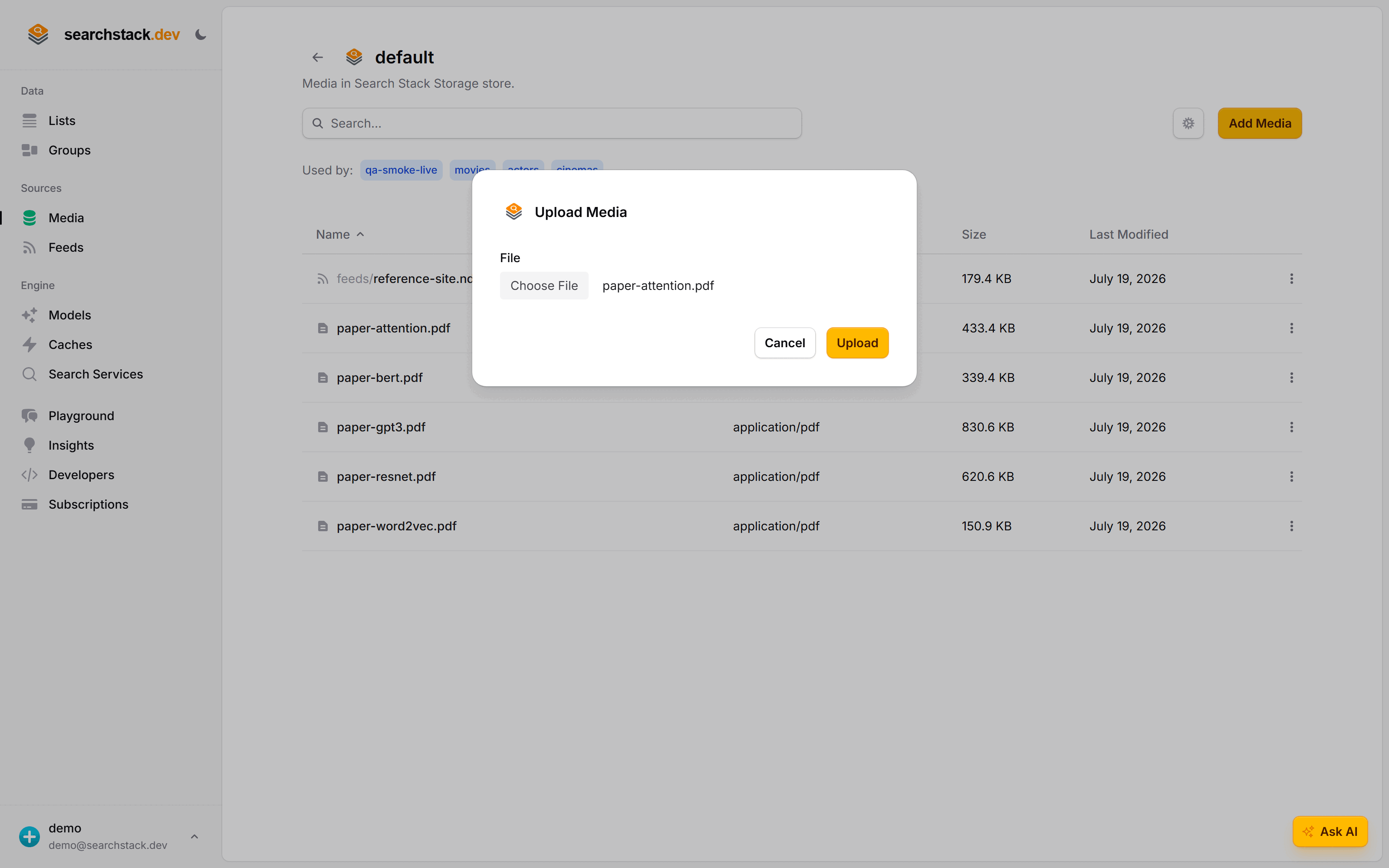
In the console open Media (under Sources), click into the default store, choose Add Media and pick a file.
Upload a handful and the store lists them — here, the five papers the finished example searches.
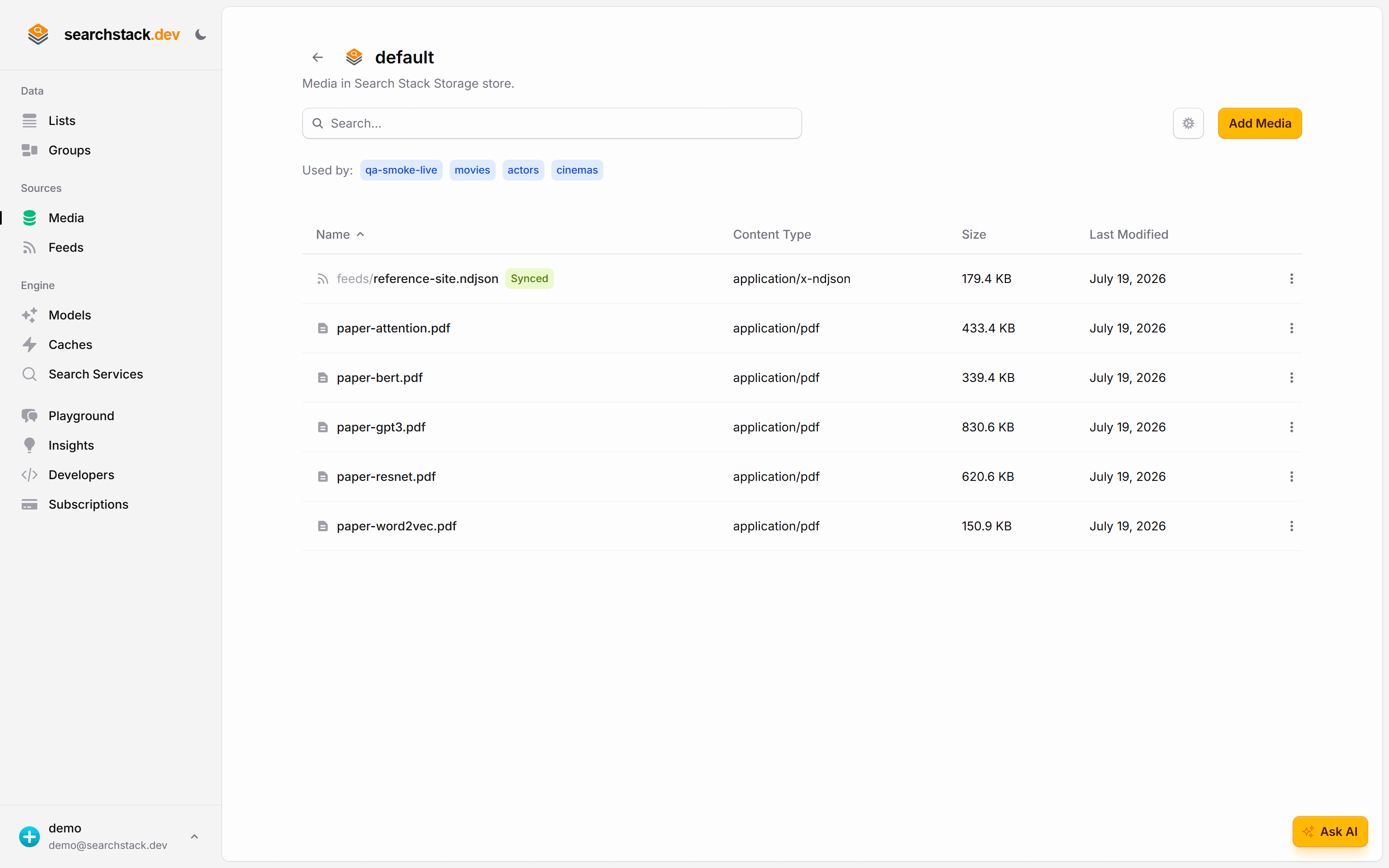
A .json or .csv in a store can be opened and fixed right in the console, and a
synced file (like a feed's) shows its sync state here too.
Go deeper: Media stores — the built-in one, and bringing your own bucket in the reference.