
Media Stores
A media store is where your files live: the images your results show, and the data files (JSON, NDJSON or delimited text such as CSV) you build a list from.
- Storage you control. The platform reads from it to fill in results and import records.
- Every account starts with the built-in Search Stack Storage store, and every new list uses it until you pick another.
- Connect your own cloud bucket (a top-level folder in a service like Amazon S3) to keep the files in your account.
- Each list’s store is a sortable column on Lists. Change it from that row’s … menu — Change Media Store, or Add Media Store where none is chosen — or from the list’s own Options menu.
Where your files live
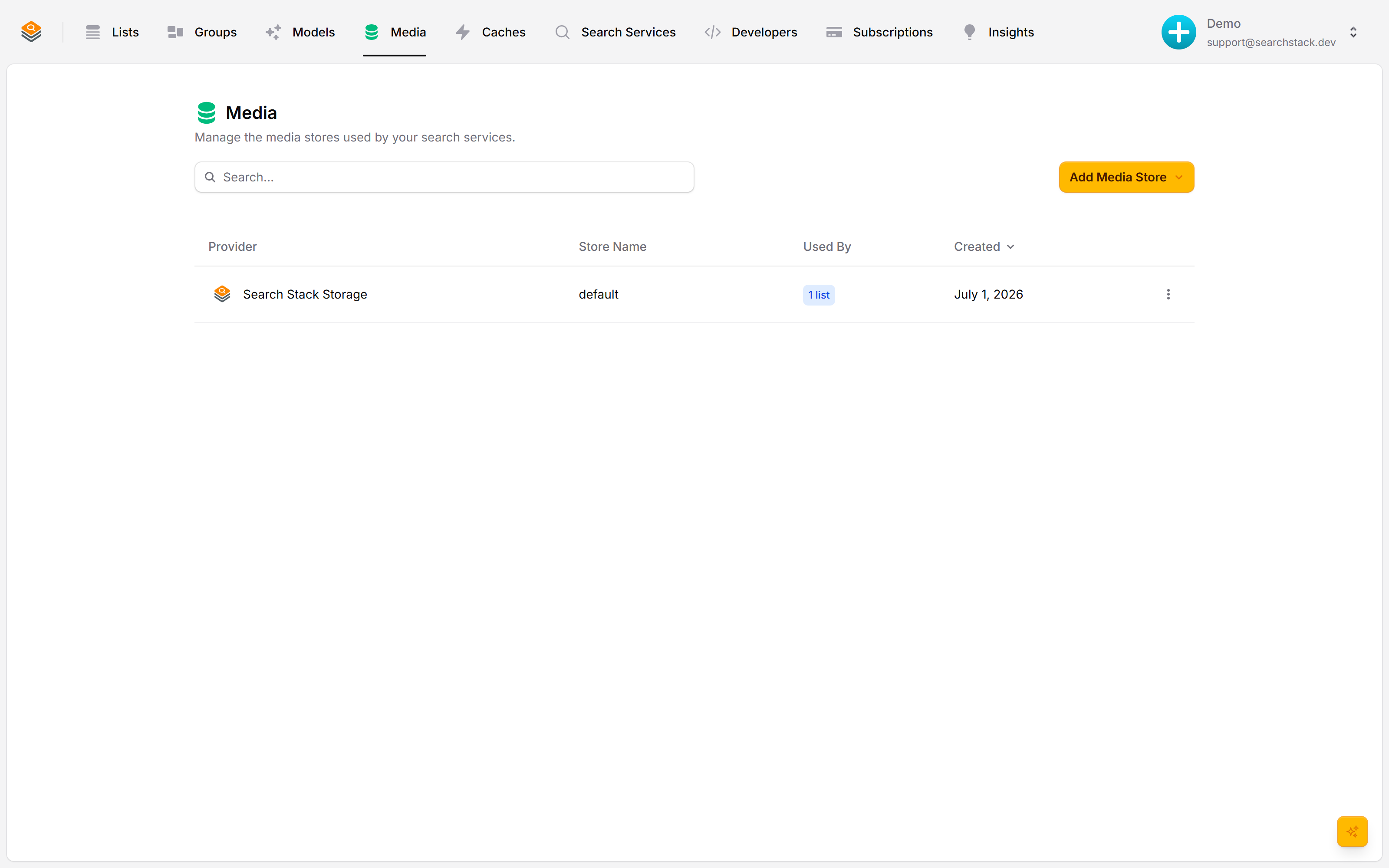
A media store is where your files live. Images and data files (JSON, CSV) sit in storage you control; the platform reads from it to fill your search results and to import records. Every account starts with a built-in Search Stack Storage store, so uploads work out of the box. Media stores live under Media.
Bring your own bucket
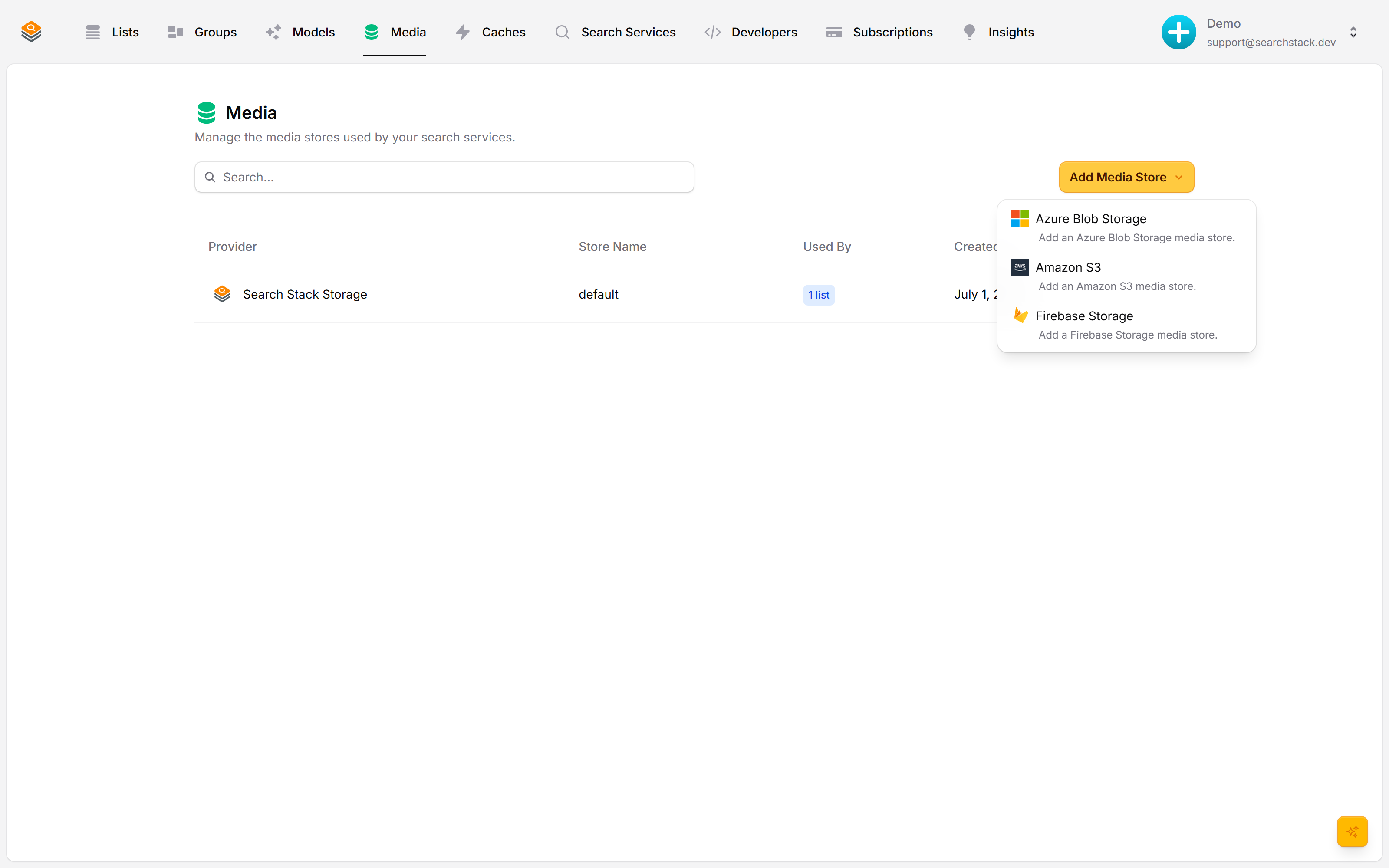
To use your own bucket instead, click Add Media Store and pick a provider — Azure Blob Storage, Amazon S3 or Firebase Storage. Your files stay in your account; the platform only reads what it needs.
Connect it, then import from a file
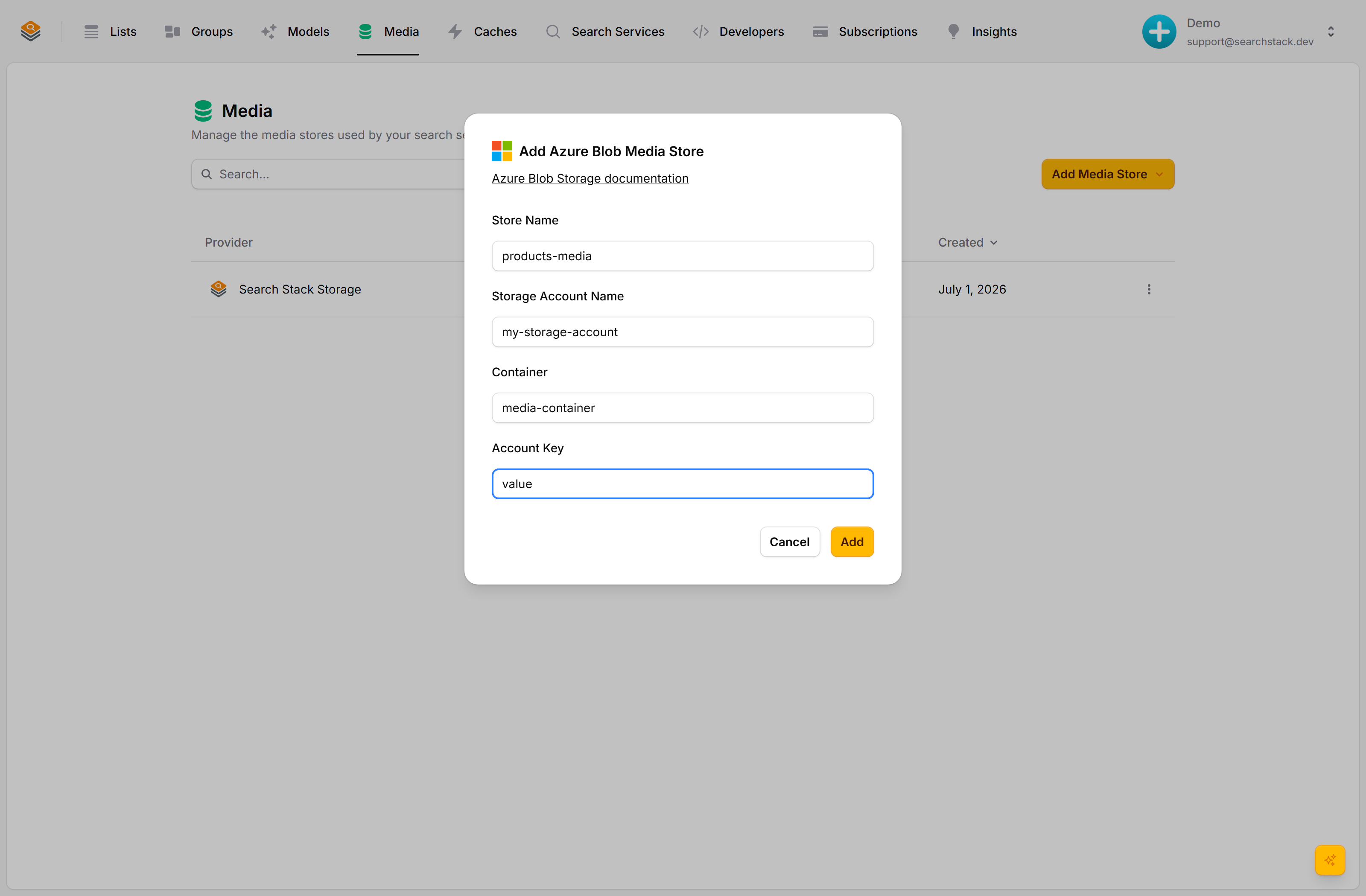
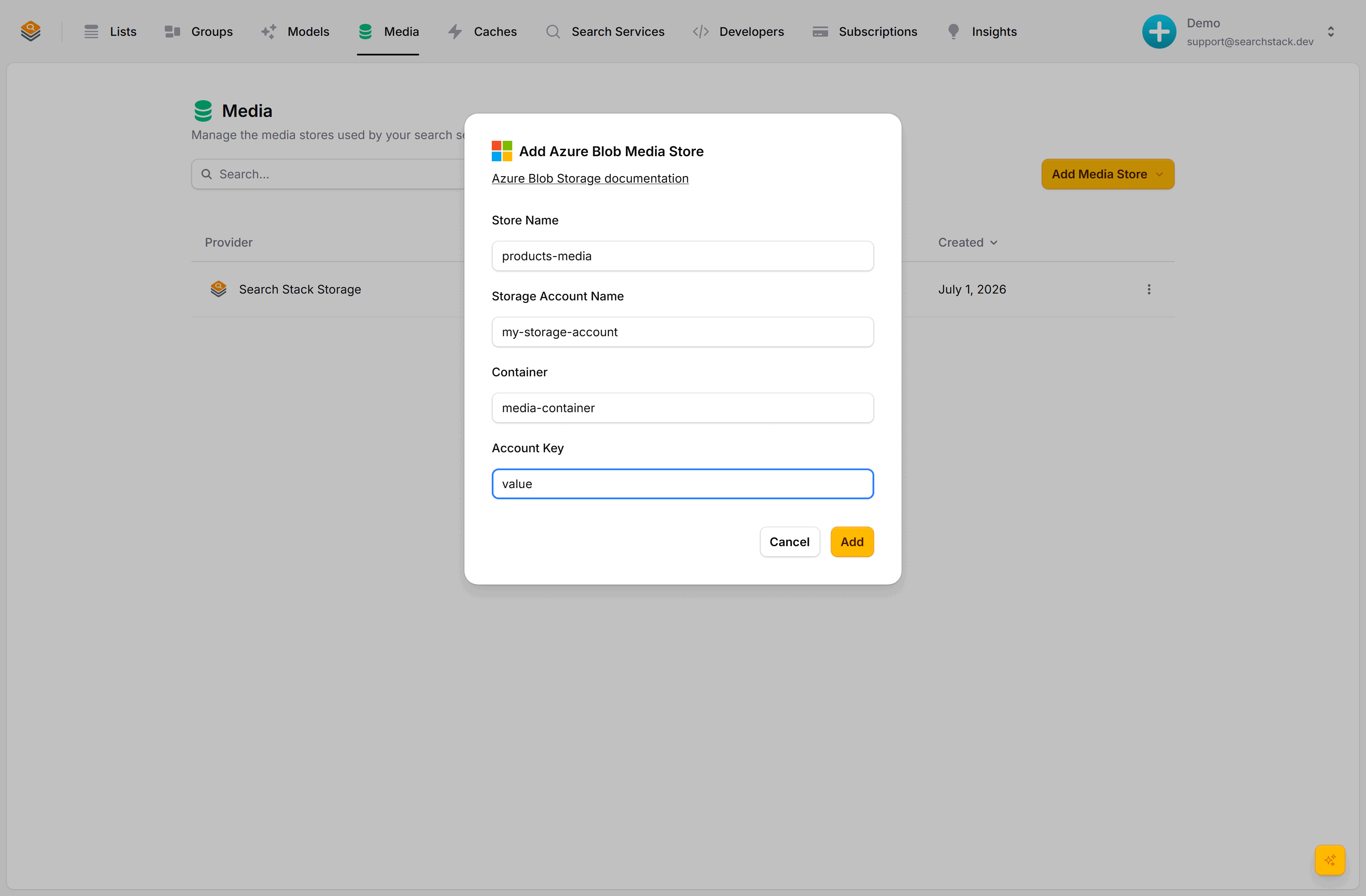
Give the store a name and its connection details. Once connected you can point a list at it, import records straight from a data file in the store, edit that file in the console, and let the list re-import automatically when the file changes — with a sync badge showing where each record came from.
Auto-plays · use Back / Next to step through at your own pace.
Connect a media store
- Go to Media. The built-in Search Stack Storage store is already there.
- Click Add Media Store and pick a provider: Azure Blob Storage, Amazon S3, Cloudflare R2 or Firebase Storage.
- Give it a name and its connection details, then click Add. Your files stay in your account; the platform reads only what it needs.
How much the built-in store holds
- 100 MB in total across every file in the account. The Storage column on Media shows how full it is (13 MB of 100 MB), amber at three quarters and red at nine tenths. An upload that would cross the line is refused; nothing is dropped to make room.
- 10 MB for a single file uploaded through the console or the API. Larger files arrive another way — a feed saving what it fetched, or you writing into your own bucket.
- No plan raises the 100 MB; connect your own bucket instead.
- Neither limit applies to your own store: not capped, not measured, so Storage shows a dash.
Uploading a large file to your own store
Add Media on the Media page sends the file straight from your browser to your bucket. It never passes through us, so there is no size limit — a multi-gigabyte file is fine.
- Folder (optional) puts the file under a prefix:
headshotsstores it asheadshots/lee.jpg, and nested paths likeimages/2026work. Storage has no real folders — the folder is the front of the name, so it appears in the listing as soon as one file uses it.feeds/is reserved for feed syncs and is refused. - The page must stay open while it runs. Another tab is fine; closing or navigating away is not. Progress reads 286.1 MB of 2.79 GB (10%). Cancel stops the transfer; nothing is written.
- The temporary upload link lasts as long as the file needs, worked out from its size. A failed upload leaves the dialog open with the reason.
- Azure Blob above 256 MB is sent in pieces — a few hundred small blocks the browser then asks Azure to join, so a dropped connection costs one block rather than the whole transfer. Nothing changes on screen. Nothing is written until every piece has arrived, so a failed upload leaves no half-written file.
- Your own bucket needs a CORS rule allowing PUT from your browser, or the upload is blocked before it starts and the dialog says so. For an Azure container, allow the
x-ms-blob-type,x-ms-blob-content-typeandcontent-typeheaders (or*) — the last piece of a large upload carriesx-ms-blob-content-type, and a rule that omits it blocks the upload at the very end.
Connect a Cloudflare R2 bucket
Cloudflare R2 connects like Amazon S3, except it identifies storage by Cloudflare Account ID instead of an AWS region — we reach your bucket at <account-id>.r2.cloudflarestorage.com. Pick Cloudflare R2 and fill in four things:
- Account ID — from the R2 overview page: 32 lowercase hex characters.
- Bucket — the R2 bucket holding your files.
- Access Key Id and Secret Access Key — the S3-style pair from an R2 API token.
- The token — R2 → Manage R2 API Tokens in the Cloudflare dashboard, with Object Read & Write on the bucket. Read-only suffices to display images and import files; console uploads need read and write. The key id and secret are shown once. See Cloudflare’s S3 API tokens guide.
- CORS — browser uploads need a rule allowing PUT, under Settings → CORS policy. Reading files and showing images need none.
- A saved store whose R2 account ID is not 32 lowercase hex characters, or whose Firebase service-account JSON has a
token_uriother thanhttps://oauth2.googleapis.com/token, fails on every read with Edit the media store to fix it.
Import records from a file
Point a list at a media store and build it from a data file there: a products.json or catalogue.csv becomes searchable records, no code required.
- Start from the file — Import into list… on the file’s own row, then pick the list (or make one). The columns are confirmed on the next screen.
- Formats — JSON, NDJSON, and delimited text (
.csv,.psv,.tsv,.tab). Commas, semicolons, pipes or tabs are worked out from the file itself. - Sync badge — each imported record remembers where it came from, so file-fed records are told apart from ones added by hand or through the API. Every list reading a file is named on its row; a file no list reads says so.
- A feed’s own file is not imported from here — open the list and choose Connect a feed.
- Convert to feed format… — rewrites a
.csv,.psv,.tsvor.tabone record per line, into a new file beside it. The original is kept. Use it when a file is too big to import as it stands: the converted one imports with no size limit. Expect it to be well over twice the size, and both count against the store. - See Imports.
Edit the file in the console, and re-import automatically
- Edit in place — any importable file (JSON, NDJSON, delimited text) up to 5 MB, including the file a feed saves for itself, so you can see what a sync fetched.
- Automatic re-import — a regular check keeps the list in step with the file. It adds and updates records; it never deletes.
- On every plan, the free one included. No idle timer, nothing to restart.
- Files you cannot edit (a picture, a PDF, an archive) are offered as a download. Images also preview, with their size in pixels; over 20 MB the preview is skipped.
Images in results
Upload a picture against a record (or store it in your bucket) and a resource field carries its URL, so results show thumbnails and posters from your own storage. For searching by an image, see Image Search.
Moving a list to a different media store
Change Media Store takes the list’s files with it. Records point at files by their path inside a store (posters/9f8a.jpg, not a full address), so files left behind would mean images that stop appearing.
- Files are copied first, and the list keeps using its current store the whole time. It reads the new store only once every file has arrived; you are told when it finishes.
- If a file cannot be copied the list stays put, still working, and you are told what failed. Re-run once fixed — files already copied are skipped.
- One move at a time. A list with no media changes store immediately.
- Moving back to the built-in store copies into its 100 MB cap, so a large list may not fit — you are told, rather than left with a broken list.
Health and Sync paused
A store of your own is checked every six hours; the dot by its name shows the last result.
- Three failed checks in a row, counted at most once an hour (about 12 hours), switch syncing off: the store shows Sync paused and the account owner is emailed.
- It stays on, recorded failing, when more than five services across SearchStack were switched off in the past hour (a later check switches it off), when the check failed on our side, or when that hourly count can’t be taken.
- Nothing is deleted, but the store’s files stop syncing into lists.
- Fix the store, then choose Resume syncing from its row’s menu, or Resume after fixing it on Account health.
Reading a stored file back
A record names a file by path, not URL — a temporary link would expire inside your records within hours, a path never does. Turn a path back into a picture with GET /media/{account}/{list}/{path}.
- Needs
search-result:read, the same permission that returned the record, so a browser-safe search key can show the image. - Limited to one list, so it cannot browse the rest of your store.
- Small files return bytes; large ones redirect to a short-lived link from your provider, which is what makes a stored video usable in a
<video>tag.
Filling your store from URLs your records already hold
Where records point at somebody else’s images, the capture gate downloads each one on the way in and rewrites the field to a path in your store.