
Turn fields into filters
Every rail down the side of the storefront is a facet: a field visitors filter by instead of searching inside.
Make each field a facet
On the products list choose Fields then Add Facet Field, and add each filter
field with the type that makes filtering behave sensibly:
- String —
brand,category,color. - Number —
price,rating. - Boolean —
in_stock.
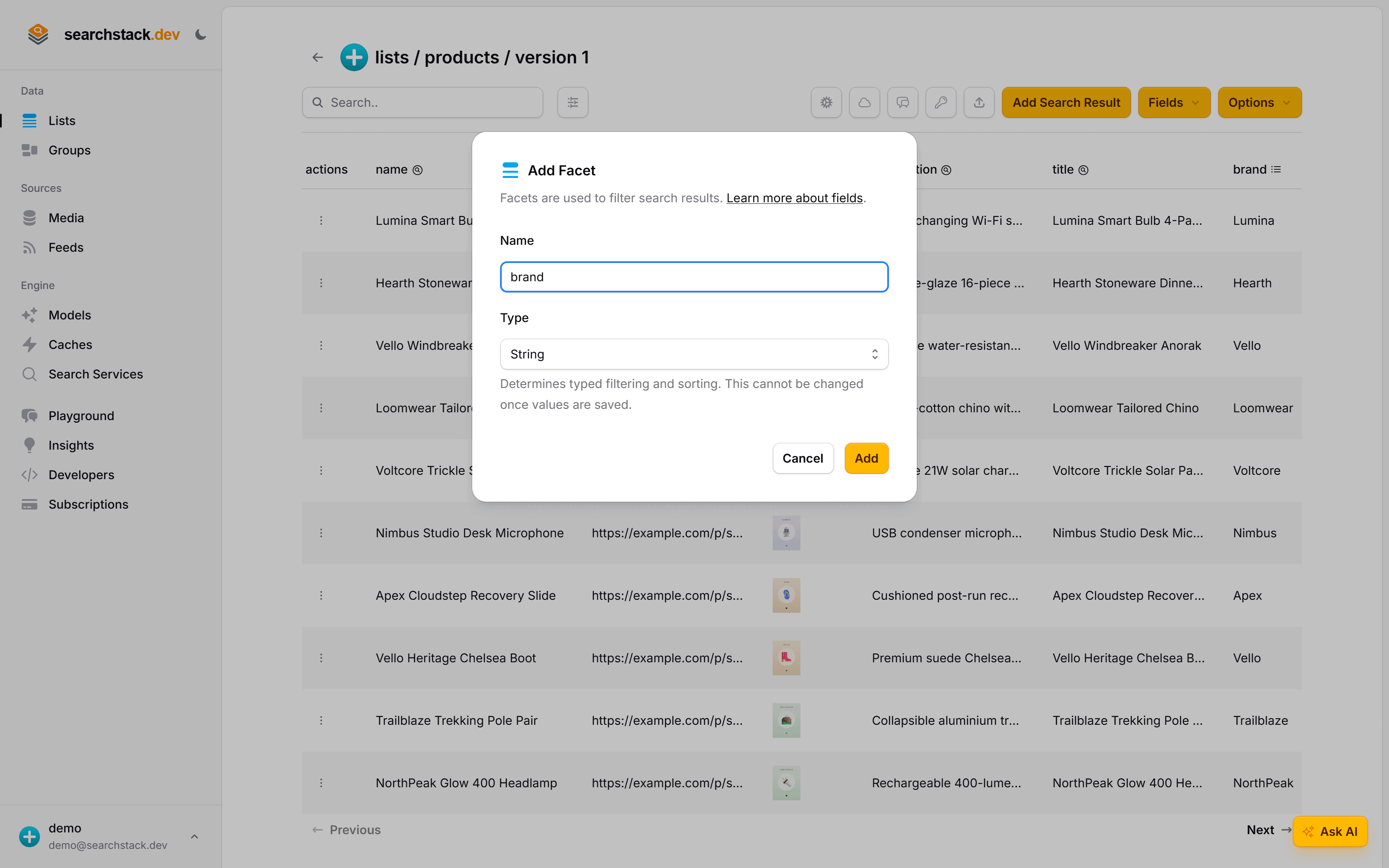
Facets your import already created are listed here too; this dialog is how you add or adjust them. The type can't be changed once values are saved — a price filtered as text would sort “$9” above “$80”.
Filter a search
With facets in place, a search takes a filter. This is “Apex gear under $150”:
GET https://api.searchstack.dev/search/Demo/products/1?query=&filter=brand eq 'Apex' and price lt 150
X-API-Key: {your key}
Text values go in quotes, numbers don't, and clauses combine with and, or and
not.
List a facet's values
To build the rails you need to know which values exist. Ask for a facet's distinct values:
GET https://api.searchstack.dev/facet/Demo/products/1/brand
X-API-Key: {your key}
["Apex", "Hearth", "Loomwear", "Lumina", "Nimbus", "NorthPeak"]Go deeper: Facet types and the full filter grammar in the reference.