
Feeds
A feed connects an outside source — your website, an API, an RSS feed, a mailbox, a folder of files — and keeps a copy of its records in your search, on a schedule. Your product API, checked every 30 minutes.
- Writes one always-current file,
feeds/<name>.sync, into a media store — feedshopwritesfeeds/shop.sync. It is NDJSON inside; the extension is ours, so nothing a feed writes can ever be mistaken for one of your own files. - Feeds made before this used
.ndjson. Any list bound to the old name moves itself to the new one the next time it syncs, and the old file is removed. Nothing to do. - Owns no list; not tied to your plan or subscription.
- Point a list at that file with keep-in-sync on and it is searchable — the same import as a file you upload yourself.
- Every provider works the same way; see Providers for each one’s own details.
A feed mirrors an external source — automatically
Connect it once and the source stays the master copy; your search follows along. Feeds live under Sources → Feeds in the console. A fresh account starts here, with nothing connected yet.
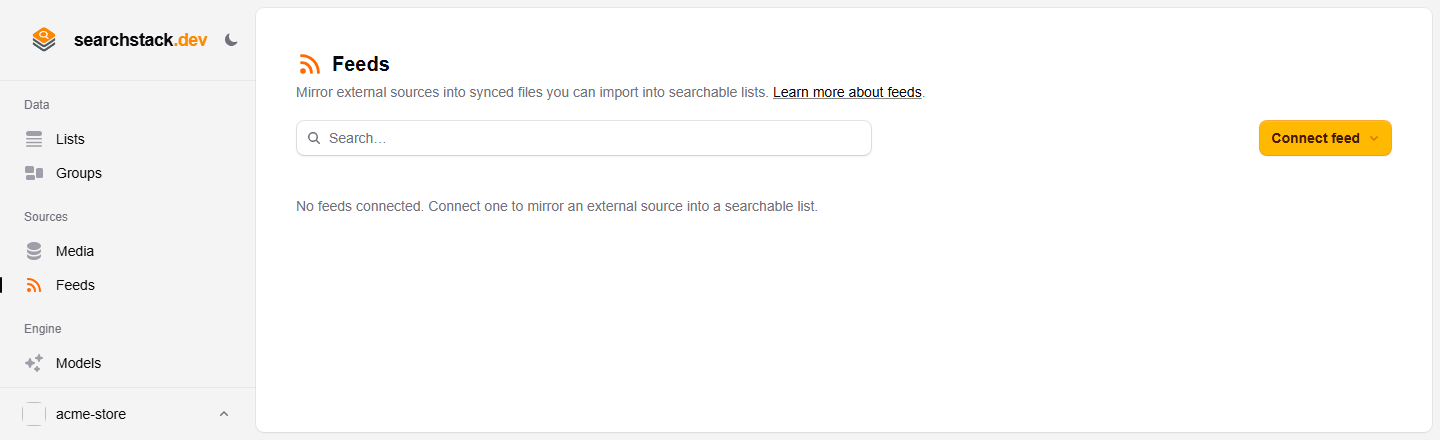
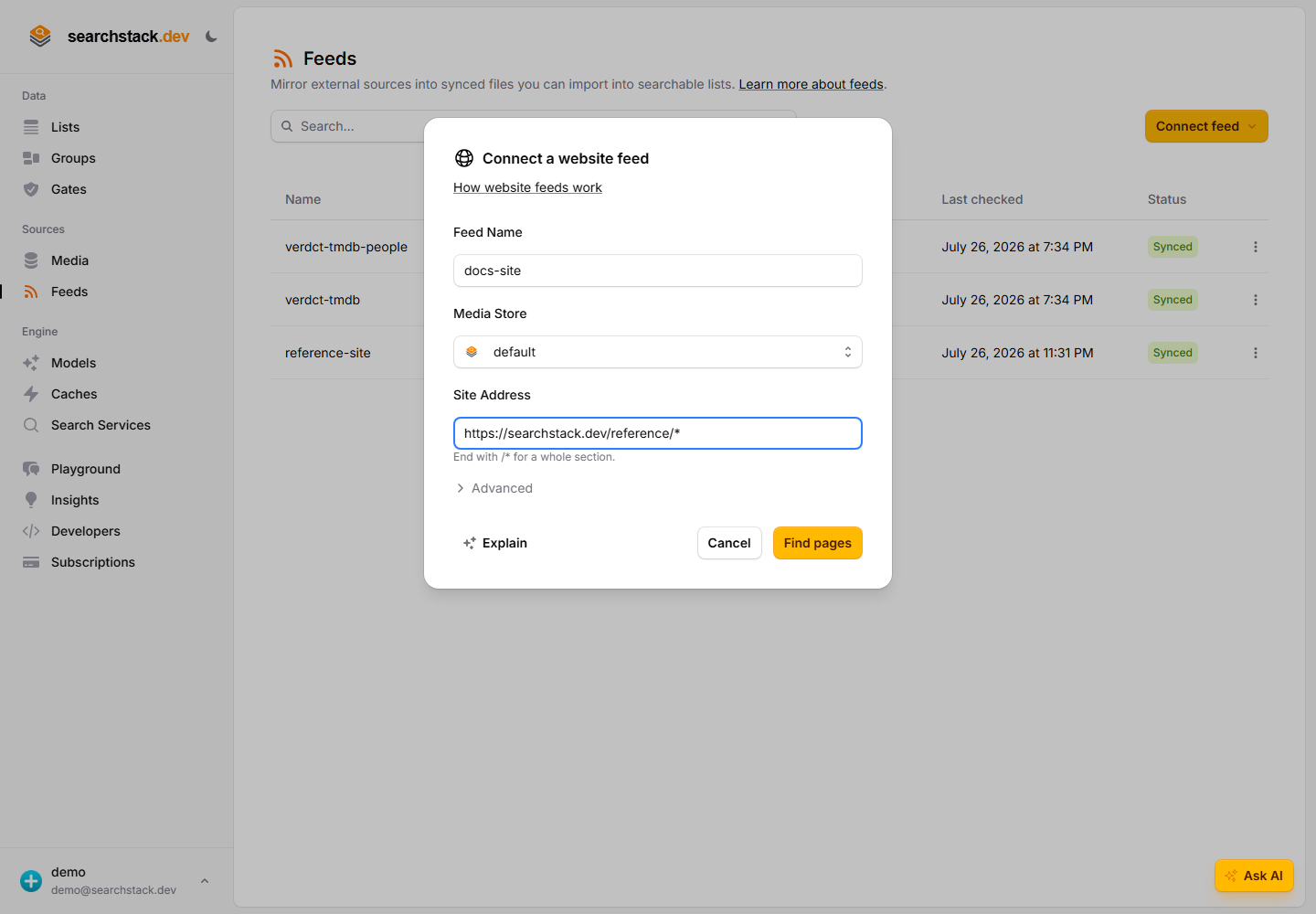
Connect a source in one dialog
Click Connect feed and choose a provider — say Website. Give the feed a name (which also names its synced file, feeds/<name>.ndjson), pick the media store it writes into, and give it the source's details — here, the part of the site to keep searchable. What those details are depends on the provider, and they are checked against the live source the moment you connect.
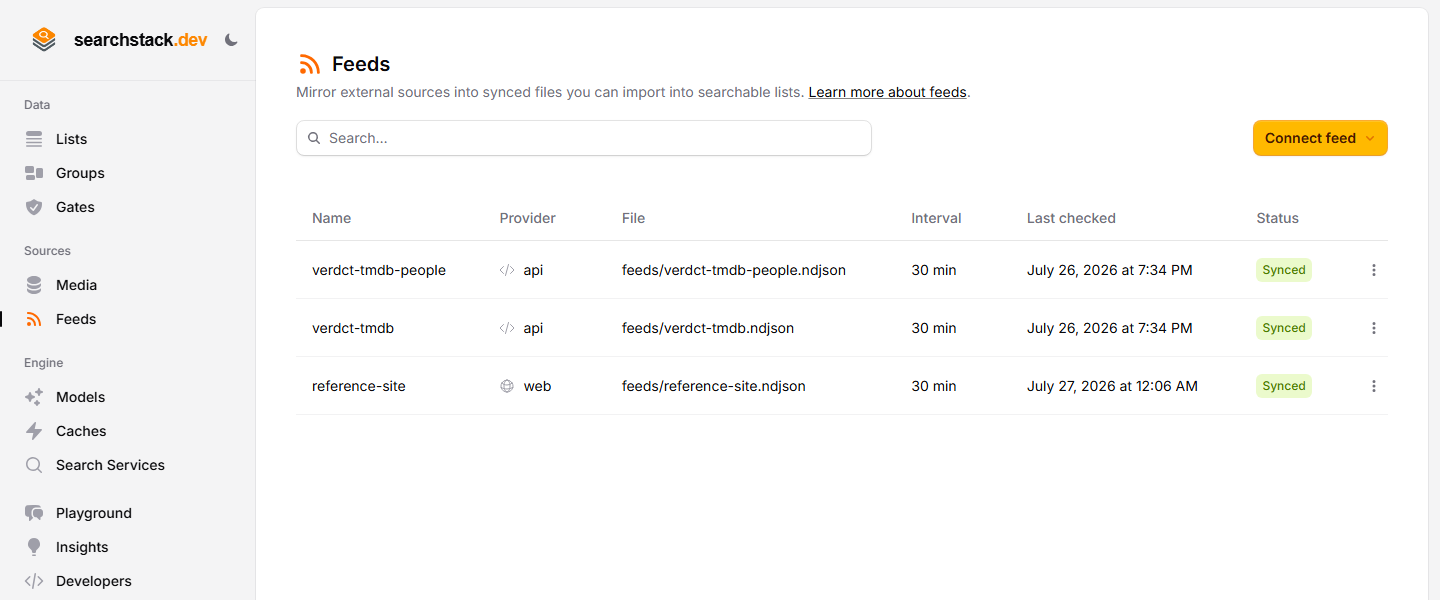
It stays in sync — then bind a list
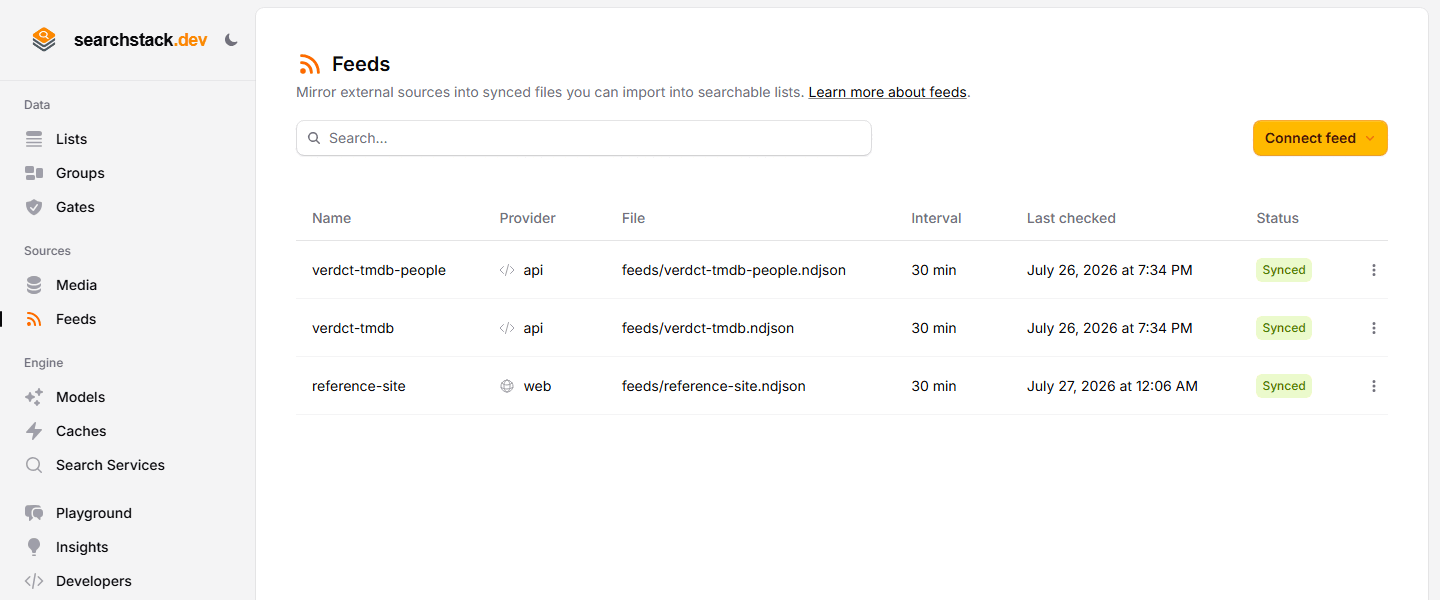
The feed keeps its file current on a schedule you set (30 minutes by default). Each row shows its provider, synced file, interval and a status badge — Synced once it has run, Waiting for first sync until then. The ⋯ menu holds Sync now, Edit interval and Delete. Point a list at the file (the normal import-from-media flow) and the records become searchable.
Auto-plays · use Back / Next to step through at your own pace.
The source stays in charge
- Records are read-only — the source decides which record is which and what fields it has.
- Renamed at the source → renamed here, not duplicated.
- Removed at the source → removed here on the next sync.
- Search and read them like any record; don’t edit by hand, the next sync overwrites it.
Connect a feed
- Feeds (under Sources in the sidebar, next to Media) → Connect feed, choose a provider.
- Name it, give the source’s details (provider-specific), and choose the media store for the synced file — your built-in store by default.
- Connect. The details are checked against the live source there and then, so a typo is caught immediately; the first sync starts right away.
Make it searchable
Open the list you want it to fill and choose Connect a feed — from its connections panel, or from its empty state. That is the whole step: there is nothing to confirm, because a feed’s data describes its own fields.
One direction, on purpose. A list chooses where its records come from; a feed does not choose which lists read it.
- You name the feed, never the file it syncs into.
- A feed that has not synced yet still connects; the list fills on its first sync.
- A list already importing from something else is refused — disconnect it first.
- The feed page’s Searchable in row names every list holding its records, and warns when none does.
- Only unbound feeds are offered. A feed already feeding a list has to be disconnected from that list first.
Afterwards, the list’s connections panel is where the connection is read, narrowed, re-run or stopped.
How often it syncs
- 30 minutes by default, never under 5 minutes; change it from Edit interval.
- Pause stops a feed polling, syncing on demand and importing pushed records; Resume restarts it. Pushed records wait and import on resume.
- Sync now fetches immediately, without waiting for the next check.
- The file is only rewritten when the source has actually changed.
- One run at a time: while it runs, Sync now is unavailable — in every browser tab, and still after a reload.
- Syncing continues whether you are signed in or not, on any plan, including free.
The Feeds page lists each feed’s provider, interval and last-checked time, with a status badge — Waiting for first sync, Syncing…, Synced or Failed. Its ⋯ menu holds Sync now, Edit interval, Pause / Resume and Delete.
When a feed can’t reach its source
- Causes: the source is down, its access token (the key that lets us read it) was cancelled, or the URL now returns a web page instead of data.
- A red Failed badge prints the reason under the last-checked time; open the feed for the full message and when it happened.
- Last checked is when we last tried, not when we last succeeded — the badge is what tells you.
- Your list keeps the last good sync’s records. The feed retries on its normal schedule and the next good check clears the error; Sync now tries immediately.
Moving a feed to another media store
The feed’s Move to another media store action changes the store you picked at connect time, without re-entering credentials.
- The feed writes into the new store and any list importing that file follows automatically. The old file is removed.
- Both then re-run: records are updated in place, not duplicated — but for a large feed this is a real import run, not an instant change of address.
- A list that can’t be moved is named on the feed page and won’t import until you run the move again; repeating a move that worked does nothing extra.
- Can’t move: a media store feed (it reads the store it writes to — use Change scope instead), an email feed (its attachments live in that store), or a feed mid-sync (wait for the run).
How large a feed can be
- 100 MB per sync, for the one file a feed collects its data into.
- Above that the sync stops rather than runs: a Feed sync failed notice names the file and its size, and the feed waits for the source to change before retrying — it won’t retry the same oversized file over and over.
- Bigger source? Split it into several feeds (by category, region or date), each linked to its own list, or to the same list to merge them.
- Importing a large file you already have has no size limit: put it in a media store in NDJSON (one JSON object per line) and link a list to it directly — see Media Stores. That path reads the file a little at a time, so a multi-gigabyte file works. Only the feed sync step has the 100 MB limit.
When your store is full
- The feed can no longer save its file, and every list importing it stops updating. The feed’s page offers to move it to your other media store in one press, or to add a store first if you have none.
- The platform default store is capped at 100 MB — enough for every feature to work on a free account, not for a feed you rely on.
Manage feeds from the API
An API key — or an agent through the MCP tools — manages feeds with the feed:* permissions on the data-plane API. Shapes are in the API reference.
GET /feed/{account},GET /feed/{account}/{feed}— list feeds, or read one with its current (non-secret) settings.POST /feed/{account}/{feed}/sync,PUT …/interval,PUT …/web-scope— sync now, or change how often it syncs / which pages a website feed reads.PUT /feed/{account}/{feed}/pausedwith{ "paused": true }orfalse— pause or resume.PUT /feed/{account}/{feed}/expirywith{ "expires_utc": "2026-10-03T12:00:00Z" }— the feed deletes itself then (5 minutes to 10 years ahead);nullclears it. Also accepted on connect.POST /feed/{account}/web/discover— preview the pages a proposed website scope would read.POST /feed/{account}/connect— connect aweb,api,rssoremailfeed: the “make a website searchable” building block for an agent. Also amedia-storefeed over one folder (media_prefix, required) of a store; the key needsmedia-store:edittoo, and cannot index a whole store or a data file.DELETE /feed/{account}/{feed}— delete a feed. Needsfeed:delete(included in full access).POST /list/{account}/{list}/feed— the step that makes a feed searchable, naming the feed. Everything afterwards is the list’s own/sourcecalls: read it, change it, stop it, re-run it.- Both SDKs expose these as
client.Feeds.…andclient.Lists.…. - Console-only: any provider carrying a secret — a pasted secret is never sent in an API-key call.
Deleting a feed
Deleting removes the feed and its synced file, and only those. A list linked to that file keeps every record it has and stops receiving updates. Delete the list separately if you no longer want them.
Providers
Each provider’s guide covers only its own credentials and record fields. More are on the way.
- Website — your own site or documentation, from a single web address. No credentials, nothing to install.
- RSS / Atom — any RSS or Atom URL: blogs, news, podcasts, release notes. No credentials; each item becomes a record.
- API endpoint — records pulled from your own JSON, NDJSON or CSV URL on a schedule. An optional auth header; no integration to build.
- Email — mail forwarded to an address we give you. No mailbox credential; stop forwarding whenever you like.
- Media store — files already in one of your own stores: a folder of PDFs and images, or one spreadsheet or JSON file read a row at a time.