
Shopify Feed
The Shopify feed mirrors your store’s products into your search, automatically. Connect it once and every active product becomes a searchable record that stays in step with your store — new products appear, edits update in place, removed products drop out — with no export, no upload, and no code.
This page covers what’s specific to Shopify: the one-time credential setup and the fields each product record gets. For how feeds work in general — syncing, binding a list, deleting — see the Feeds reference.
Connect your store
- Go to Feeds (under Sources in the sidebar), click Connect feed and choose Shopify.
- Give the feed a name, and enter your shop domain plus the Client ID and Client Secret of your own Shopify app — the step-by-step guide below shows exactly where these come from (about two minutes, one-time). Choose which media store the synced file should live in (your built-in store by default).
- Click Connect. The details are checked against your live shop there and then, so a typo is caught immediately rather than failing quietly later, and the first sync starts right away.
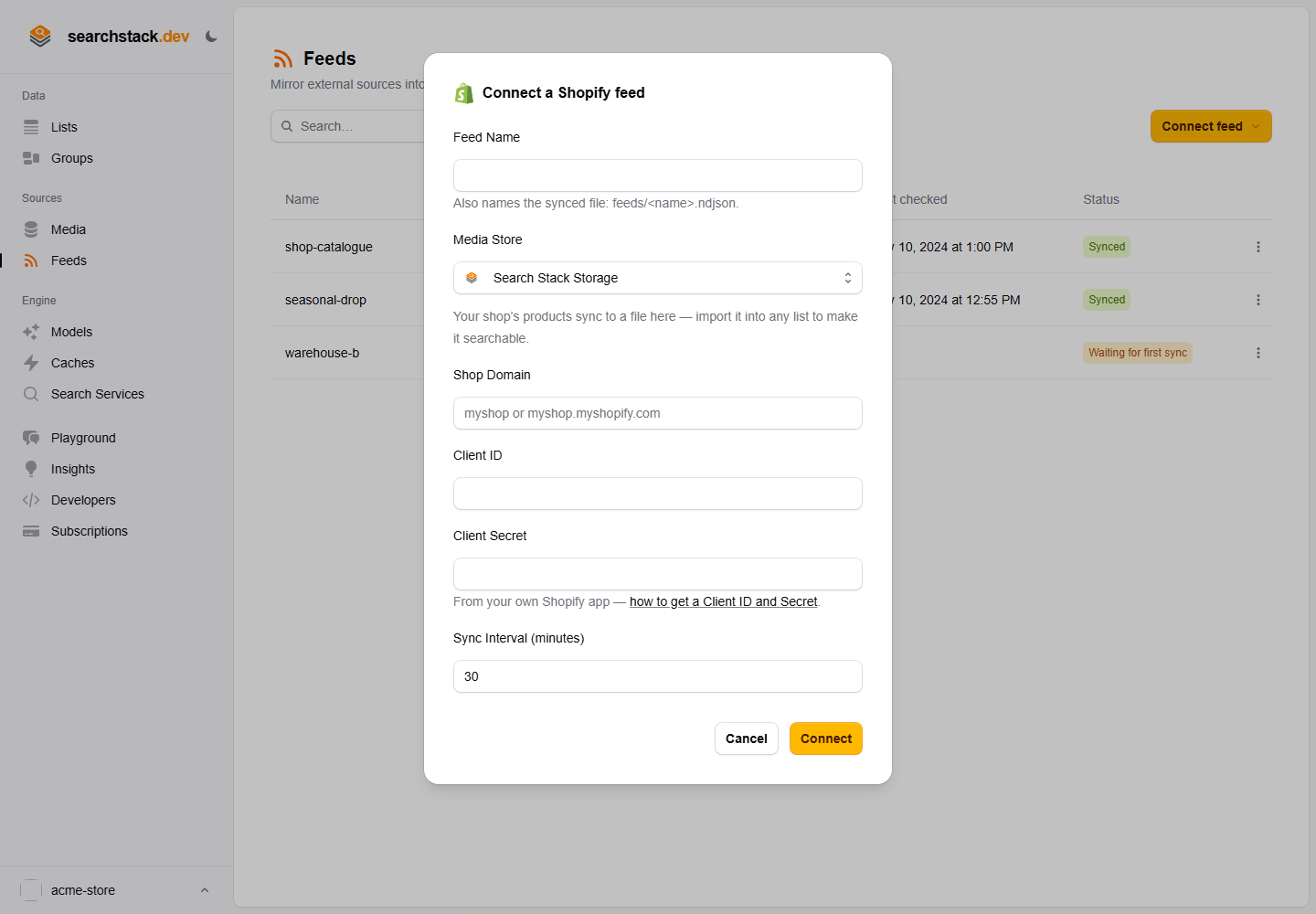
From here the feed keeps feeds/<name>.ndjson up to date in your media store; point a list at that file with keep-in-sync switched on and your products are searchable — the Feeds page walks through that step.
Getting your Shopify Client ID and Secret
Your products are read using a small app of your own inside your Shopify account. You create it once, in about two minutes; it can only read products, nothing else, and you can remove it at any time. You never create or copy an access token — the feed takes care of that from the two values below.
- Go to dev.shopify.com/dashboard and sign in with the account that owns your shop.
- Choose Apps → Create app. Name it anything you like —
searchstack-feedworks. - On the new version form, find API access → Scopes and enter
read_products. Leave everything else as it is. - Click Release. Your app is now active — but not yet connected to your shop.
- Back on the app’s Overview page, click Install app, pick your shop, and approve. The approval screen will say the app can view your products — that’s the read-only access the feed uses.
- Open the app’s Settings page. Under Credentials, copy the Client ID, then reveal and copy the Secret.
- Paste both into the Connect feed dialog, and you’re done.
Two things people trip over: the scopes belong to the released version — if you edit them later, click Release again; and the app must be installed on your shop — if you skip step 5 (or uninstall later), the feed will tell you exactly that when it tries to sync. Nothing else in your Shopify account is touched.
What ends up in each record
Every active product becomes one searchable record. The feed describes its own fields, so these are created for you with sensible roles — nothing to map:
| Field | What it holds |
|---|---|
name, description | Product title and its description (tags stripped), used for matching and ranking. |
vendor, product_type, tags | Brand, type and tags — handy as filters. |
price_min, price_max, currency | The product’s price range across its variants. |
on_sale, compare_at_price_max | Whether any variant is discounted, and its highest “was” price. Always included — no extra access needed. |
image_url, url, handle | The product’s first image, its storefront link and handle. |
shopify_id, updated_at | The Shopify product id and when it last changed. |
Optional: stock levels and best-sellers
By default the feed reads products only. Grant your app one or two more read-only scopes and each record automatically gains extra fields — there’s nothing to switch on here, and stores that don’t grant them are entirely unaffected. The feed simply notices what your app is allowed to read and includes the matching fields.
| Add this scope | Fields you get | Questions it answers |
|---|---|---|
read_inventory | total_inventory, in_stock | “How many are left?” · “Show only what’s in stock.” |
read_orders | units_sold_60d | “What’s selling best?” (units sold in the last 60 days) |
To add one, open your app’s version, put read_inventory and/or read_orders alongside read_products in Scopes, click Release, and re-approve the install when Shopify asks. The new fields appear on the next sync — existing records simply gain them, so there’s no re-import.
A note on freshness: syncing is periodic (as often as every 5 minutes), so stock counts are close to current rather than to-the-second — ideal for “in stock” and “running low”, not a substitute for the checkout’s live count.
A worked example
Say you run a Shopify store and want your catalogue searchable. You connect a Shopify feed, which mirrors your products into feeds/shop.ndjson in your built-in media store. You create a products list, import from that file, and turn on keep-in-sync. From now on, when you add or edit a product in Shopify, the feed refreshes the file and your products search updates itself — new products appear, edits update in place, removed products drop out — with no export, no upload, and no code.