
Website Feed
Keeps the pages of your own site — documentation, a help centre, a knowledge base — searchable, from one web address.
- Reads the pages under that address and turns them into records.
- No export, no upload, no code, and nothing to install on your site.
- Syncing, linking a list and deleting: see Feeds.
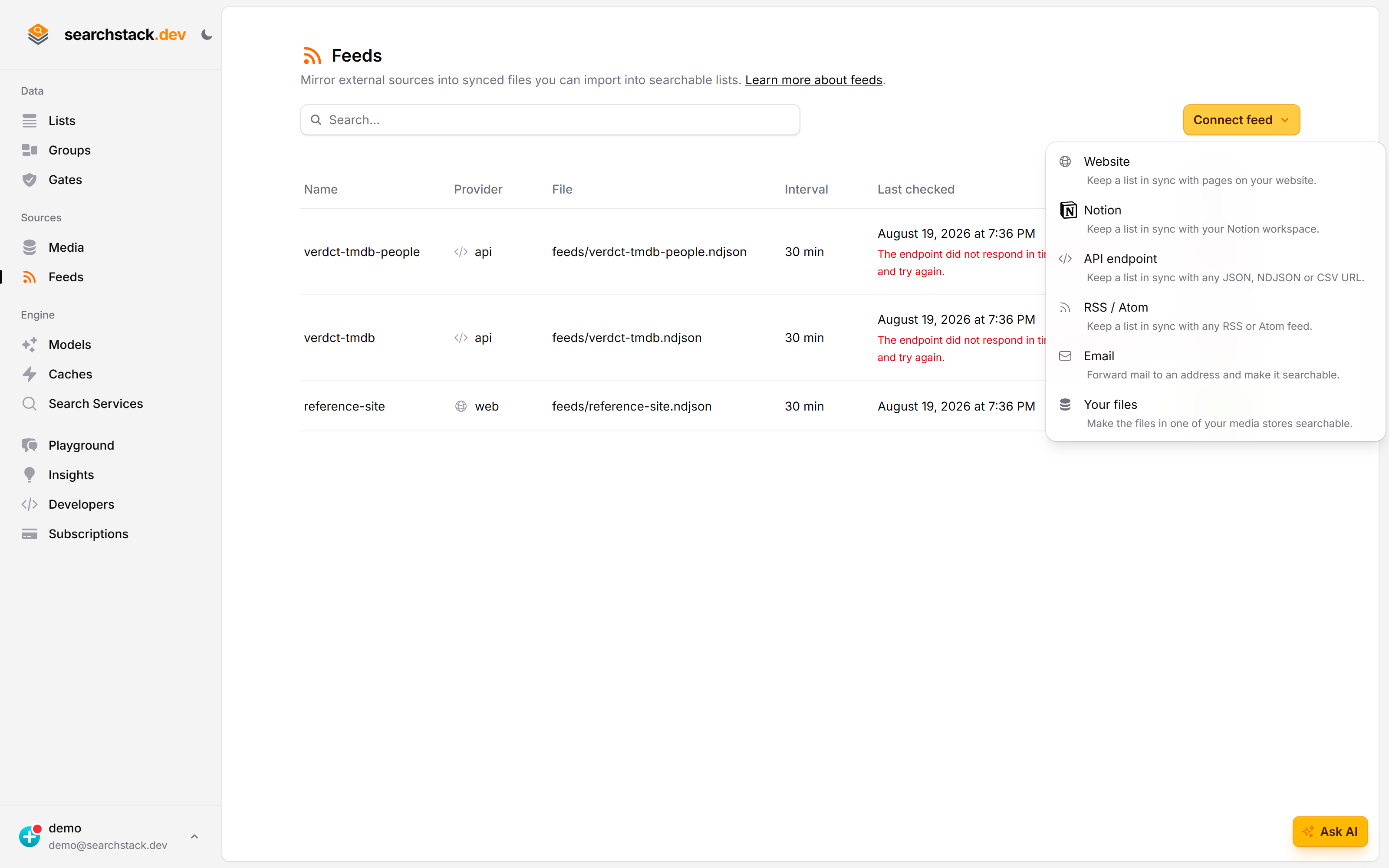
Feeds → Connect feed → Website
Every kind of feed starts in the same place, and the menu says in one line what each one is for. Website keeps a list in sync with pages on your own site.
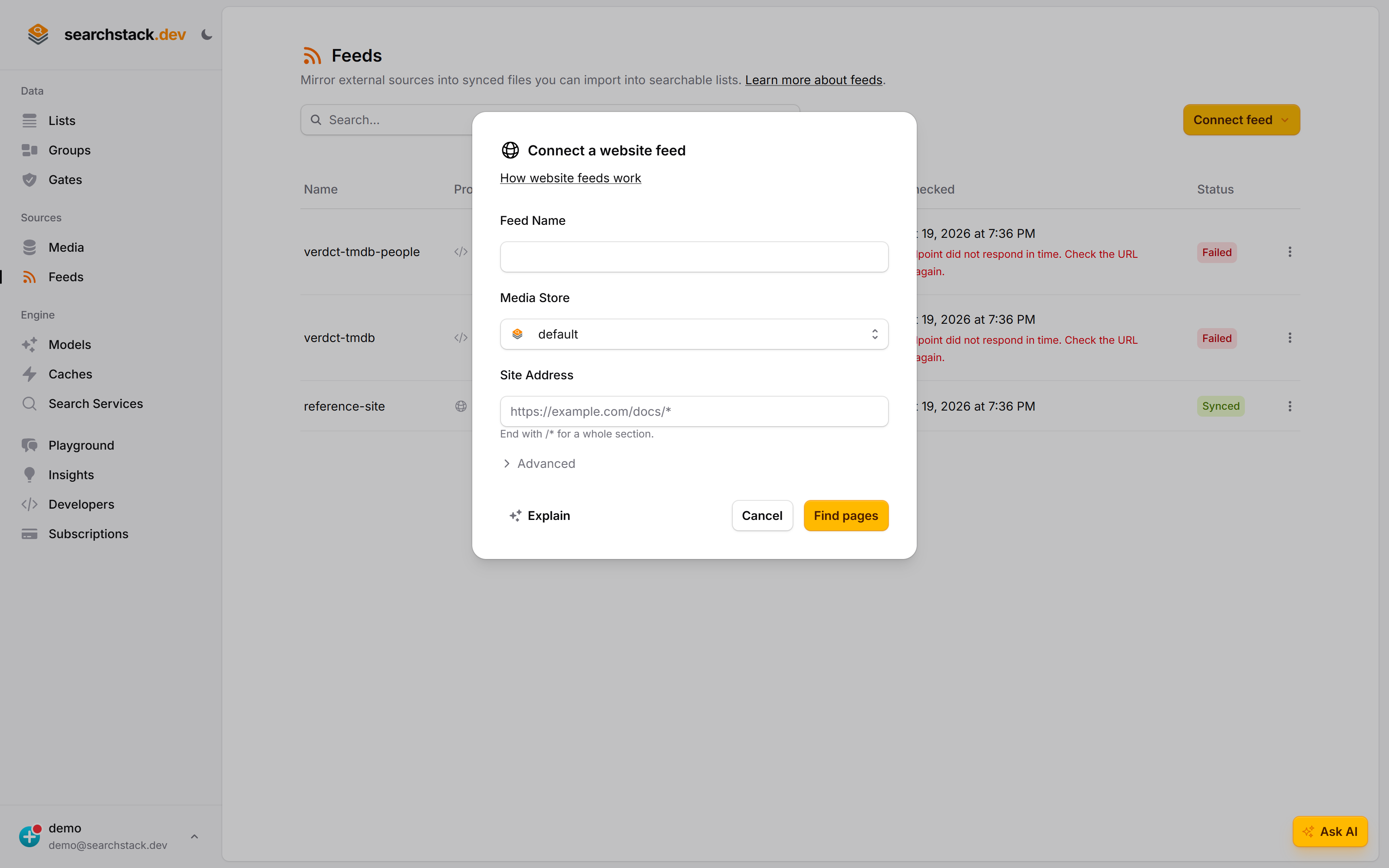
A name and an address is the whole setup
Give the feed a name, choose which media store holds the synced file, and give the site address — ending it with /* to take a whole section rather than one page. The button says Find pages rather than “Connect”, because the next thing it does is go and look, and show you what it found before anything is saved.
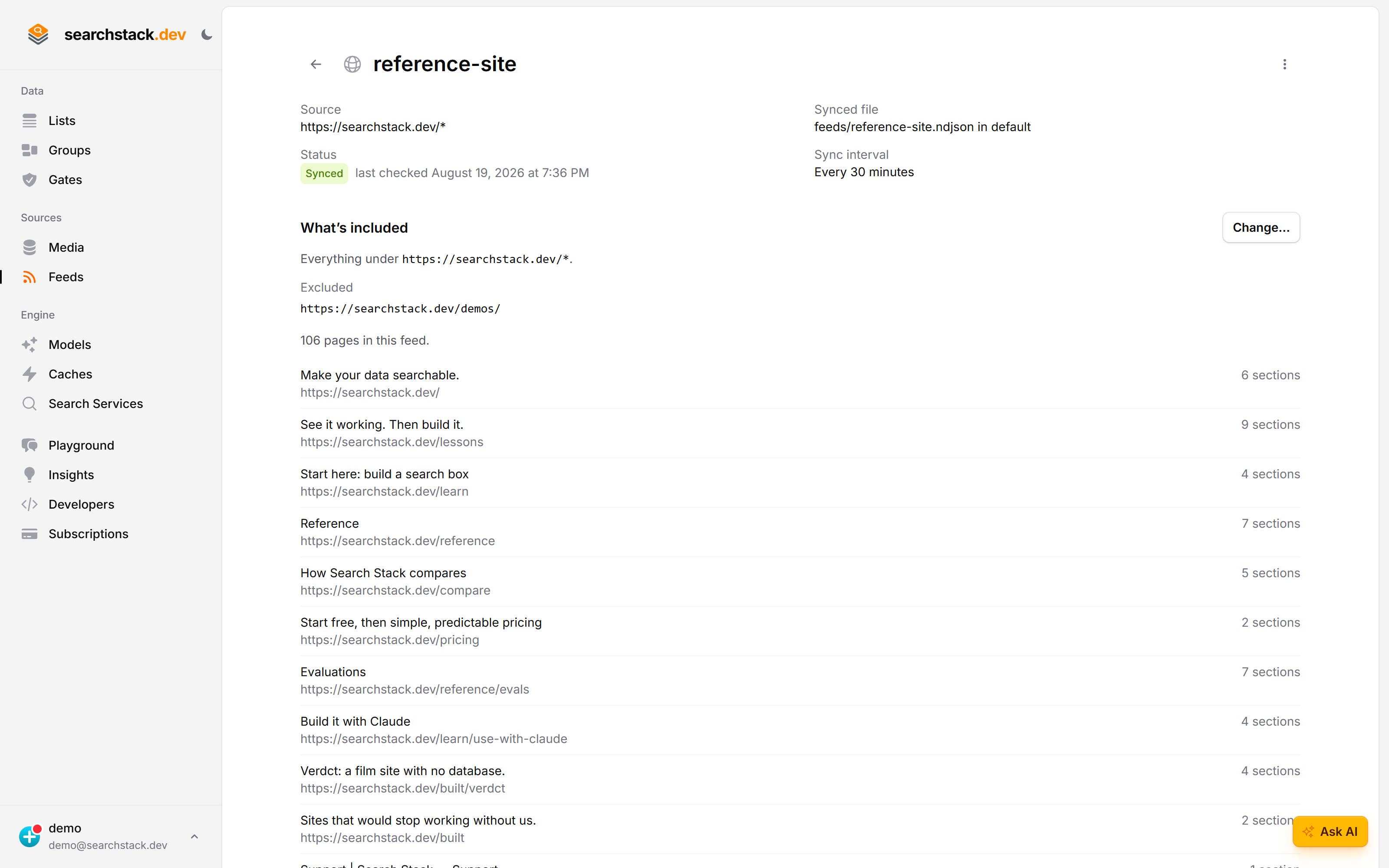
Afterwards it is a row that reports on itself
A connected feed shows what it is mirroring, the file it writes, how often it checks and when it last did. This one is Synced; the two above it are Failed, with the reason spelt out rather than a status code.
Connect a website
- Feeds (under Sources) → Connect feed → Website.
- Name the feed, choose the media store the synced file lives in (your built-in store by default), and enter the site address.
- Find pages. A quick read of your site shows the pages it found, all ticked. Untick anything you don’t want, add any it missed, then Connect.
The feed keeps feeds/<name>.sync up to date in your media store; point a list at that file with keep-in-sync on and your pages are searchable.
The site address
One rule: everything that starts with what you type is included.
| You enter | What’s included |
|---|---|
https://example.com/docs/* | Every page under /docs/, at any depth. |
https://example.com/* | Your whole site. |
https://example.com/pricing | Just that one page (no * means exactly that address). |
- The
*goes on the end, right after a/, and means “everything below here”. There are no other special characters. - The address must be a full one starting with
https://, on a normal public domain.
Choosing which pages to include
Find pages reads your site the way a visitor would, following your links, and shows what it found. It works in rules, not a fixed set: pages added under your address later are picked up on their own.
- Untick a page you don’t want and it’s left out.
- Add a page the feed didn’t find: only pages a visitor can reach by following links turn up on their own. It reads the page you add and follows its links, so an unlinked section comes along with its starting page.
- It reads what you point it at, even pages
robots.txtblocks: a rule written to keep search engines out shouldn’t hide your own content from your own search. To honourrobots.txtinstead, setrespect_robots: true(API). It identifies itself asSearchStackBotand reads slowly enough not to load your site. - The connect-time review reads only a first batch of pages so it stays quick. On a large site it says so, and the full read happens on the first sync.
Linked documents
Tick Include linked documents (API: include_documents: true) to also index the PDF, Word, Excel and text files your pages link to. Off by default.
- Reads
.pdf,.docx,.xlsx,.txtand.mdlinks (or links that answer with those types), even outside the address —/docs/pages linking/files/report.pdfcount — and even on another site, such as the file host your CMS keeps uploads on. - Word keeps its headings, tables and footnotes. Excel is read sheet by sheet, one line per row, with each cell’s value, never its formula. Older
.docand.xlslinks are not read. - Only documents linked from included pages; unticked pages still apply, and so does
robots.txtwhenrespect_robotsis on. - Up to 200 documents per sync, 20 MB each, every page of the document.
- Each document becomes records like a page:
nameis the file name,urllinks the document, long ones split into(cont. 2)parts. - Text past 2,048,000 characters in one document is not indexed; the feed’s warning names the document.
- A scanned PDF has no text to read; the feed’s warning names it and it is not indexed.
What ends up in each record
Each section of a page becomes one record, split on the page’s headings. The feed describes its own fields, so these are created for you:
| Field | What it holds |
|---|---|
name | The page’s title plus the section’s heading — e.g. “Getting started — Installation”. |
content | The section’s text, with navigation, header and footer removed — used to find and order results. Code samples, pictures and data tables are kept as markdown, so rich answers can show them. |
url | A link straight to that section, so a result opens exactly where the answer is. |
page | The page the section came from — handy as a filter to group a page’s sections together. |
- A long section is split into parts named
(cont. 2)and so on. Past about 80,000 characters in one section the rest is not indexed, and the feed’s warning names the page.
Syncing runs on a schedule (as often as every 5 minutes, 30 by default), so a just-published page becomes searchable on the next sync rather than the instant it goes live.