
Media Store Feed
Point it at a media store — or one folder in it — and every PDF and picture in there becomes a record you and your agents can search.
- The files stay where they are — nothing to export or upload again, and no copy of your data anywhere new.
- No URL, no token, nothing to authorise — it reads the store you already connected, with the credentials you already gave it.
- Syncing, linking a list and deleting work as for any feed — see Feeds.
Feeds → Connect feed → Your files
Every kind of feed starts in the same place, and the menu says in one line what each one is for. Your files makes the files already sitting in one of your media stores searchable — nothing has to be moved or re-uploaded.
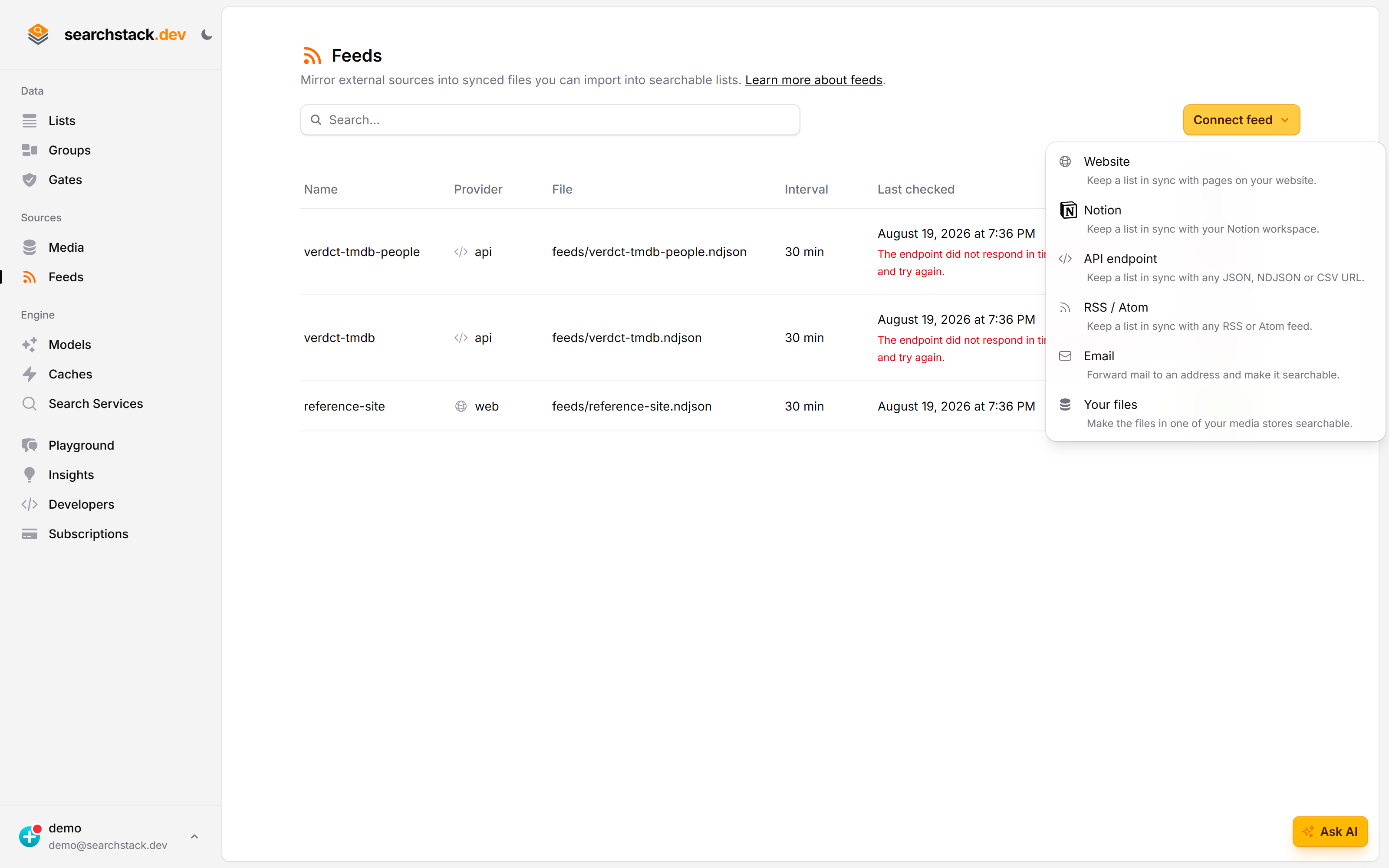
Pick a folder and what counts as a file
Choose the store, optionally narrow to a folder (sub-folders come with it), and say which files to include — documents and images, with the formats named rather than left to be discovered. As with the website feed the button is Find files: it goes and looks, and shows you what it found before the feed is created.
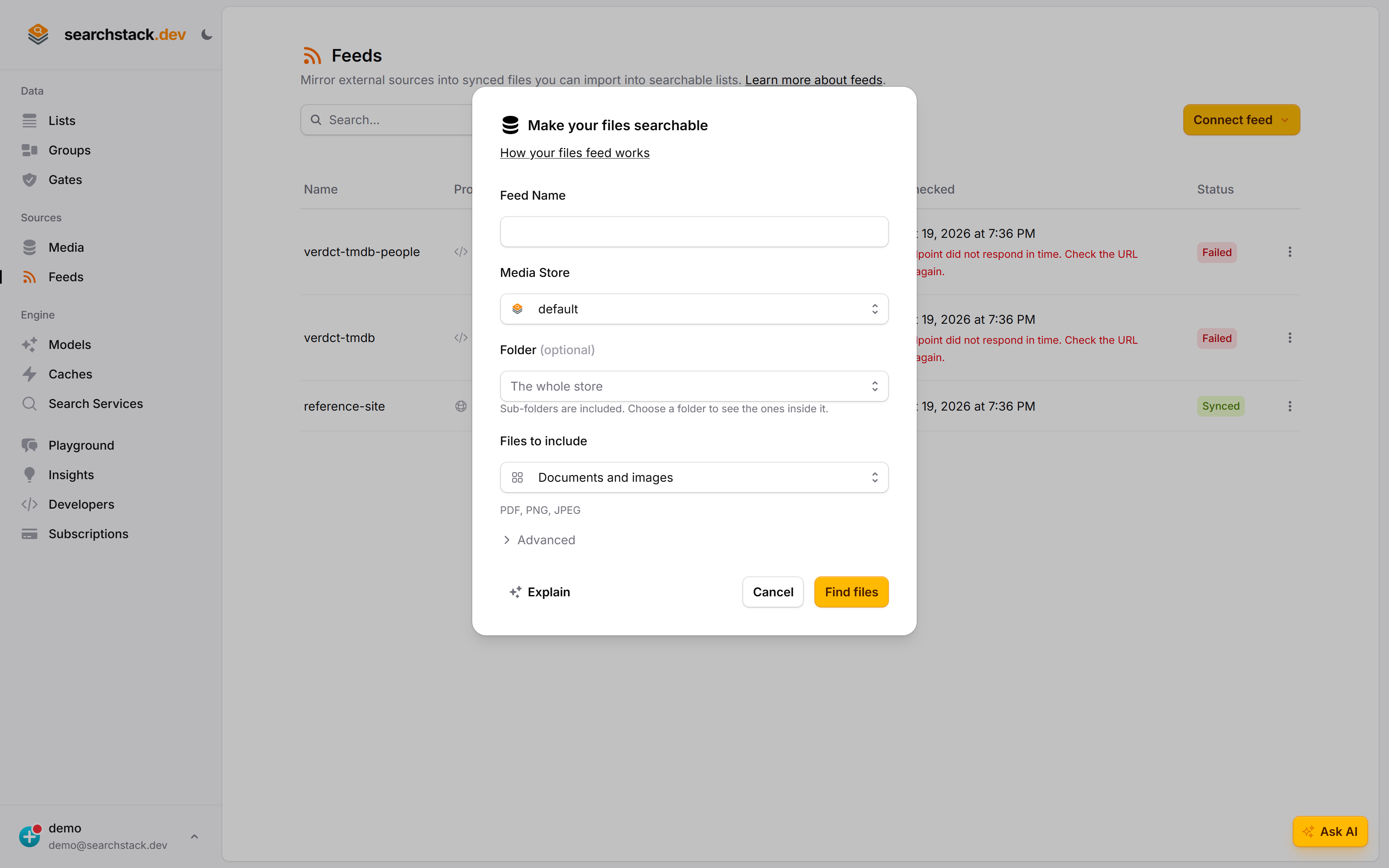
Make your files searchable
- Feeds (under Sources) → Connect feed → Media store.
- Name it and pick the media store holding your files.
- Optionally a folder — everything in it, sub-folders included. The picker lists the folders actually in the store and drills into them, so there is no path to type. The whole store includes everything.
- Find files lists what is in there. Everything is ticked; untick anything you don’t want, and new files added later are included automatically. Long folders show the first 100 — search by name to reach the rest, and anything you unticked stays unticked under Also left out. Up to 50 files can be left out.
- Connect. We look in the folder there and then, so a wrong or empty folder is caught immediately, and the first sync starts.
One store does everything
- A single media store: it reads your files from it and writes its own synced file (
feeds/<name>.sync) back into it. There is no second store to choose. - The list you import into must use that same store. A record points at its file by path within the store —
handbooks/policy.pdf, not a web address — and we take the store from the list. Point it elsewhere and the records import but the files can never be found. - Import the feed’s file the normal way and the list uses the store the file came from.
- Paths, not web addresses, keep the feed working: a private bucket is only readable through a temporary link, which would expire inside your records within hours. A path never does.
What we can read
- Documents —
.pdf,.html,.htm,.docx,.xlsx. We read the words inside, so a search matches what a page says, not just its file name. A saved web page loses its nav and footer. - Word keeps its headings, tables and footnotes. Excel is read sheet by sheet, one line per row, with each cell’s value, never its formula.
- Text and mail —
.txt,.md,.eml,.msg. An email leads with its subject and sender. An Outlook.msgalso reads its attachments when they are a type listed here. - Images —
.png,.jpg,.jpeg. Searched by what they show, using your list’s AI model; a text-only model cannot look at a picture. See Image Search. - Everything else — older
.docand.xlsfiles, PowerPoint, videos, zip archives — is skipped. - A file we cannot read is still indexed by its name and path, never dropped. The feed’s warning names it — including a scanned PDF, which has no text to read (there is no OCR), and a password-protected Word or Excel file.
A long file is split rather than truncated, however long it is: a 300-page PDF becomes several records, the later ones named handbook.pdf (cont. 2). Nothing is ever quietly clipped — a file too big to carry whole (over 16 million characters, thousands of pages) fails the sync and names itself, leaving the last complete version in place.
A whole mail archive (.mbox) has its own door: the email feed’s backfill reads one straight from this store, counts it first so you see the size, and keys every message by its own id — so history and forwarded mail collapse instead of doubling.
Or read one file’s rows
A spreadsheet or JSON file is not one record about a file. It is many records, one per row — so it makes a different feed, and you choose it in the same place.
- Connect the feed as usual. At the review step, under the files, tick a file in Or read one file’s rows. Supported:
.json,.csv,.psv,.tsv,.tab(gzipped or not). - The choice is exclusive: the files above are no longer indexed, because a feed is one shape or the other. Untick it to go back.
- Every sync re-reads the whole file, so rows added, changed and removed at the source all follow.
- The file stays yours — the feed reads it where it is, and writes nothing over it.
What a record looks like
One file becomes one record — or several, if it is long enough to be split:
- Name — the file’s own name, e.g.
policy.pdf. - file — where the file lives in the store; this is what lets a result open the real thing.
- path — the full path, so you can filter by folder.
- type —
documentorimage, so you can filter to one or the other. - first_page, last_page — on a PDF’s records, the pages the record’s words came from, so an answer can cite the page. Numbers you can filter on (
first_page ge 40); not offered as a filter menu.
The words are read at sync time and carried in the record, so a document is searchable the moment it is imported. An image is the exception: it has no text to read, so the record points at the file and your list’s AI model looks at the picture when the list is built.
Keeping up with changes
- Each sync compares the folder with last time: a new file becomes searchable, a changed one updates its record, a deleted one removes it.
- New files are included by default. A rename counts as a removal plus an addition, so it comes back as a new record.
- The feed’s sync interval sets how quickly a change shows up — 30 minutes by default, 5 at the fastest.
- Sync now rebuilds from scratch: it re-reads every file whether or not anything changed, which is how you pick up an improvement on our side. Automatic syncs skip a folder that has not moved.
- Free accounts pause automatic syncing after a spell of inactivity and resume on sign-in; syncing by hand is never paused. Feeds covers both.
How much it can hold
- One feed carries up to 5,000 files. A folder with more is refused when you connect — point the feed at a narrower folder, or leave out what you don’t need.
- Several feeds can read the same store, so a big store can be covered folder by folder.
- Your account’s total record count is set by your plan; see Pricing.
A worked example
Handbooks kept as PDFs in a Cloudflare R2 bucket under handbooks/: connect the bucket as a media store, add a Media store feed pointed at handbooks/, then import the feed’s file into a new handbooks list with keep-in-sync on. “What’s our parental leave policy?” now finds the right PDF, and a policy dropped into the folder is searchable at the next sync.