
Groups
A group searches several lists at once, merging the matches into one ranked set — products, articles and FAQs, each with its own fields, behind a single search box.
- A list made up of other lists.
- Every result carries a
list_name, so your page knows what kind of result it is and how to display it.
A group searches several lists at once
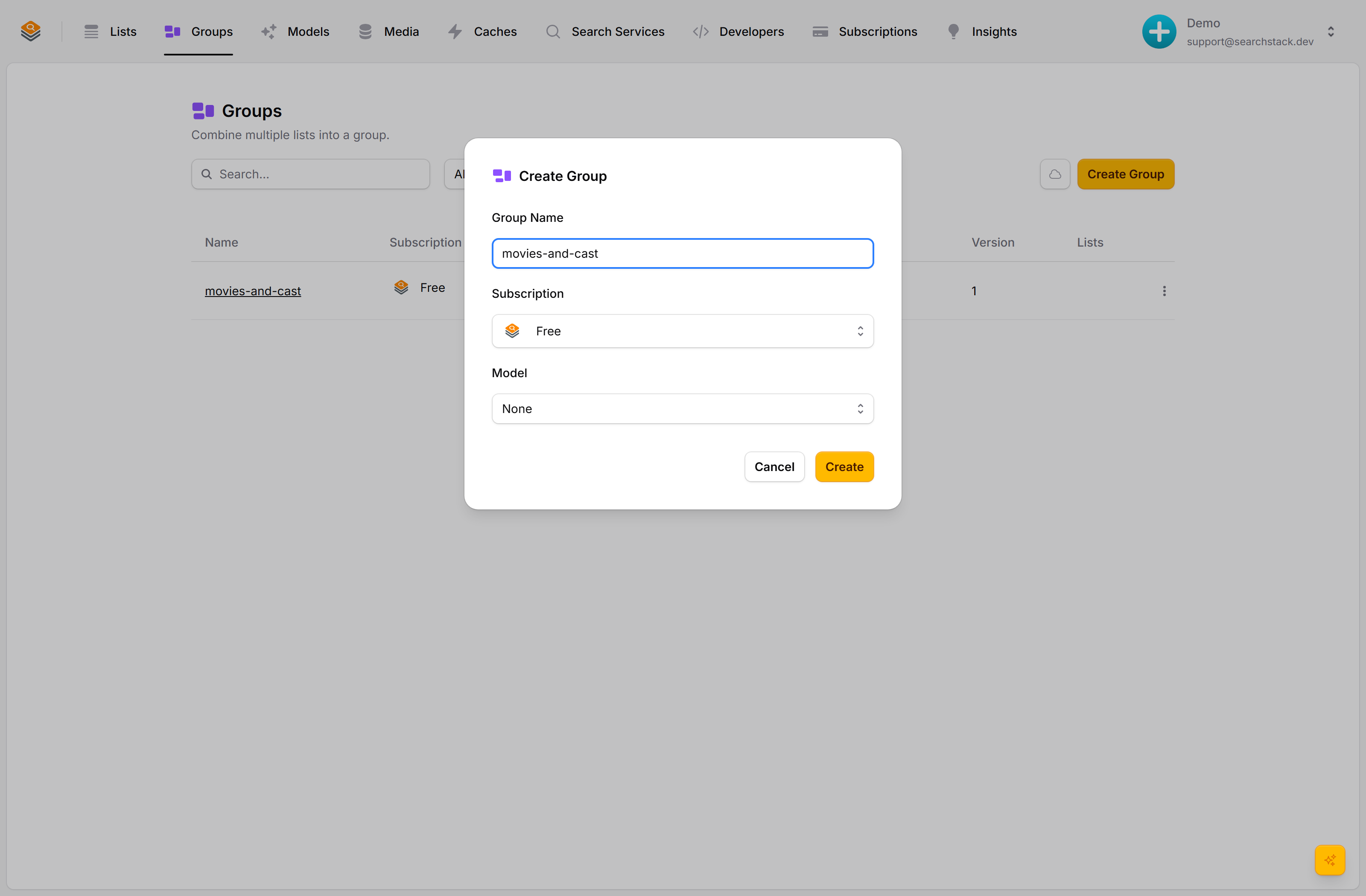
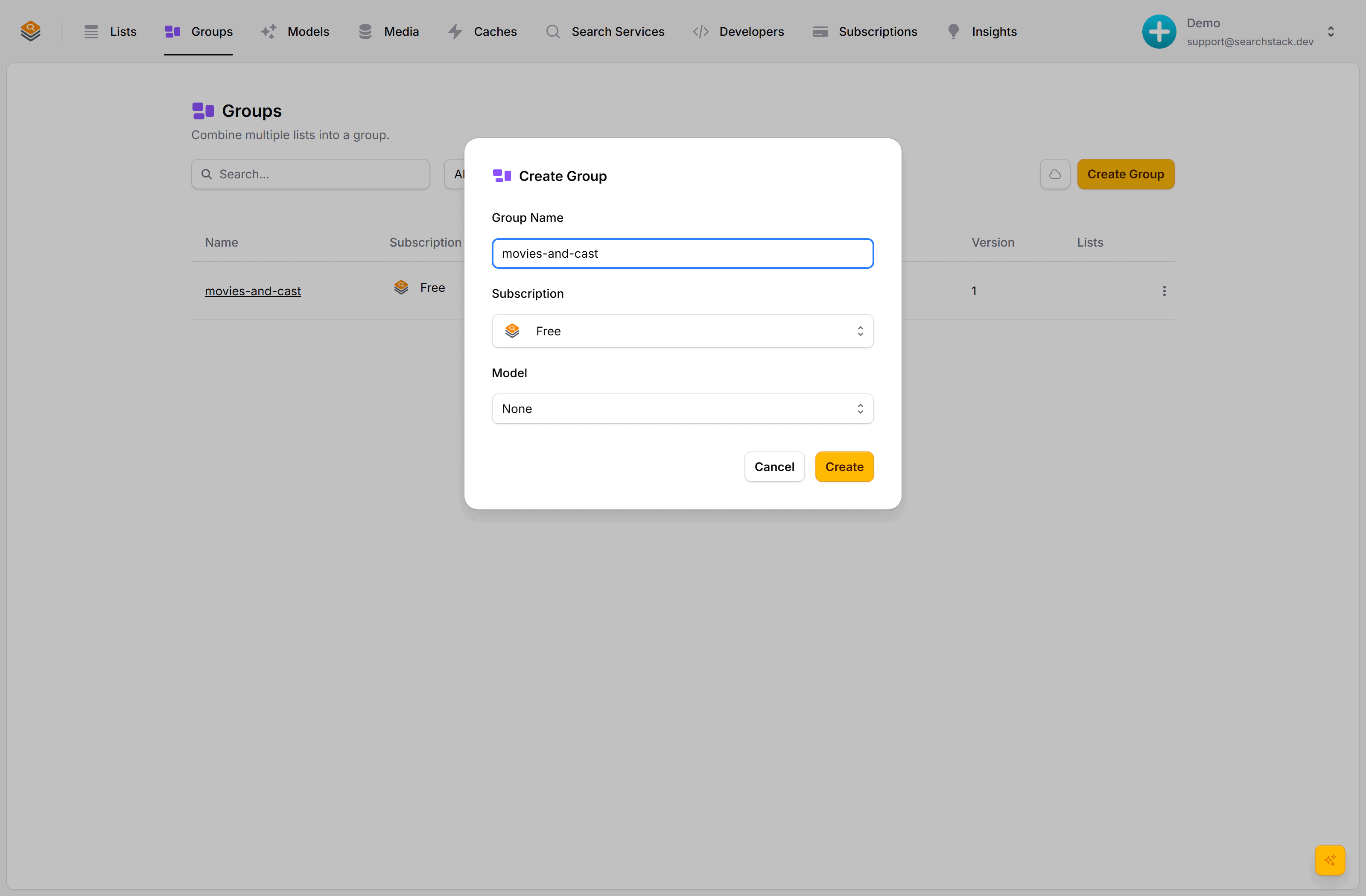
One query fans out to every member list and comes back as a single ranked result set — the way to put products, articles and FAQs behind one search box. Start under Groups → Create Group: name it, and pick the subscription and (optionally) the embedding model the group searches under.
Add member lists, pinned to a version
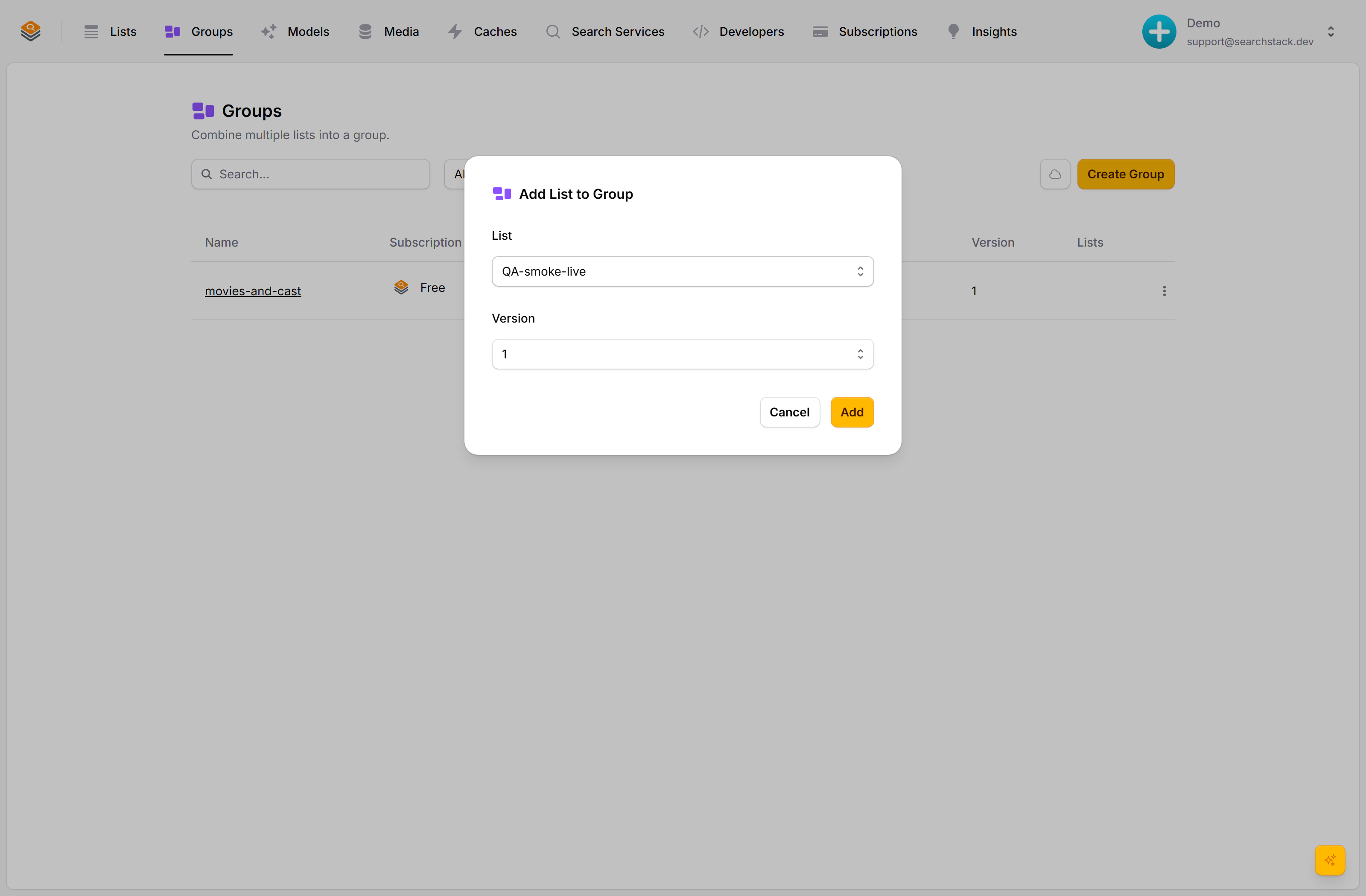
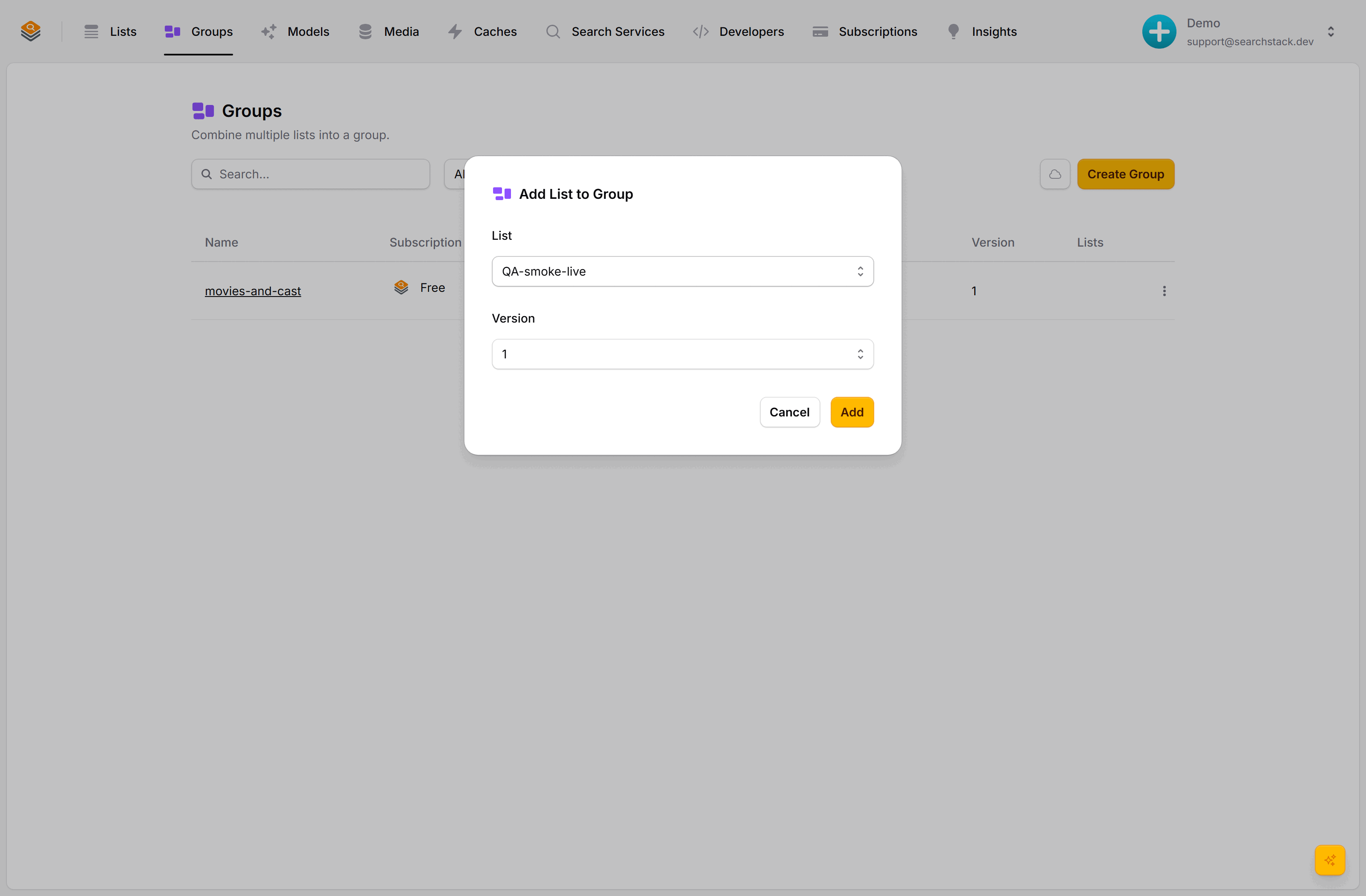
For each member you pick a List and pin a version — the group searches exactly that version until you choose to update it, so a list changing underneath never surprises your search. A group is read-only: records are always added to the underlying lists, never to the group.
Search them all — update on your schedule
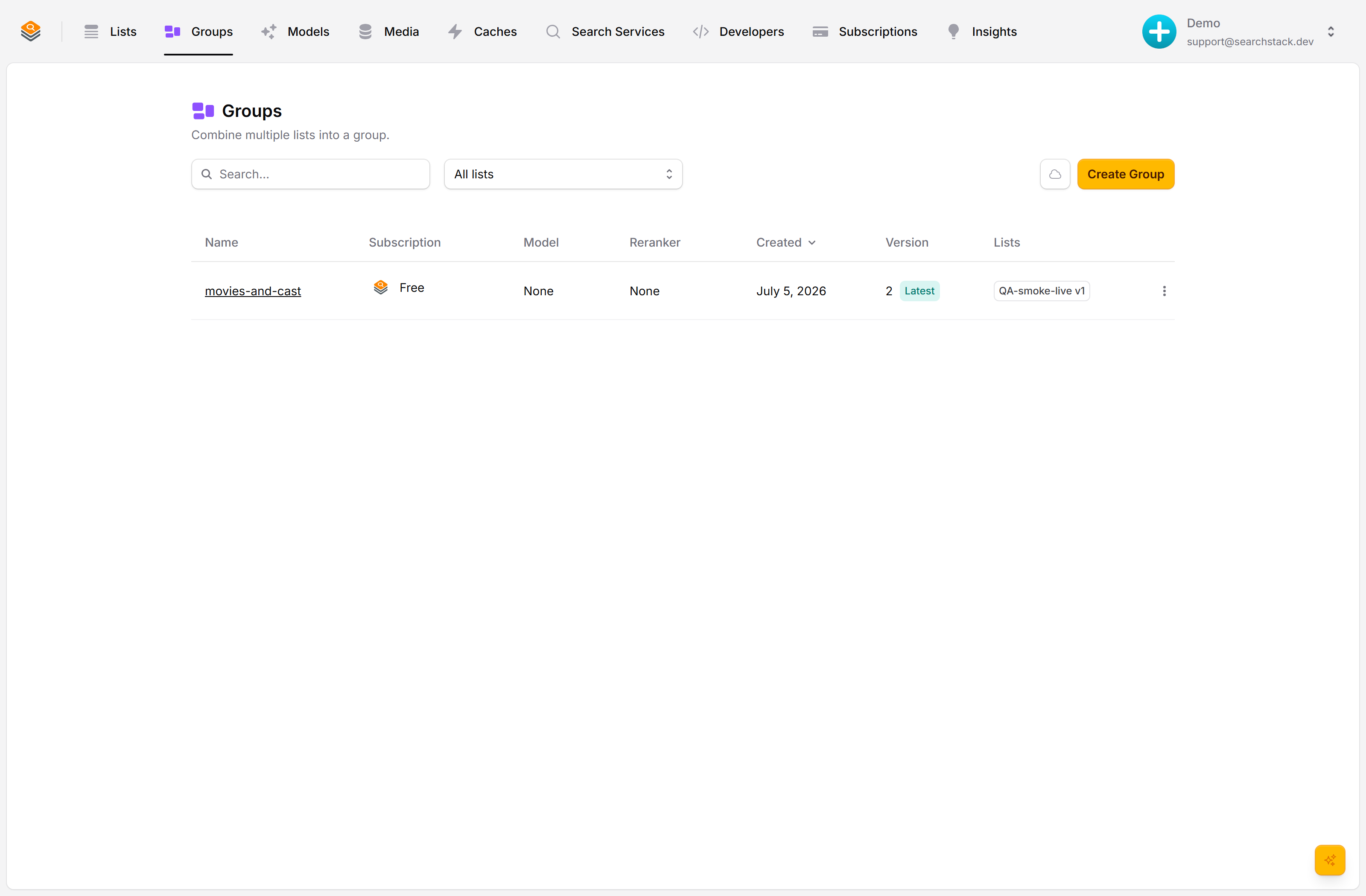
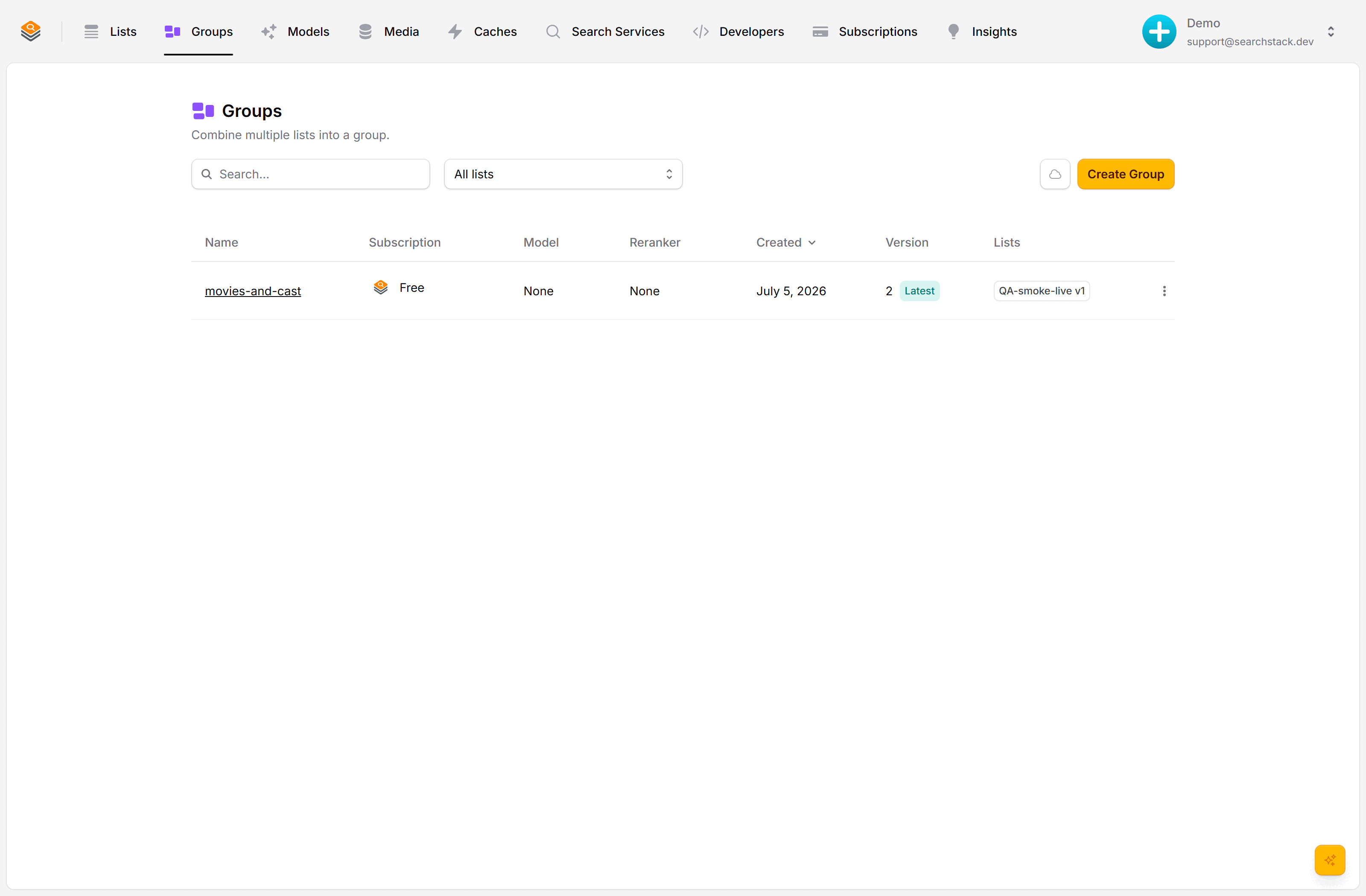
The group shows its members as version-pinned badges (QA-smoke-live v1) and a Latest tag when every member is on its newest version — it turns amber to Update available when one falls behind. Query the group over the API like a single list; each result carries a list_name so your page renders the right template per source.
Create a group and add lists
- Groups → Create Group. Name it and pick the subscription that hosts it and (optionally) the embedding model it searches under.
- Open the group’s menu and choose Add List. Pick a list and pin a version — the group searches exactly that version until you move it forward.
- Add as many lists as you need. Members must share the group’s subscription and embedding model; the picker only offers lists that fit, and an empty group takes both from the first list you add.
Limit a group to one person’s records
Give a group a filter when you create it (Create Group → Advanced → Filter, or access_filter over the API), and every read through the group is held to it — so group steve over employees and attendance with employee_id eq 'E42' only ever returns Steve’s records.
- Set only at creation. It cannot be added, changed or removed later; make a new group instead.
- Applies to everything through the group: search, suggest, image search and Ask. A caller’s own
filtercan only narrow it further. - Every list must have the field. Adding, replacing, bumping or restoring a list without it is refused.
- A key scoped to the group can only search and ask it. It cannot read the member lists directly or write to them, so the filter cannot be bypassed.
- Not allowed:
ne,notandlist_name— each could match more records, not fewer. - Filter menus (facet values) are not available on a filtered group.
- Not covered: the group’s briefing is sent with every Ask as written, and your own account key sees everything.
One group, a value per conversation
For an AI agent that should see one customer’s context — invoices, past conversations, documents — keep one group and hand the agent a short-lived token for that customer. No group is created or deleted per conversation.
- Create the group with a placeholder in its filter:
customer_id eq {customer_id}. Every list in the group needs acustomer_idfield. - When a conversation starts, your app asks for a token with its API key:
The answer isPOST https://auth.searchstack.dev/token/group X-API-Key: <your key> { "group_name": "customers", "values": { "customer_id": "C123" }, "lifetime_minutes": 60 }{ "access_token": "...", "access_expires": ... }. - Give the agent the token as
Authorization: Bearer <token>— for the API or MCP. Every search, suggest, image search and Ask it makes returns only customer C123’s records.
- Lasts 1–240 minutes (60 if you don’t say), with no refresh. It simply stops working.
- Search and Ask on that group only — never the lists directly, never a write. Ask only if your key can ask.
- Every placeholder needs a value, and a group read with no value is refused — including with your own key.
- A value is only ever data.
C1' or customer_id eq 'C2searches for that exact id and finds nothing. - The filled-in filter must fit the filter limit (16 KB), or no token is issued.
- Your key must be able to read the group — account-wide, or scoped to that group.
- Deleting the key does not cut off tokens already issued. They last until they expire, which is why they are short.
Swapping lists in and out
Replace Lists sets the whole membership at once, instead of adding and removing one list at a time.
- Use it whenever you swap one list for another. Remove-then-add leaves the group searching a half-finished set in between, and moves the group on a version for each step.
- The dialog shows the members you have now. Change a list, change a pin, drop a row, add a row — then save. Everything applies together and the group moves on one version.
- Over the API the body is the membership you want, not a list of changes: members you leave out are removed. Sending the membership already in place changes nothing.
How merging works
- The search runs against every list in the group at the same time.
- Results are merged into one ranked set; relevance scores compare across lists, so the best matches rise to the top whichever list they came from.
- A group is read-only: records are always written to the lists inside it, never to the group.
The same record in two lists
A group often holds two lists over the same catalogue — one you maintain by hand, one synced from a feed. When both hold the same record, the result is returned once.
- The copy that survives is from the list with the lowest priority you set. 1 wins.
- With no priorities set, the copy comes from the list with no feed connected — the one a person maintains beats the one a sync replaces — and two unconnected lists tie on the first list added.
- A list with a priority beats every list without one, so setting one number is enough. This is how you make a fed list win, which the default never does.
- Both lists must have an id column. Records are matched on the value of that column, so the two lists may name it differently (
skuin one,product_idin the other) — only the values have to agree. A list keyed by record name states no identity, and is never collapsed: a shared name is not evidence of a shared record. Set the id column when you import. total_countis the number of matches before this happens, so it can read higher than the results you get. Counting the collapsed total means walking every match, which a page of results does not do.- Filter counts are also pre-collapse, for the same reason.
Setting a priority. Groups → the group’s menu → List Priority. One box per member: a whole number from 1 to 999, or blank for none. The group’s Priority column then lists the members that have one, winner first; a dash means nobody has set one. Over the API it is PUT /group/list/priority/{ account }/{ group }/{ list } with {"priority": 1}, or {"priority": null} to clear it. Membership does not change, so the group’s version does not move — the same as changing its model or reranker.
Version pins, and updating on your schedule
- A list can be edited, re-indexed and moved to a new version without touching the group’s results: it carries on searching the pinned version.
- The group’s row reads Latest until a list has a newer version, then shows an amber Update available badge.
- Update to Latest moves the group on to its next version, when you are ready. Group versions can be restored, so you can go back.
- Pinning in full: Versioning.
Querying a group
Same shape as a list’s address, with the group’s membership version in the path (all search options are on the Searching page):
https://api.searchstack.dev/search/group/{ account }/{ group }/{ version }
https://api.searchstack.dev/suggest/group/{ account }/{ group }/{ version }/{ query }
Put latest in the { version } segment to always query the group’s current members: the address then survives every membership change, a list swap included. Works on search, suggest, ask and facet values. A number pins that membership version instead.
(For suggestions, the typed text goes at the end of the address; search takes its query as an option.)
A search for matrix against a movies-and-cast group returns records from both lists, told apart by list_name:
{
  "results": [
    { "name": "the-matrix",   "list_name": "movies", "as_of": "2026-07-19T14:32:00Z", "fields": { "title": "The Matrix", "year": 1999 } },
    { "name": "keanu-reeves", "list_name": "actors", "fields": { "known_for": "The Matrix" } }
  ],
  "count": 2,
  "total_count": 2
}- Show a different layout for each
list_name. The autocomplete component does this through its template function. - Group search takes exactly the same options as a list search, listed in the API reference under Search and Suggest.
Get one record by your key
Fetch a record by your own key — the value in the column a list declares as its id. A record’s id contains the list name, so it changes when you swap a list; the key does not.
https://api.searchstack.dev/search/group/{ account }/{ group }/{ version }/record?key={ your key }- The key column is the list’s id column:
identity_fieldon the list. Set it once, by importing withid_field. latestreads the group’s current members; a number reads that membership version.- Returns the hit alone, in the same shape as a search hit,
list_nameincluded.selectnarrowsfieldsas on search. - In several lists: one comes back, chosen by the priority rules above.
- Not found: 404. No member declares a key: 400. Lists keyed by name are skipped.
- Restricted groups: the group’s access filter applies, so a hidden record is a 404.
- API and tools:
GroupGetRecordByKey; MCPgroup_get_record_by_key; SDKsGetGroupRecordByKeyAsync/getGroupRecordByKey.
Filter menus over a group
A group filters on facet names, the same way select and filter do — so one menu can cover every list in it:
https://api.searchstack.dev/facet/group/{ account }/{ group }/{ version }/{ facet }- Values from every member, merged as a set.
NN1in two lists is one entry. - A member without a facet of that name is skipped, not an error — members whose fields differ is the normal case.
listssays how many members actually carry it. Read it: a menu drawn from one member of four filters away most of the group.truncatedmeans some member held values back. Narrow with?prefix=rather than asking for a bigger page.
When to use a group
- One search box over different kinds of data (products + articles + FAQs).
- Combining regional lists into one global search.