
Gates
A check every record passes on its way into a list — refuse a record with no price, blank out a swear word — run before the record is stored.
- Gates belong to your account; they run on a list.
- Written once, switched on per list from that list’s Gates page (shield icon in the list header).
Your account’s gates are a library
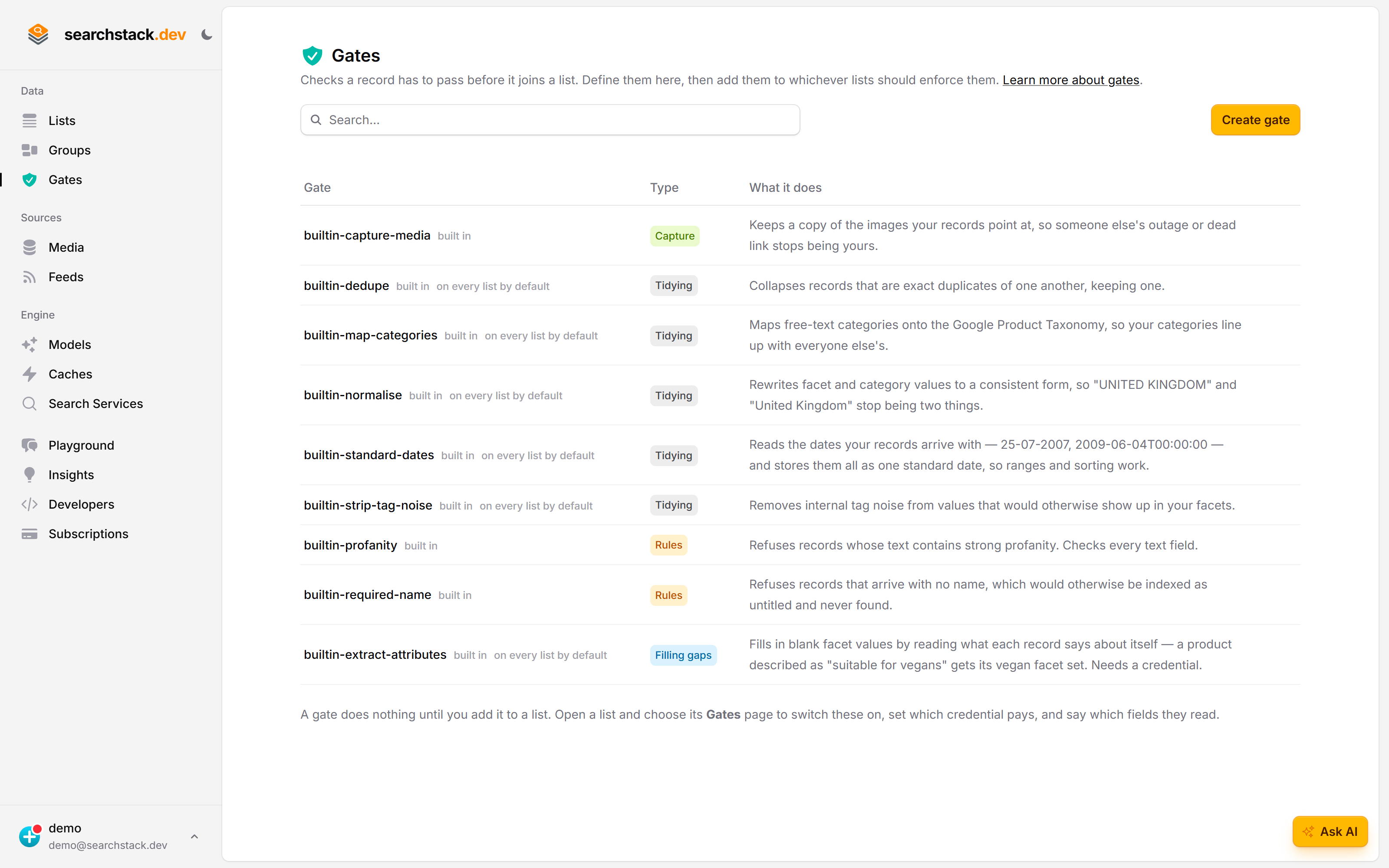
Gates in the sidebar lists every check available to you, with what each one does in a sentence. The ones marked on every list by default are the tidying and gap-filling gates — nobody added them. The line under the table is the rule to remember: “a gate does nothing until you add it to a list”.
Write your own check
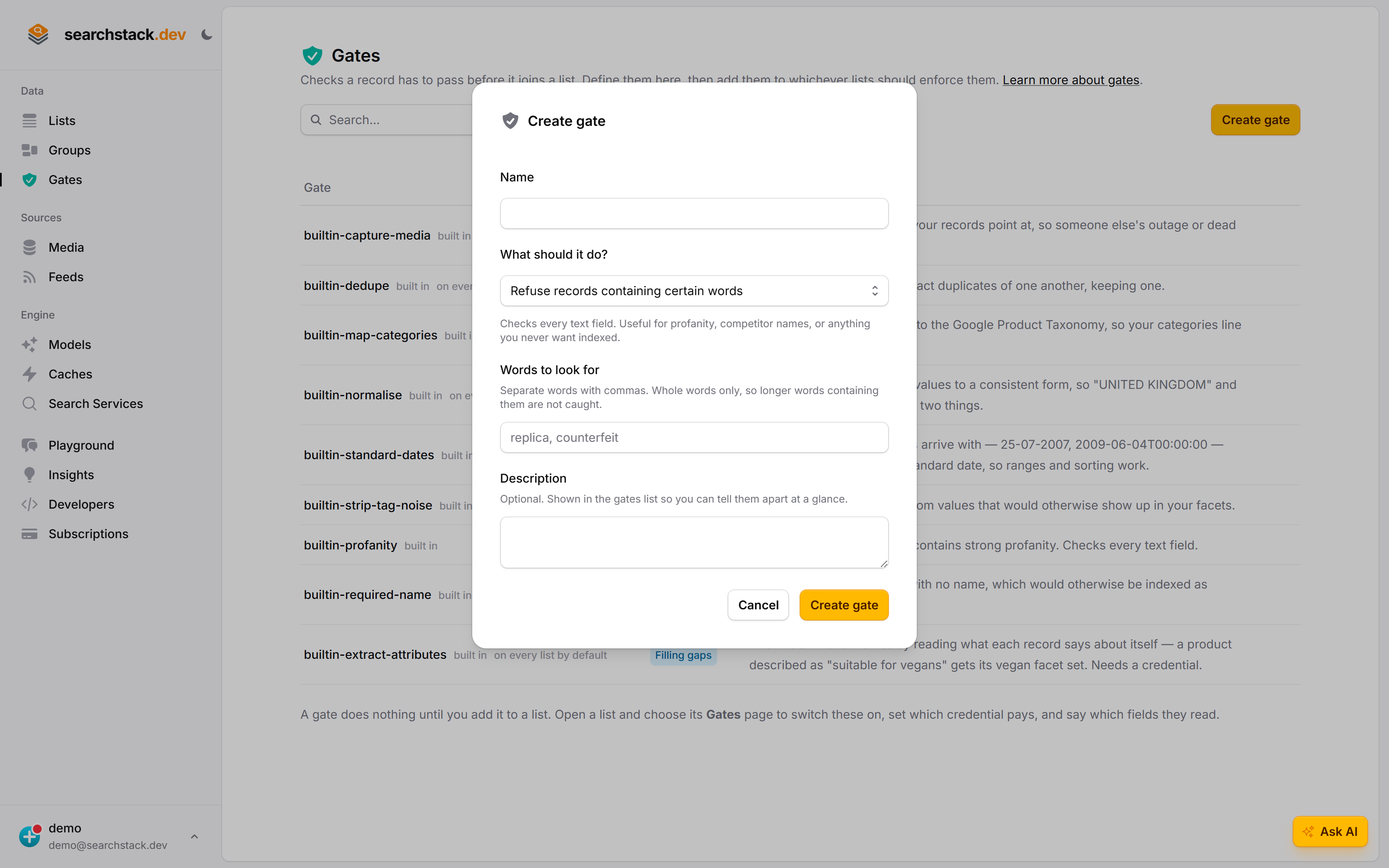
Create gate asks what it should do rather than asking you to write a rule — refuse records containing certain words, hold back records missing a value, build a field out of other fields, score records against a standard you describe. A words-based rule needs no AI model and costs nothing per record.
A list’s Gates page is the order records meet them
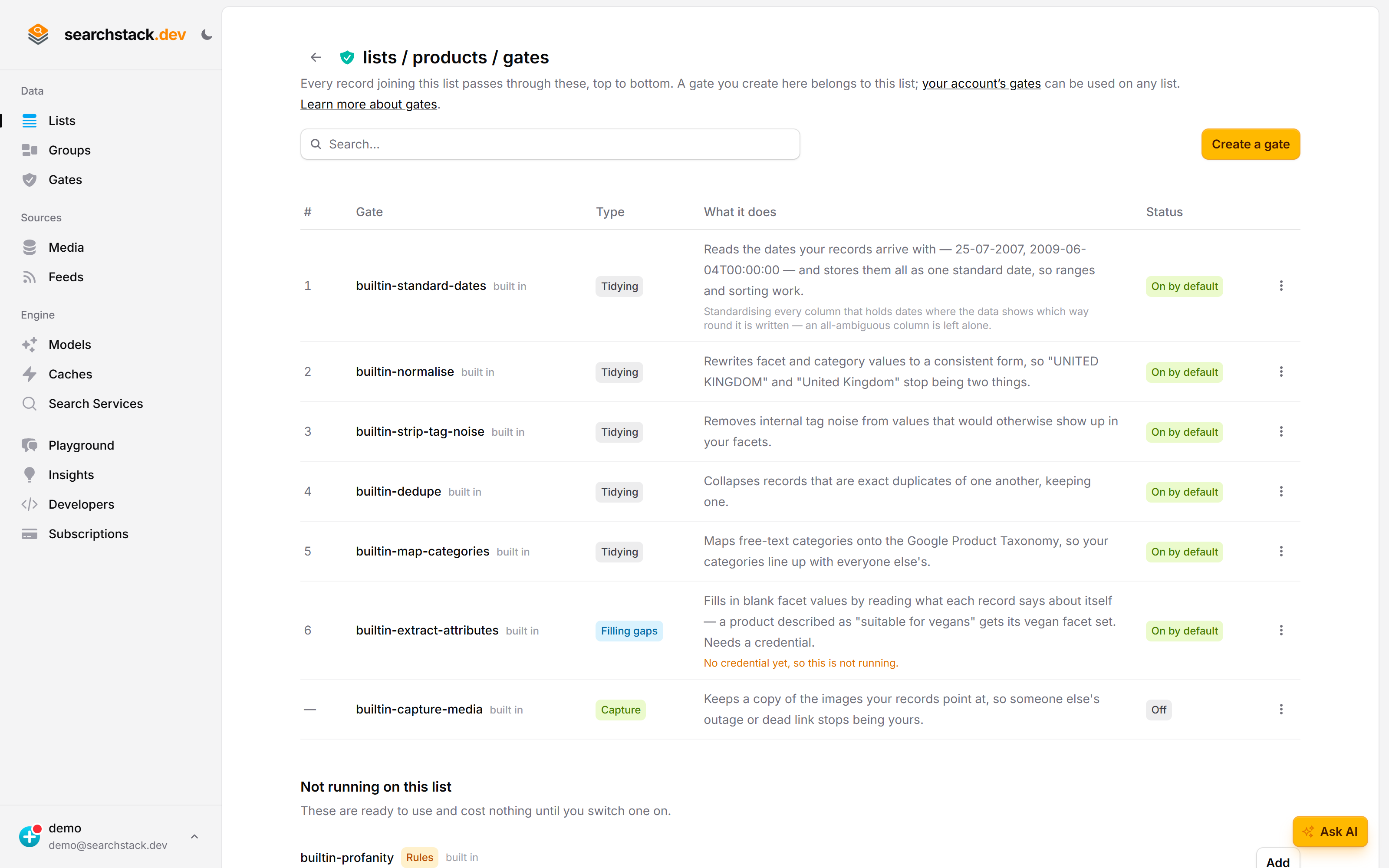
The shield icon in a list’s header opens its gates, numbered top to bottom in the order every arriving record passes through. Underneath, Not running on this list is everything else available, with an Add button — and nothing there costs anything until you switch it on.
Each row says honestly what it is doing
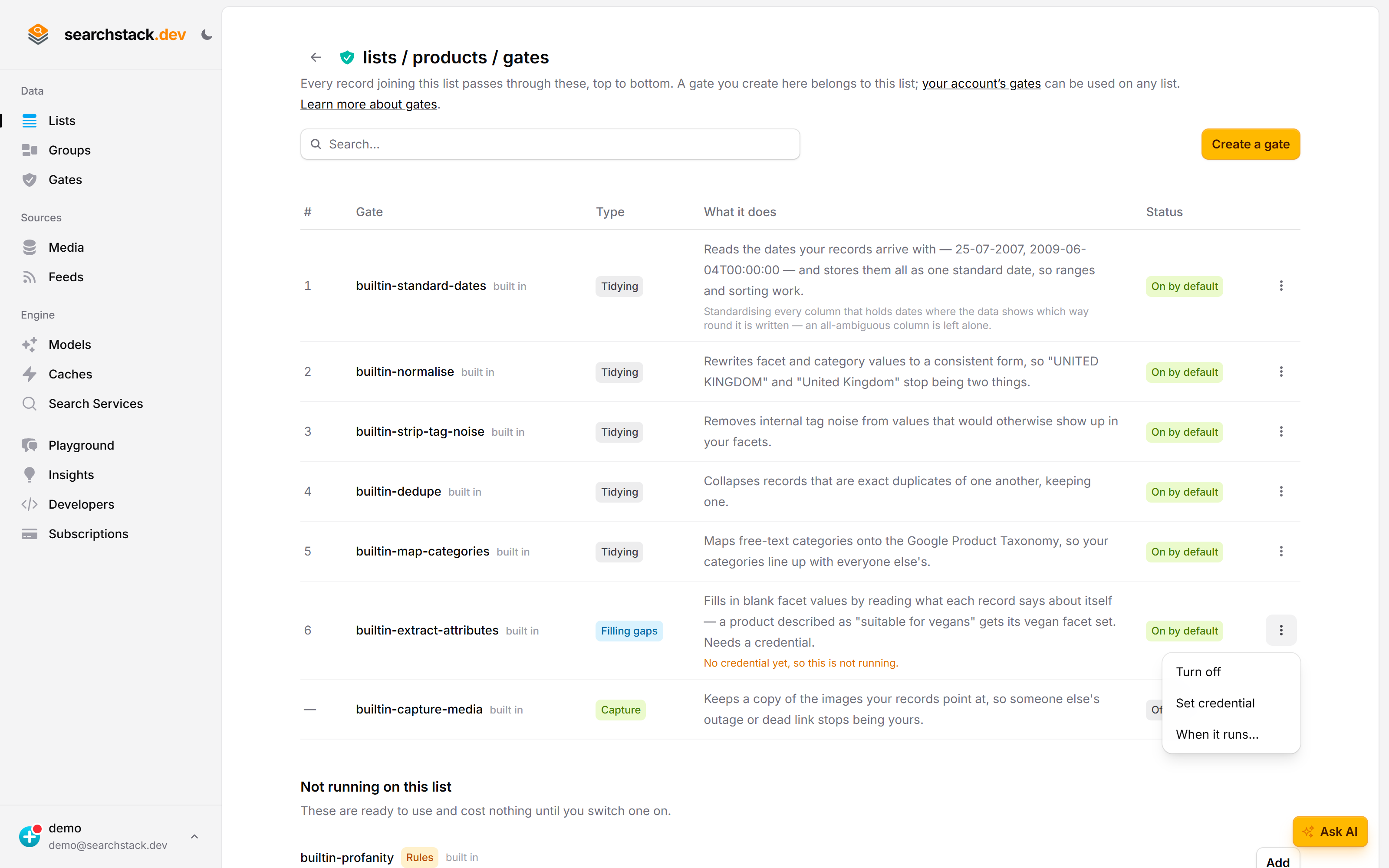
A gate that needs an AI credential and has not been given one says “no credential yet, so this is not running” rather than looking switched on. Its ⋮ menu is where you set the credential that pays for it on this list, choose whether it runs on new records, edits or both, and turn it off — which sticks, even for a gate that is on by default.
What a gate can do
Every gate reaches one of five conclusions about each record:
| Outcome | What happens |
|---|---|
| Admit | The record goes in as it arrived. |
| Tidy | A value is rewritten; the record goes in cleaned up. |
| Hold back | Stored and indexed, but marked inactive and hidden from search until you release it. |
| Refuse | Not added at all; the reason goes back to whoever sent it. |
| Score | A new value is worked out and stored on the record. |
The kinds of gate
Tidying is the cleaning that runs on every import, on by default on every list:
- Standard dates — see below.
- Value normalisation — one spelling per value, so “UNITED KINGDOM” becomes “United Kingdom”.
- Tag-noise stripping — removes internal tags shoppers should not see.
- De-duplication — collapses repeated records into one. Runs only when the import has an id field.
- Category mapping.
You can turn one off per list; you cannot edit, delete or reorder them. Values are tidied before de-duplication, and dates standardised before anything else rewrites a value.
Standard dates stores dates written in any format — one file can carry both 2009-06-04T00:00:00 and 25-07-2007 — as one standard date, so ranges, sorting and filtering work.
- Day-first or month-first is worked out per column: a first number over 12 (
25-07-2007) means day-first, a second number over 12 means month-first. - Nothing proves it either way — the column is left exactly as it arrived. Set it yourself from the gate’s ⋮ menu, then How it reads dates….
- Year-first (
2009-06-04) is always read year-first, whatever you choose. - Date columns are found automatically — any column holding nothing but dates. One non-date value leaves the whole column alone. Name columns in the same dialog to narrow it.
- A value it cannot read is left as it arrived — never dropped, never refused.
Filling gaps fills blank facet values from what a record says about itself: a description saying “suitable for vegans” sets the vegan facet, and anything the built-in category dictionary could not place gets a category worked out for it.
- Only fills a gap — a facet value already on the record is left alone.
- Needs a credential (a saved provider key) for its AI model. With none on the gate and none on the list it never runs and never costs anything; the row says so.
- On by default, like the tidying gates.
- Credential is per list — set or change it from ⋮ → Set credential / Change credential. One gate can run on two lists on two keys.
- A list’s cleaning credential is used if it has one and the list also has a cleaning model, until you give the gate its own.
Rules are checks you write yourself — no AI, no credential, no cost per record.
| Condition | Applies when |
|---|---|
| Contains any | The text contains one of your listed words. |
| Equals any | The value matches one of your listed values. |
| Matches | The text matches a pattern you supply. |
| Missing | The field is absent, empty, or only spaces. |
| Out of range | The number is outside your range — or is not a number. |
| Not from | The email address is not from one of your listed domains (subdomains count), or there is none. Used by Hold back email from unknown senders on from_address. |
| Action | Effect |
|---|---|
| Refuse | The record is not added. |
| Hold back | Added, but hidden from search. |
| Blank out | The matched text becomes asterisks; the record is kept. |
| Set | The field is overwritten with a value you choose. |
| Build | The field is built from the record’s other fields — see below. |
- The first rule that applies decides; the rules below are skipped — so a Blank out above a Refuse means “clean this up rather than lose it”.
- Build is the exception: it carries on, so a record whose name had to be built still passes everything below.
- Field
*checks every text field on the record except the reserved ones (active,id,ttl_seconds,expires_at,latitude,longitude,gate_provenance). It is refused for Blank out, Build and Not from — name the field. - Contains any matches whole words, so a banned short word will not reject a record for a longer, innocent word containing it. Equals any compares the whole value; Matches uses your pattern as written.
- A Blank out with nothing to blank — a Missing or Out of range check, say — does not decide; the rules below still run.
- Set and Build cannot write a reserved field; the gate is refused when saved.
gate_provenanceis never taken from you: a value sent on create, bulk insert or import is dropped, whether sent as a searchable, facet or resource, and an edit keeps the stored one.- Limits: up to 100 rules per gate, 1,000 values per rule, 256 characters per value, 512 characters per pattern, and a Build template of 1,000 characters reading at most 32 fields. Patterns cannot use backreferences, lookarounds or atomic groups. A gate over a limit is refused when saved.
- Patterns read 64 KB of a longer value: the first 64 KB, or the last 64 KB for a pattern ending in
$. A pattern anchored at both ends never matches a value over 64 KB. - Contains any, and a Blank out of it, read only the first 64 KB too.
- A match that runs out of time (50 ms; 100 ms for a pattern saved before these checks) counts as no match, and adds one to your
searchstack.gate.failureswithreason="pattern_timeout". - Every gate: judge criteria up to 16,000 characters, a description up to 2,000, up to 64 fields read per list, and 1,000 gates per account.
Building a field from other fields
A record needs a name, and a row without one is skipped. A Build rule writes that field from the ones the row does have, paired with the Missing condition:
When name is Missing, Build it from {sub_building_name} {building_number} {thoroughfare}, {post_town}, {postcode}
- A blank field takes its separator with it. No
sub_building_namegives19 Fettercairn Rise, London, W1A 7AE, not, 19 Fettercairn Rise…. Any separator works, and where a blank sits between two others one survives:{a} - {b} - {c}with an empty middle givesAlpha - Charlie. - Punctuation inside a value is never touched —
Unit 3 - Kestrel Estatekeeps its hyphen. Only the text you typed between{field}references counts as a separator. - It never overwrites a value a record already has — that comes from the Missing condition, decided per row, not per file.
- If every field it reads is blank, nothing is written and the row is still skipped, with a reason.
- Words you type are kept.
Flat {flat} at {road}with noflatgivesFlat at Fettercairn Rise. Only punctuation is tidied away. - There is no if/then logic — each
{field}is swapped for its value and nothing more. A pattern that changes shape per record must be built in a script first. Patterns borrowed from other tools that put a rule for blanks inside the braces —{postcode,, }— are rejected rather than half-applied. - Order matters. A build rule reads whatever earlier rules have written, so put it below any rule that tidies the fields it depends on.
- A list that takes its name from a column already has one, so a Build on
namepaired with Missing does not fire there. The column is still readable by other rules.
The order an import uses for the name:
- the Name field set on the import, if there is one
- a column called
name,title,label,display_nameorheading - this gate
- otherwise the row cannot be imported, and is skipped and counted
Two ways to create one, both offering the column names as buttons (post_town or postTown):
- The account’s Gates page → Create gate → Build a missing field from other fields. Pick the field and write the pattern; the dialog previews it against real records from a list you choose, including rows it cannot build.
- Upload a file with no name column: the import’s confirm step offers to build it, creating the gate, adding it to the list and running the import in one step.
Capture media downloads the images your records point at, once, on the way in, and rewrites the field to a path in your media store.
- Everything afterwards reads a copy you own — including rebuilding an image-search vector.
- Off until you switch it on. It sits on every list’s Gates page from the start, labelled Off, and is turned on from the ⋮ menu.
- Fields are optional — blank means every resource field on the list (fields carrying links, such as image URLs); the row says so while it runs.
- Anything that is not an
http/httpsURL is left untouched; anything that is not an allowed file type is refused — images only, unless you allow video. - The destination is the list’s media store, which every list has; the dialog names it as you add the gate. Store defaults to the list’s own.
- Settings: the folder, a size limit (25 MB for images, 500 MB once video is allowed; at most 10 MB on your Search Stack storage, the
defaultstore; anything above 500 MB is cut to 500 MB on every store) and the file types to accept. - If a download fails: leave (the default), hold back or refuse.
- Running it twice is free — the stored name comes from the source URL, so a captured file is not downloaded again and a field already holding a path is left alone. Two records pointing at the same supplier photo share one copy.
- Video is off unless you turn it on; switch it on and the size limit rises to match. Left off, video files are skipped.
- Downloads run 8 at a time, or one at a time once video is on.
- Existing records need ⋮ → Capture existing records… on the list’s gates page — a gate only sees records arriving. It is safe to run again, because nothing already captured is captured twice.
Judge gates decide whether each record meets a standard you describe in your own words — “a real product with a description that says what it actually is”.
- You write the standard and nothing else: no judge instructions, no fields, no prompt.
- Needs a credential — it calls an AI model for every record.
- A record that fails can be held back (the default), refused, or scored but kept when you only want the number.
- Pass or fail is the model’s own decision against your standard.
- Set an output field and every judged record gets a score from 0 to 100 in
<field>and a one-line reason in<field>_reason, as ordinary fields you can filter and sort on. The output field cannot be a reserved field. - Nothing to judge — an empty description, placeholder text — is marked unscoreable and left unscored rather than scored zero. Those records are still admitted by default; you can choose to hold them back too.
- A provider failing on one record admits it unjudged. It is judged again only if it is sent again, edited or backfilled. A wrong credential skips the whole gate rather than holding back everything.
- A re-judge that cannot score clears the old score and
_reasonrather than keeping them. - Three failures in a row stop the calls: the rest of the batch goes in unjudged. A success resets the count.
- No judging slot in time (see the cap below) — the gate sits that batch out and its records go in unjudged. The wait is 10 seconds for API and console writes, 2 minutes for imports and feeds.
- A judge with no rubric on the list is skipped and named in
gates_skipped; its records go in unjudged. Re-save its credential to provision one. - Unjudged records are reported: the console upload report names each skipped gate and counts the records let through without a verdict. A queued import keeps both on its run, as
rows_unjudgedandgates_skipped(gate names only).
The order gates run in
Records meet gates top to bottom:
- Tidying, in its own fixed order.
- Rules.
- Capture media.
- The kinds that cost money — filling gaps and judges together, by position, then by name.
You choose the order within your own rules; you cannot mix the groups, so nothing paid runs on a record that de-duplication or a rule was about to remove.
Which records are gated
Every route into a list:
- Records created one at a time through the API, MCP or the console
- Bulk creates (many records in one API call)
- File uploads
- Imports from a media store
- Feed syncs
- Records edited in place
- On an edit a gate can refuse the change (the record keeps the values it had), hold the record back, or rewrite a field.
- Not gated: price and stock patches through the volatile-fields routes (a patch naming
gate_provenanceis refused with 400), and soft-deletes (expiry, delete by filter, a feed removing records it no longer carries). - On a list backed by an attached (read-only) index, every write is refused before any gate runs: no judge is billed and nothing is captured.
- Nothing is retrospective. Records already in the list are untouched when you add, edit or delete a gate.
Choosing when a gate runs
- By default a gate runs on both new records and edits.
- Narrow it per list with the When should it run? checkboxes as you add the gate, or later from ⋮ → When it runs….
- Turning both off is the same as Turn off.
When a record is refused
Creating one record returns a failure carrying the gate’s own reason:
{
  "title": "SearchResults",
  "detail": "This record contains strong language, so it was not added.",
  "status": 400,
  "code": 30
}- A gate refusal, on create or edit, carries
"code": 30. Check the code, not the title or wording: a malformed record is also a 400, and the title isSearchResultsonsearch_result_createbutsearch_resultsonbulk_create. - Importing many does not fail the whole import. Records that passed are added; refused ones are reported with their reasons, alongside the de-duplication and normalisation counts for the same run.
bulk_create,bulk_insertandbulk_insert_with_fieldsanswer with the list plusgate_report:rejected(not created; up to 5rejected_samplesname the gate and reason),quarantined,unjudgedandgates_skipped(each entry hasgate_nameandreason). It is null when the gates changed nothing.- On
bulk_insertandbulk_insert_with_fields,gate_reportalso carries the tidying counts:exact_duplicates_collapsed,values_normalised,tag_values_stripped,categories_mapped,attributes_extractedandfuzzy_duplicates. Any of them makes it non-null. bulk_createcreates the records that passed; if all are refused, the call fails with the first reason.
Create a gate
Where you create it decides who it belongs to. Choosing wrong costs nothing — delete it and make it again elsewhere.
- Gates in the sidebar → Create gate makes an account gate: your library, addable to as many lists as you like, each with its own credential and fields. A profanity rule, a “is this a real product” standard or a required-field check belongs here.
- A list’s Gates page → Create a gate makes a gate that belongs to that list: it runs only there, is not in your library, and is deleted with the list. A rule building a name from
street_numberandthoroughfarebelongs here — this is what an import creates when a file has no name column.
Either way:
- Give it a Name — letters, digits and hyphens, unique across your whole account, including gates that belong to a list.
- Choose What should it do?, then fill in the words, field or standard it should check.
A new gate does nothing until you add it to a list; its credential is a per-list choice made then.
What a list’s Gates page shows
- The table is every gate that runs on this list, top to bottom, in the order records meet them. A gate using a credential names it under its description.
- On by default, rather than On, marks a gate that came with your account and has been there since the list was created.
- Not running on this list, under the table, is everything else available here, with what each does and an Add button: your account gates plus any gate belonging to this list. A gate belonging to another list is never offered, and nothing there costs anything until you switch it on.
Add a gate to a list
- Press Add beside the gate you want, under Not running on this list.
- A model gate (Filling gaps or Judge) cannot be added without choosing the credential that pays for it on this list.
- The gate definition is shared, so editing it changes every list using it; the credential and the fields it reads are per list.
Turn a gate off
From the gate’s ⋮ menu on a list’s Gates page:
- Turn off leaves the gate on the list but stops it running; its position shows as — while it is off. This is how you stop a gate that is on by default, and the list remembers it.
- Remove from this list returns it to Not running on this list, leaving other lists alone. Not offered for an On by default gate, since removing it would only restore the default.
- Through the API or MCP,
gate_detachon an On by default gate only restores the default — it keeps running. To switch it off, callgate_attachwithrun_on_insertandrun_on_editbothfalse, plus every other setting it has (see API and MCP). - ⋮ → Delete removes it from your account and from every list using it. Built-in gates cannot be deleted.
- Deleting a gate, or removing it from a list, closes a queued or running backfill as Failed (announced on
gate.backfill-completed), then deletes its backfill runs and failed-backfill snoozes (on that list only, for a removal), sogate_backfill_statusanswers 404 for them.
Deleting a list deletes its own gates; every account gate it used is left as it was, still running on any other list.
Changing a gate that lists are already using
- Editing what a gate does moves it to a new version and takes effect on every list using it at once: the next record arriving on any of them meets the edit.
- Editing only the description keeps the version.
- Worked-out values carry the version that made them. Records already in a list keep their old scores and filled-in values until you backfill them.
- Bump (⋮ → Gate version…; API
gate_bump) records that one list has caught up with the current version, and can start a backfill to re-score older records in the same step. It does not change what runs. - Bumping a list already on the current version changes nothing, but a requested backfill still starts.
- Switching a gate off, reordering it or changing its credential does not change its version.
Bringing existing records up to date
Backfill works out the values of records already in the list again.
- In the console: ⋮ → Gate version… → tick Also re-score the records already in this list. API:
gate_backfill. Filling gaps can be re-scored only through the API. - Only gates that work out a value can be backfilled — Filling gaps and Judge. Refusing and rewriting are one-way.
- It spends your credential, once per record it works out again, across as much of the list as your filter matches. Bumping alone is free; backfilling is not.
- Re-runs skip done records only on a list with a
gate_provenancefield, and only for Judge gates. There, re-running after a failure costs nothing for the ones that succeeded; setforceto work them out again. Elsewhere every matching record is worked out and billed again. - A record counts as done only when it was stamped under the gate’s current output field; after the output field changes, every record is worked out again. A stamp dated more than 5 minutes in the future does not count.
- A Judge set to Refuse never removes a record during a backfill: one that now fails keeps its place with the new score, and counts as recomputed.
- Held-back records are re-scored too, but stay held back whatever the new score. Release them yourself.
- It is refused at the start when:
- the gate is not added to the list (a gate only there by default does not count), or is off for edits — a backfill runs as an edit;
- the gate has no output field on this list, or the list has no field of that name (Filling gaps needs none);
- the gate is Capture media, which has its own backfill (below);
- the list’s records come from a connected source, or it is backed by an attached, read-only index;
- the filter is not valid.
- It stops after 25 records in a row that got no result, and says why — usually the judge is unavailable. Counted on every list: a save the judge left without a verdict, and a save that failed after the judge ran. With a
gate_provenancefield, also a save whose new value did not land. The count carries on across the run’s background slices. - It also stops after 3 slices in a row that made no progress (“The judge did not answer in time on several tries”).
- It runs in the background. You get a run id back immediately and can check on it for the counts: scanned, recomputed, skipped and failed. A record saved without a verdict counts as failed.
- One backfill per gate and list at a time: starting another while one is queued or running, or at the same moment, returns that run rather than starting a second. Rarely a start answers
503“Another backfill of this gate is starting.” — try again. - A run that crashes is retried from its last checkpoint; after the last retry it is marked failed and announced on
gate.backfill-completed, once. - A run with no progress for 2 hours counts as failed the next time it is checked. Failed runs appear on Account health.
- Capture has its own backfill, which pulls media into your store rather than working out a value. It walks active records only and reports no progress.
- It stops, and the queue retries it, after 25 saves in a row fail. A download still running when the run’s time is up is cut off and counted as failed; the run carries on after it.
- The capture backfill is refused when capture is not switched on for the list, the list is read-only (a connected source or an attached index), or the filter is not valid.
Releasing held-back records
A list’s Held back page shows every record hidden from search — held back by a gate, or switched off.
- Release makes a record searchable. It skips the gates, so the one that held it back does not hold it again.
- Delete removes it for good.
- A judge gate’s note (
<field>_reason) shows beside the record when the list keeps that field. - On a list synced from a feed, the page is read-only: the next sync would undo a release. Fix the record at the source.
- On a list backed by an attached index, the page is read-only too: nothing is written to that index.
- API: list with
active=false, thenPOST /search-result/{account}/{list}/releasewith up to 100ids. MCP:search_result_release. Each release firessearchresult.released. - If one release fails (a missing list, an engine outage), the call answers with that error. Records already released stay released and are announced; retrying the same ids is safe.
- The API refuses a release on a list synced from a source (409) and on a list backed by an attached index.
Being told what a gate did
Four webhook events cover the outcomes an import’s response cannot show:
| Event | When |
|---|---|
searchresult.rejected | A gate refused a record. Carries the gate and its reason. |
searchresult.quarantined | A gate held a record back. Same message; the record is there and can be released. |
searchresult.released | Someone released a held-back record. |
gate.backfill-completed | A backfill finished or failed, with its counts. |
- Subscribe to
searchresult.rejectedif you run feeds — a scheduled sync has no caller, so a feed that starts failing a rule stops being carried with nothing to say so. - Sent by imports, feed syncs and
bulk_insert/bulk_insert_with_fields: one message per record, up to 200 of each event per batch of 1,000 rows or perbulk_insertcall. The full counts are on the import’s own report or the call’sgate_report. - Not sent for
search_result_create,bulk_createor edits. A single create or edit gets the refusal in the response;bulk_createcounts refusals ingate_report. Both creates still store the score, reason and stamp a judge adds, in fields the list declares. - Gate activity is also sent out as metrics:
searchstack.gate.duration,searchstack.gate.outcomes(split by outcome),searchstack.gate.failuresandsearchstack.gate.judge.queue_depth.
API and MCP
Every gate route on the public API has a matching MCP tool.
| Route | MCP tool | Permission |
|---|---|---|
GET /gate/{account} (?scope=all adds gates that belong to a list) | gate_list | gate:view |
GET /gate/{account}/{gate} | gate_view | gate:view |
GET /gate/{account}/list/{list} | gate_list_for_list | gate:view |
POST /gate/{account} | gate_create | gate:create |
PUT /gate/{account}/{gate} | gate_edit | gate:edit |
DELETE /gate/{account}/{gate} | gate_delete | gate:delete |
POST /gate/{account}/list/{list}/{gate} | gate_attach | gate:attach |
DELETE /gate/{account}/list/{list}/{gate} | gate_detach | gate:attach |
POST /gate/{account}/list/{list}/{gate}/bump | gate_bump | gate:attach |
POST /gate/{account}/list/{list}/{gate}/backfill | gate_backfill | gate:attach |
GET /gate/{account}/backfill/{run-id} | gate_backfill_status | gate:view |
POST /gate/{account}/list/{list}/capture/backfill | gate_capture_backfill | gate:attach |
POST /search-result/{account}/{list}/release | search_result_release | search-result:edit |
gate_attachis also the edit path for a gate already on a list, and it replaces the whole binding. Read the current settings withgate_list_for_listand send every one back with your change.- A setting you leave out is cleared. Sending only
run_on_insertandrun_on_editasfalsealso clears the credential, model, output field, fields read and list settings, and deletes the judge’s instructions on that list. Only the pinned version is kept. input_fieldsis read only by Capture media and Standard dates; other gates ignore it.gate_list_for_listandgate_bumpanswer 404 for a list that does not exist.gate_capture_backfillanswers 503 when the list’s capture settings cannot be read.gate_deleteanswers 503 when the lists using the gate cannot be read (nothing is deleted) or one of them cannot be removed (the gate is kept; lists already cleared stay cleared). Retry.gate_list_for_listandgate_attachanswer 503 when the list’s gate attachments cannot be read.- A write answers 503 (with
Retry-After) when it cannot read its list’s gates or a judge gate’s rubric. - Create, bulk insert and edit on an attached list are refused before any gate runs.
- Gate and backfill times (
created,updated,completed) are .NET ticks, not unix milliseconds: unix ms = (ticks − 621355968000000000) / 10000.
Gate names
- Letters, digits and single hyphens, up to 100 characters.
- Unique across the account, including gates that belong to a list.
- Built-in names are reserved.
| Built-in gate | Kind | On a new list |
|---|---|---|
builtin-standard-dates | Tidying | On by default |
builtin-normalise | Tidying | On by default |
builtin-strip-tag-noise | Tidying | On by default |
builtin-dedupe | Tidying | On by default |
builtin-map-categories | Tidying | On by default |
builtin-extract-attributes | Filling gaps | On by default; runs only with a credential |
builtin-capture-media | Capture media | On the list, Off |
builtin-profanity | Rules | Offered, not added |
builtin-required-name | Rules | Offered, not added |
Rules config
config is a JSON string holding {"rules": [...]}; each rule takes:
| Key | Value |
|---|---|
field | The field to check, or * for every text field except reserved ones. |
condition | ContainsAny, EqualsAny, Matches, Missing, OutOfRange or DomainNotAny. |
values | Required by ContainsAny, EqualsAny and DomainNotAny. |
pattern | Required by Matches. |
min, max | OutOfRange: at least one. |
action | Reject, Quarantine, Redact, Set or Compose. |
set_value | Required by Set. |
template | Required by Compose. |
reason | Shown when a record is refused or held back. A default is written when omitted. |
Judge config
{"criteria": "A real product with a description that says what it actually is.",
"on_fail": "Quarantine", "fail_when_unscoreable": false}| Key | Value |
|---|---|
criteria | The standard, in your words. Required; up to 16,000 characters. |
on_fail | Quarantine (default, hold back), Reject or Record (score but keep). |
fail_when_unscoreable | true treats a record with nothing to judge as a failure. Default false. |
The score goes in the attachment’s output_field, set with gate_attach.
Capture media settings
Sent as config on gate_attach for builtin-capture-media:
| Key | Value |
|---|---|
fields | Resource fields to capture, used when the attachment’s input_fields is empty. With both empty, every resource field on the list. |
store | Media store to write to. Default: the list’s own. |
prefix | Folder in the store. Default captured/. |
max_bytes | Size limit. Default 25 MB, or 500 MB once video is allowed. Capped at 10 MB on the default store, and at 500 MB on every store. |
content_types | Types to capture. Default: images only. |
on_failure | Leave (default), Quarantine or Reject. |
Standard dates settings
Sent as config on gate_attach for builtin-standard-dates:
| Key | Value |
|---|---|
calendar | Auto (default), DayFirst or MonthFirst. |
fields | Date columns, used when the attachment’s input_fields is empty. With both empty, every column holding nothing but dates. |
Notes
- A gate that fails while running is skipped for that batch, named in
gates_skippedand counted insearchstack.gate.failures; its records go through unchecked by it. A gate whose saved settings can no longer be read is skipped and logged, with neither. - Gates never see more than the batch in front of them, so a rule cannot compare a record against the rest of your list.
- Judges and Filling gaps are capped per account on each server: 4 batches at once, and a judge makes up to 4 model calls at a time per batch. A batch waits up to 2 minutes for a slot, or 10 seconds when an API or console write is waiting on it.