
Query optimisation
A query rule reads a search before it runs, spots a format — a postcode, an order number, a barcode — and turns that part into a constraint (“only records with this postcode”) instead of words to match.
- The mirror of gates: a gate shapes a record on the way in, a rule reads a search on the way out. Both sit on the list header — this icon, the shield for gates.
- Live on the next search.
Open the list’s query optimisation page
The scales icon in a list’s header opens Query optimisation. Every search of the list is read through these rules before it runs. A new list has none, and the page says what that costs you: “a postcode or an order number is matched as words rather than looked up”.
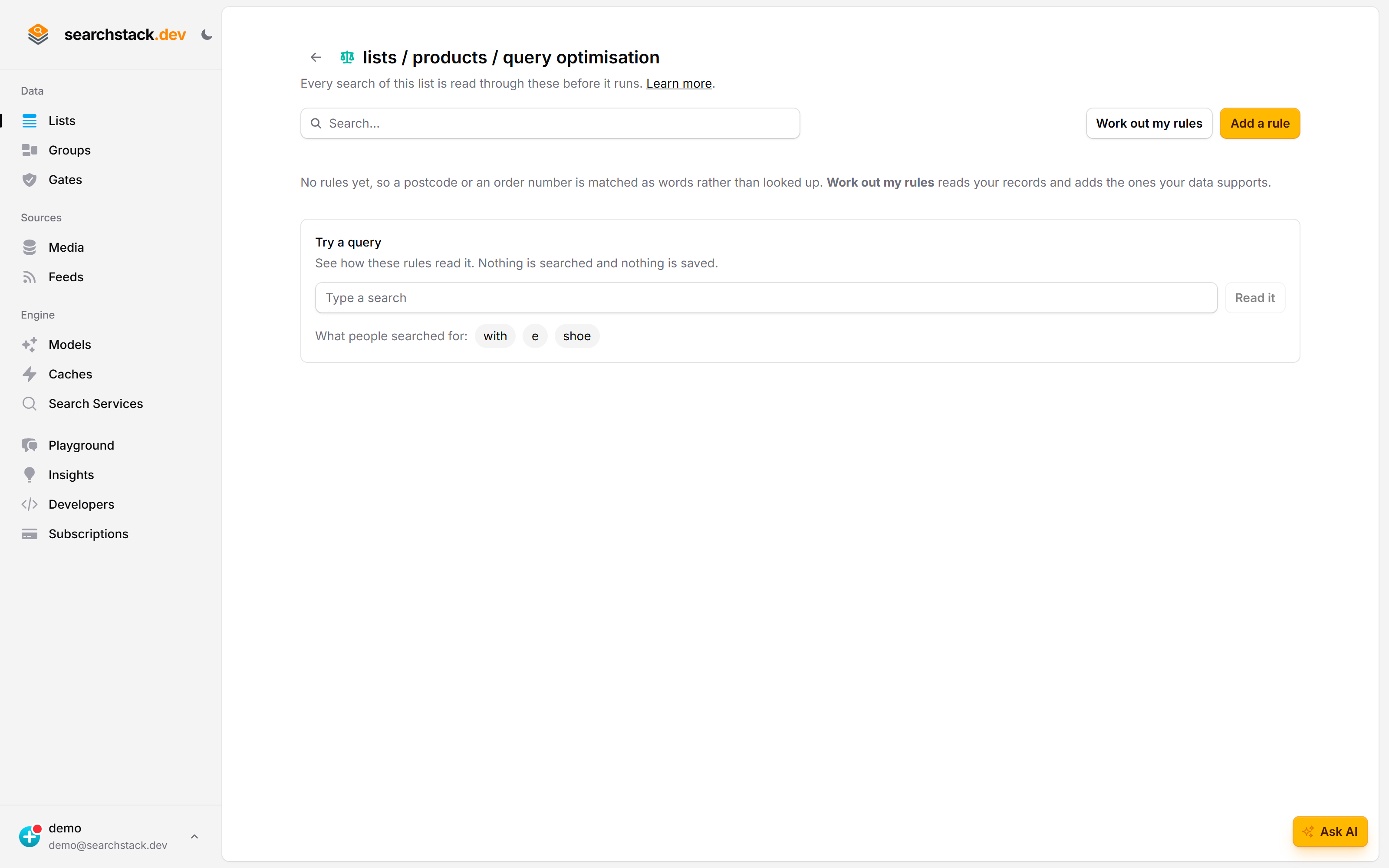
Let the list work its own rules out
Work out my rules reads your records and adds only the rules your data supports — here three, from the fields that hold a small set of repeated values. It says how many fields it skipped and why, and each rule carries the evidence: “10 different values across 37 records”.
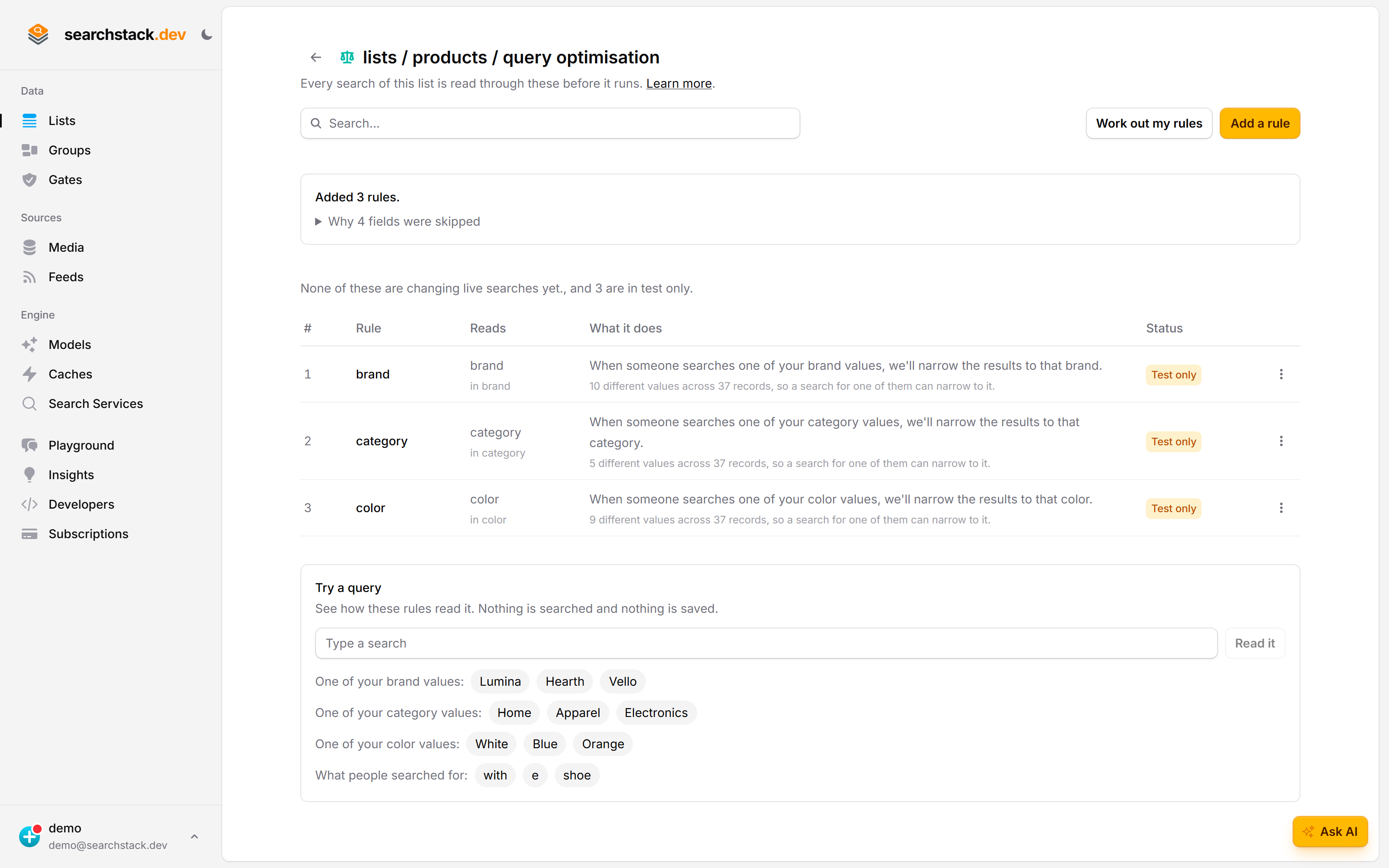
Nothing changes a live search until you say so
Every new rule arrives Test only: it is measured against real searches but does not change one. Try a query shows what the rules would read out of a search before you commit — “read Vello as brand = Vello” — and nothing is searched or saved by trying it.
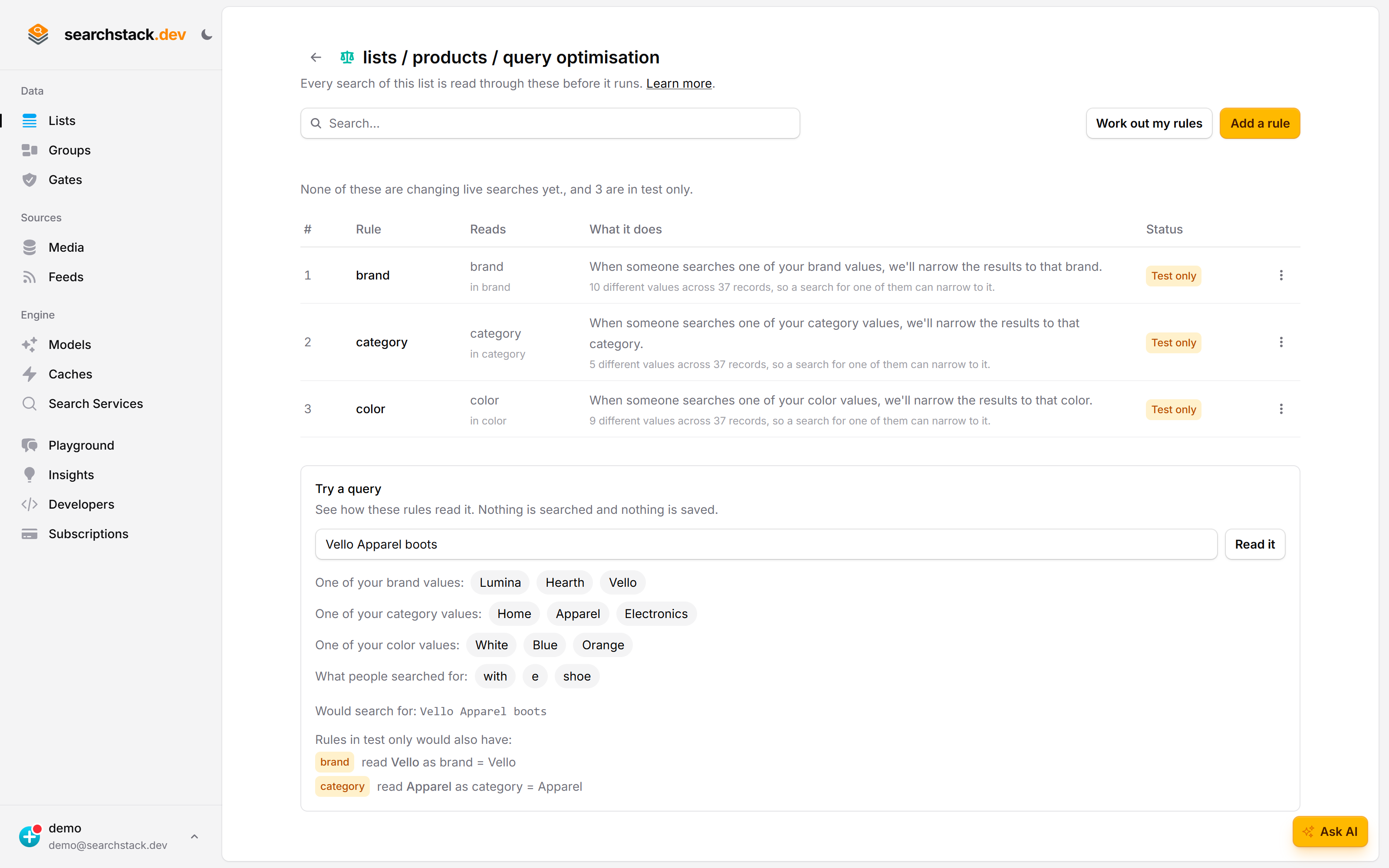
Turn one on when it has earned it
Each rule’s ⋮ menu asks the question that matters first — What has this been doing? — and then lets you turn it on, turn it off, move it up the order, or delete it.
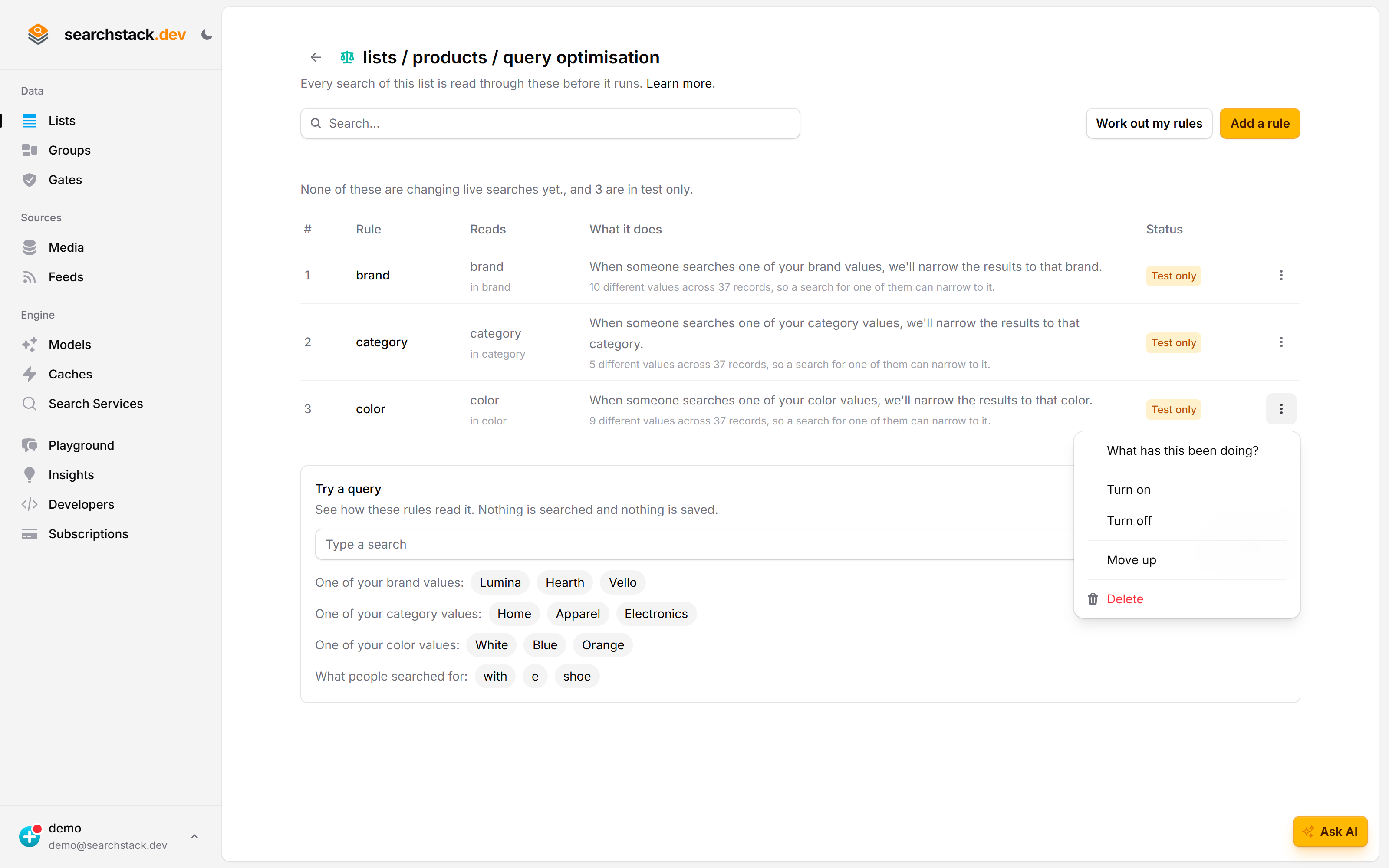
The problem they solve
With no rules a search matches the text as typed: flat 2 zz1 1zz is four words, competing with every record containing “flat” or “2”. A UK postcode rule reads it as “flat 2”, narrowed to postcode ZZ1 1ZZ.
Rules belong to a list
- Created on the list, not on the account as a gate is — a rule ties a format to a field, and
postcodeon your properties list is notpostcodeon your customers list. - Only a facet can be targeted. No facets yet? The dialog says to add one first.
- At most 200 rules per list. At the limit, adding or working out rules is refused until you delete one.
What a match does
| Outcome | What happens | Right for |
|---|---|---|
| Narrows | Results are filtered to that value. | Many records share a value — postcode, date, price. |
| Pins | That record goes to the top, normal results beneath. | A value identifies one record — ISBN, IBAN, VIN, order number. |
| Ranks up | The match scores higher; nothing is excluded. | A boost without exclusion — “dyson” first, everything else still shown. |
- Narrows or pins is decided by how many records share a value, not by the format. Pinning is safer: a missing pin costs one row, a narrow matching nothing returns an empty page.
- Shipped formats arrive with the answer chosen, stated in the dialog as a sentence about what the customer sees. Change it if your data disagrees.
When a rule should act
Recognising a format is not knowing the value exists: ZZ1 9ZZ is a well-formed postcode nobody lives at. Rules ship on the right position; the ⋮ menu offers the other two.
| Position | What it does |
|---|---|
| Only when your data has the value | Never wrong; costs the occasional match while the values are still being read. |
| Unless your data says otherwise | The default, and right for almost every rule. |
| Even when your data lacks the value | Acts on the format alone. |
- That last one with narrows is the only combination that can return an empty result set, and the only one the console labels — the row reads Can return nothing.
- With pins it is harmless, so the identifier formats (ISBN, IBAN…) ship set to it, unlabelled.
- Letting a rule act more often only ever makes it act more often, never less.
The order rules run in
- Searches meet rules top to bottom and the first rule to claim part of a search wins; the rest see only what is left.
- So the position column settles two rules wanting the same words — four digits as a postcode or as a year, not both.
- Move up / Move down in the ⋮ menu; the rows slide to their new positions.
On, test only, off
| State | What it means |
|---|---|
| On | It changes live searches. |
| Test only | Runs alongside the real search, changes nothing, records what it would have done. Amber badge, not green. |
| Off | It does nothing. |
Put a new rule in test only, leave it a week, then read what it did; live searches are untouched meanwhile. Start there from Try it without changing anything?, under Options in the add dialog.
What a rule has been doing
Choose What has this been doing? from a rule’s ⋮ menu for the last seven days:
- How often it fired — or would have fired, in test only — as a share of all searches.
- Matched values your data does not hold — the number that decides it: those searches would have returned nothing.
- Typical results — the median results the searches it fires on currently return.
- Too few searches to read? It says so before showing a figure. A test-only rule can be switched on, or discarded, here.
- No “340 results → 4 results” comparison — it would double the cost of every search the rule touches.
Work out my rules
Work out my rules reads your records, works out what each facet holds, and adds the rules your data calls for.
- UK postcodes get a postcode rule; thirteen-digit barcodes get a barcode rule.
- A field matching no shipped format but repeating enough to be a set to choose from (a dozen brands, four countries) gets a rule from its own values — “scotland” narrows to the country.
- Fields of plain numbers are left alone: a rule on a building number would read any number as that field, so “4 bedroom” becomes building number 4, and no setting prevents it. Add it yourself if customers search that way.
- The report names the fields it skipped and why. Rules added this way are labelled with the evidence behind them.
It runs on its own after an import. While a run is going the page says so, rules appear as created, and Add a rule is paused. The button asks for a run now, past the spacing-out that keeps a ten-thousand-record import to a single run.
Try a query
The box below the table answers how will this search be read? Type a search, choose Read it.
- Returns what reaches the search engine and which part became a constraint. Nothing is searched, nothing saved.
- Includes rules in test only, so a rule can be checked before it is switched on.
- If a rule changed since the answer was worked out, it says so rather than showing a reading that no longer happens.
The formats we ship
Eighteen formats come with your account, already set to narrow or pin:
- Narrow — UK postcode, US ZIP code, Canadian postal code, Australian postcode (with or without the space; a UK postcode is recognised across two words as readily as one); Date (
YYYY-MM-DD); IP address; Price (an exact amount like £19.99 — ranges such as “under £20” are not a rule). - Pin — Email address, Phone number (international), UK phone number; ISBN-13, ISBN-10, Barcode (EAN-13) (with or without hyphens); IBAN, Identifier (UUID), MAC address; Vehicle identification number, UK vehicle registration.
- Watch the Australian postcode:
2019is a Sydney postcode, a year and a quantity. If your records hold both, set that rule to act only on values it can confirm.
A rule on your own values
- One of this field’s own values matches search words against the values already in the field — your brands, categories, cities.
- No format to get wrong, and fixed to the cautious position: the field’s values are the whole test.
- Use it when
dyson cordlessshould read “dyson” as the brand, not a word in a description. - The rule’s row names the values themselves — “NSW, QLD, VIC and 5 more” — so a rule on Australian states reads differently from one on American states. You can search the rules by any of them.
- This is the tool for a word that is one of a field’s values, not a synonym. A synonym for
vicwould expandvictoriaback into the text and match every Victorian record; a rule filters to them.
A format of your own
For part numbers, internal codes and ticket references, choose Something else — I’ll describe it.
- Describe the values in your own words (“ACME, a dash, four digits, a dash, one letter”) and an AI model drafts the pattern.
- You see which of your own values it matched and missed; nothing is created until you approve it.
- It is an AI model call, so it needs one of your saved credentials.
- No hand-written pattern box in the console. The API takes a pattern directly, and so do the client packages:
await client.QueryRules.create("acme", "parts", {
  name: "part-number",
  target_field: "part_number",
  pattern: "^ACME-\\d{4}-[A-Z]$",
  state: "Shadow",            // watch it for a week before it counts
});

// Nothing is searched and nothing is stored.
const read = await client.QueryRules.test("acme", "parts", { query: "acme-4471-b blue" });
The whole page is on client.QueryRules in the TypeScript and .NET packages: list, create, reorder, switch on and off, read what a rule has been doing.
A number inside a range
Set range_end_field and a narrowing rule also finds records whose range holds the number: street number 16 matches 14-18.
await client.QueryRules.create("acme", "addresses", {
  name: "street-number",
  target_field: "number_first",
  range_end_field: "number_last",   // 16 matches 16, and 14-18
  pattern: "^[0-9]{1,5}$",
});- Narrowing rules only; API and client packages only, not the console.
- A record with no range end still matches on the exact number.
- Your own filter on either field wins, and the rule stands aside.
- An edit without
range_end_fieldturns the range off.
Add a rule
- Open the list, then the query-rules icon in its header, then Add a rule.
- What does the format look like? — a shipped format, this field’s own values, or one you describe.
- Which field holds it? — any facet on the list.
Those are the only two questions.
- The sentence above Options says what the rule will do and whether it counts yet.
- Options holds the prefilled What should a match do? and Try it without changing anything?, plus the Name, built from your two answers.
- Change the name if the list needs a second rule on the same field: a billing postcode and a delivery postcode are two rules.
Notes
- Read on every search of the list, including searches through a group the list belongs to.
- Nothing is rewritten — a rule changes how searches are read, never what your records say, and never anything already answered.
- Deleting a rule takes effect on the next search.
- A rule firing on values your data does not hold shows up in What has this been doing? Reach for Only when your data has the value before Off.