
Email Feed
We give you an address; you add one forwarding rule; every message that arrives — a customer’s support email, say — becomes a searchable record within seconds.
- No mailbox connection. No “allow this app” screen, no password or token to paste — we hold no credential of yours.
- Delete the forwarding rule and the feed stops.
- Works on Gmail, Microsoft 365, Fastmail or anything else that can forward.
- Email-specific here; the general feed mechanics are in the Feeds reference.
Feeds → Connect feed → Email
Every kind of feed starts in the same place, and the menu says in one line what each one is for. Email gives you an address to forward mail to, and makes what arrives searchable.
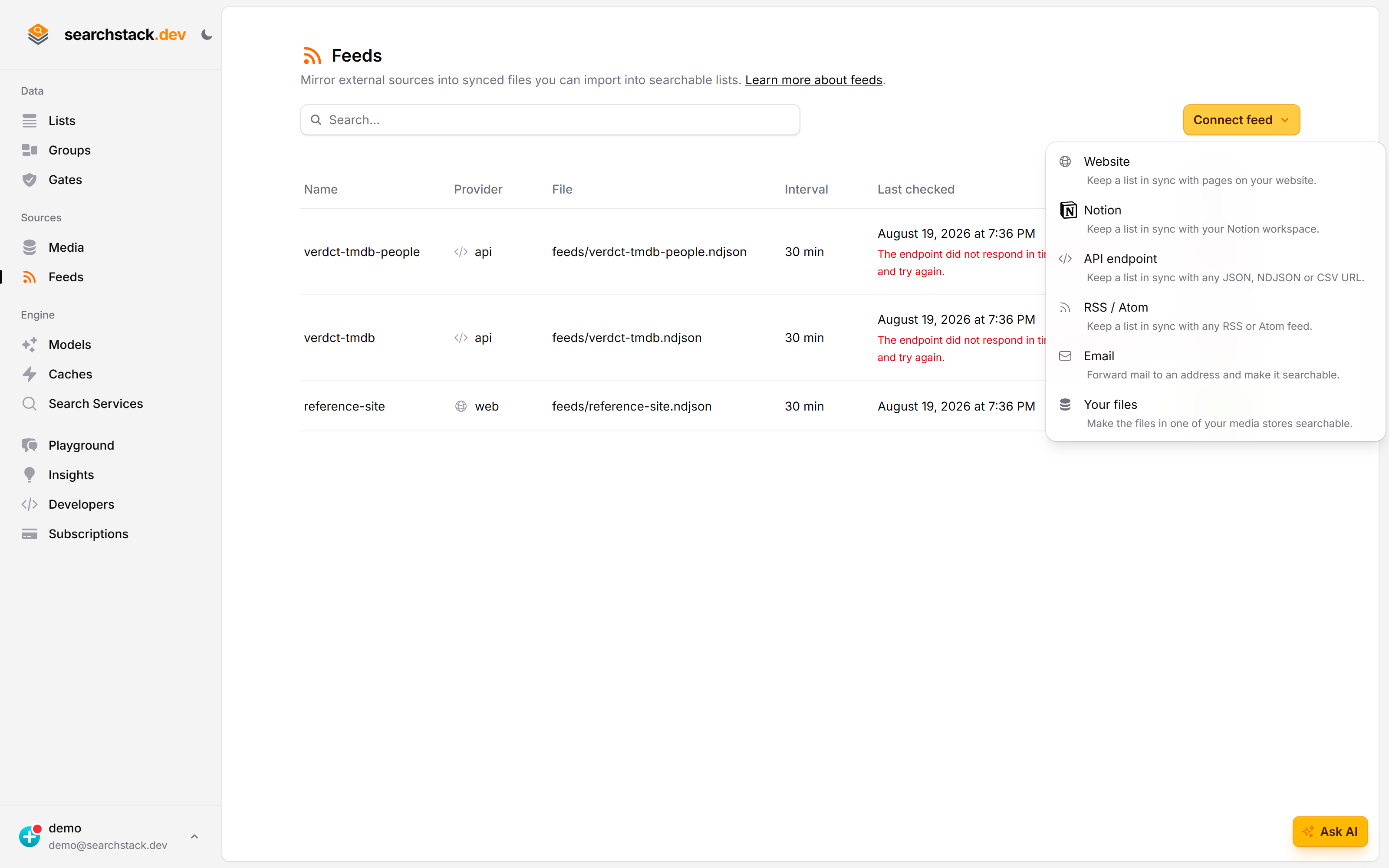
We never connect to your mailbox
The dialog says that first, because it is the thing worth knowing: there is no mailbox password and no OAuth. You name the domains you will forward from — anything else is rejected — and decide whether attachments are stored and searched by content. What happens next spells out the rest before you press anything: you get an address, nothing is imported until you press Verify, and if your provider sends a confirmation first, it is forwarded to you so you can follow it.
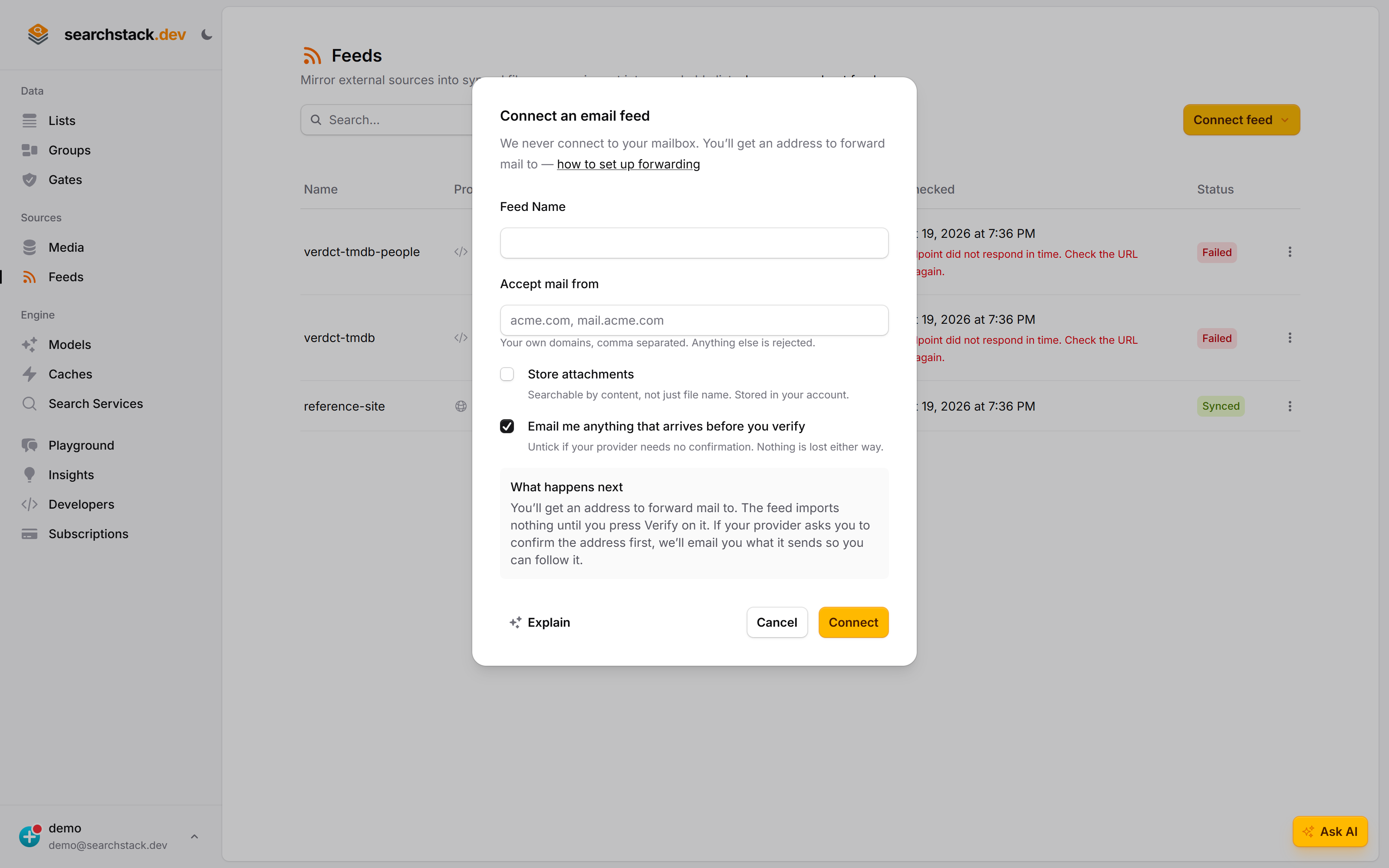
Connect an email feed
- Feeds (under Sources in the sidebar) → Connect feed → Email.
- Name it. No list is chosen here.
- Connect. The feed’s page shows the ingest address you forward to, like
acme.k7f3q9x2mp4arstv@ingest.searchstack.dev, and the synced file it writes,feeds/your-feed-name.sync. - Link that file to a list: open the list, import from your media store, choose the file with keep in sync. One file can feed several lists, each with its own fields and gates.
- Forward to the ingest address (see below).
Nothing is lost if you never link it — the mail collects in the file and appears when you do.
Setting up the forwarding rule
Where the rule lives depends on your provider.
| Provider | What to set |
|---|---|
| Microsoft 365 / Outlook | A mailbox rule with the action Redirect the message to, not Forward — redirect keeps the original sender, date and subject. Automatic forwarding outside the organisation is blocked by default, so an admin may need to permit it. |
| Gmail / Google Workspace | Settings → Forwarding and POP/IMAP → Add a forwarding address, then forward everything or add a filter. Google emails a confirmation first — for Gmail a link, then a Confirm button on its own page; we pass it on unless you asked us not to (see Confirming the address). Workspace admins can restrict forwarding to approved domains. |
| Anything else | Any provider that can forward or redirect, including a plain mail client rule. |
You can also Bcc the address on individual messages, or forward one by hand.
Confirming the address
A new feed redirects every email to the account owner and imports nothing. The feed page counts the emails held. Press Stop redirecting once your forwarding is set up; mail after that is imported.
- Providers usually want proof you control the mailbox — a link and a Confirm button, a code to type, sometimes a CAPTCHA. It arrives in the account ownerBy default we forward their message to the account owner’s email address; finish it wherever it leads, then press Verify.rsquo;s inbox with everything else; finish it wherever it leads, then press Stop redirecting.
- Not every provider asks. Untick Email me anything that arrives before you verify to keep us out of your inbox — what arrives is still kept, still readable through the API, and Stop redirecting works the same.
- While pending the address accepts mail from anyone, since the confirmation comes from the provider’s domain, not yours. Nothing is imported and it is thrown away after 24 hours; your listed domains protect the feed from verification onwards.
- Treat a forwarded confirmation like any unexpected email — check the sender before following anything in it.
- Verifying records who did it and when.
Who is allowed to send
An ingest address writes to your list, so two things protect it:
- Unguessable. Half the address is a random code created with the feed. If it ever leaks, re-create the feed for a new one.
- A sender gate on the list. On the list’s Gates page, create Hold back email from unknown senders and list the domains you accept. Mail from anyone else is added but hidden from search; switch a record’s Active on to let it through.
Mail is never bounced. A message refused for any reason other than an unknown address is dropped without a reply, so your forwarding mailbox gets no bounce notices.
Change the settings later
Feed page → Change… beside Email settings. Your address never changes, so forwarding rules already set up keep working.
- Accept incoming mail — untick to stop taking mail. Nothing is deleted, the address stays yours, and mail sent meanwhile is dropped; tick it again and it resumes. Use this if the address is being abused.
- Store attachments — see below.
- Email me anything that arrives before you verify — see Confirming the address.
What ends up in each record
One message is one record, not one thread. Each carries a thread_id to group by, so a twelve-message thread is twelve records sharing one thread_id.
- A long body is split, not truncated: later parts are named
Subject (cont. 2)and keep the message’s facets, so filters still find them.
| Record field | From | Role |
|---|---|---|
| name | the message’s Subject (or (no subject)) | the record’s display name |
body | the message text, with quoted history removed | searchable & embedded (meaning-based search) |
thread_id | the conversation the message belongs to | facet |
from_address, from_name | the original sender — not whoever forwarded it | facet |
to_addresses | To and Cc, combined into one value | searchable |
sent_utc | the message’s own Date, in UTC | facet (filter & sort) |
has_attachments | whether a real document was attached (a signature logo doesn't count) | facet |
attachment_names | the attached file names, comma separated | searchable |
received_utc | when we received it | facet |
- Messages over 25 MB are bounced back to the sender, attachments included.
- The message’s own
Message-IDis its identity, so forwarding it twice — or forwarding it now and importing it from an export later — updates one record instead of duplicating. - Quoted history is removed, each message cut at the reply marker (“On <date>, <someone> wrote:”, “-----Original Message-----”, and the other common ones). An unusual mail client’s format may leave some behind.
- Attachment contents are searchable only if you ask. By default we keep the file names — enough for “that email with the contract”, not a phrase inside the PDF.
- Store attachments also saves each file into the feed’s media store and makes its contents searchable. Off by default; attachments live in your own account. Tick it at connect time or later under Email settings — it applies to mail and imported history from that point on, never to what arrived earlier.
Import your history
Older mail — and sent mail, which no rule can forward — comes in by importing an export.
- Export the part you want. Google Takeout can export a single label; in Outlook, export one folder. Every message becomes a record against your plan’s limit.
- Put the
.mboxin your media store. Not a browser upload: an export can be gigabytes, so we read it from your store a little at a time. Unzip the Takeout archive first — we need the.mbox, not the.zip. - Feed menu → Import history…, pick the list the archive goes into, and give the path, e.g.
backfill/takeout.mbox. A one-off import into the list you name here, not into the feed’s file. - Check, then import. The first press only counts: it reports how many messages the file holds and writes nothing. If it fits your plan, press again to import; if not, you are told first.
- Importing the same file twice is safe — messages already in the list are updated, not duplicated.
- A message we can’t read is skipped and counted rather than failing the import; the count is reported at the end.
- Very large archives — hundreds of thousands of messages — aren’t supported in this version. Export a label or a date range.
Three things forwarding cannot do
- Sent mail isn’t included. Mail rules run on delivery, and nothing delivers your own outgoing mail to you. Bcc the ingest address when you send.
- Nothing before today. Forwarding applies only to mail arriving after you set the rule.
- Deletions don’t reach us. Deleting a message in your mailbox doesn’t remove the record. Delete the record from the list if you want it gone.