Fields
One piece of a record — a movie’s plot, a product’s price, a shop’s location.
- Every record in a list has the same fields; each has a type that decides what search may do with it.
- Four types, mixed as a list needs:
| You want to… | Use a | Example |
|---|---|---|
| Find records by typing words | Searchable field | title, plot, bio |
| Filter, count or sort by an exact value | Facet field | year, brand, price |
| Search by distance from a point | Coordinates field | a shop’s location |
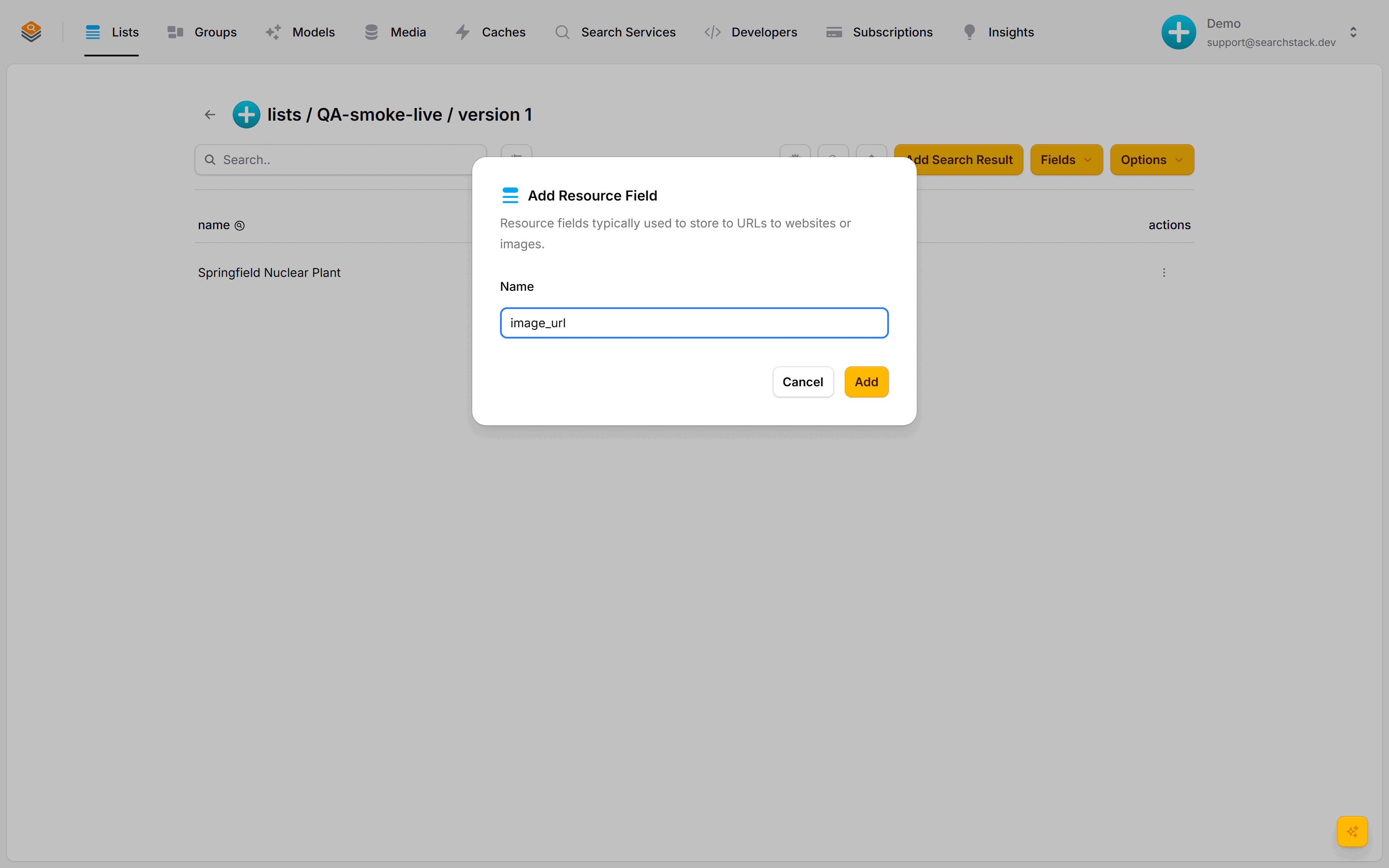
| Return a value your page draws but never searches | Resource field | image_url, a deep link |
Fields are the shape of a record
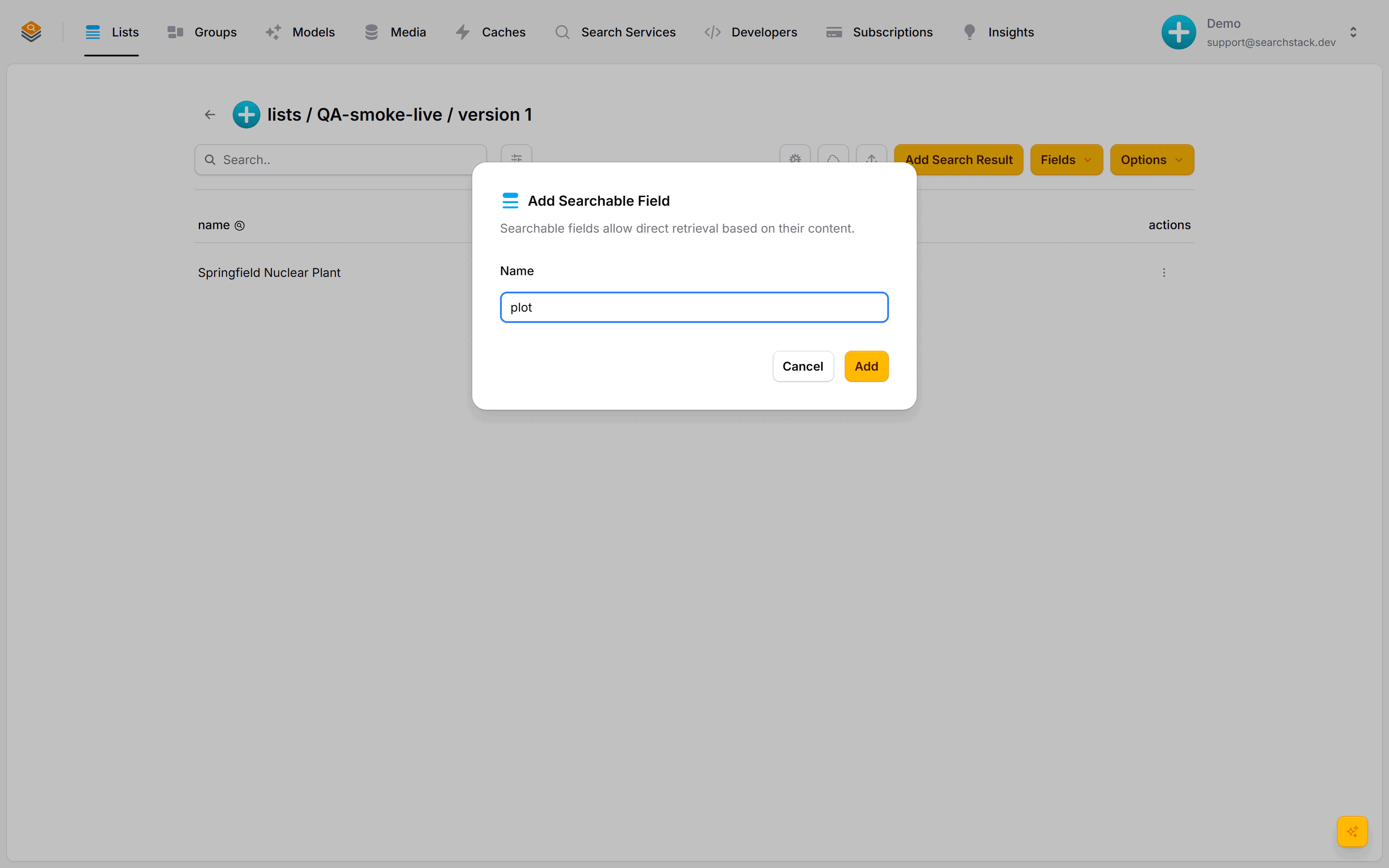
Open any list and the Fields menu offers four types. The type you pick decides what search can do with that value — search it, filter on it, sort by distance, or just hand it back to your page. You mix as many as you like on one list.
Searchable — full text
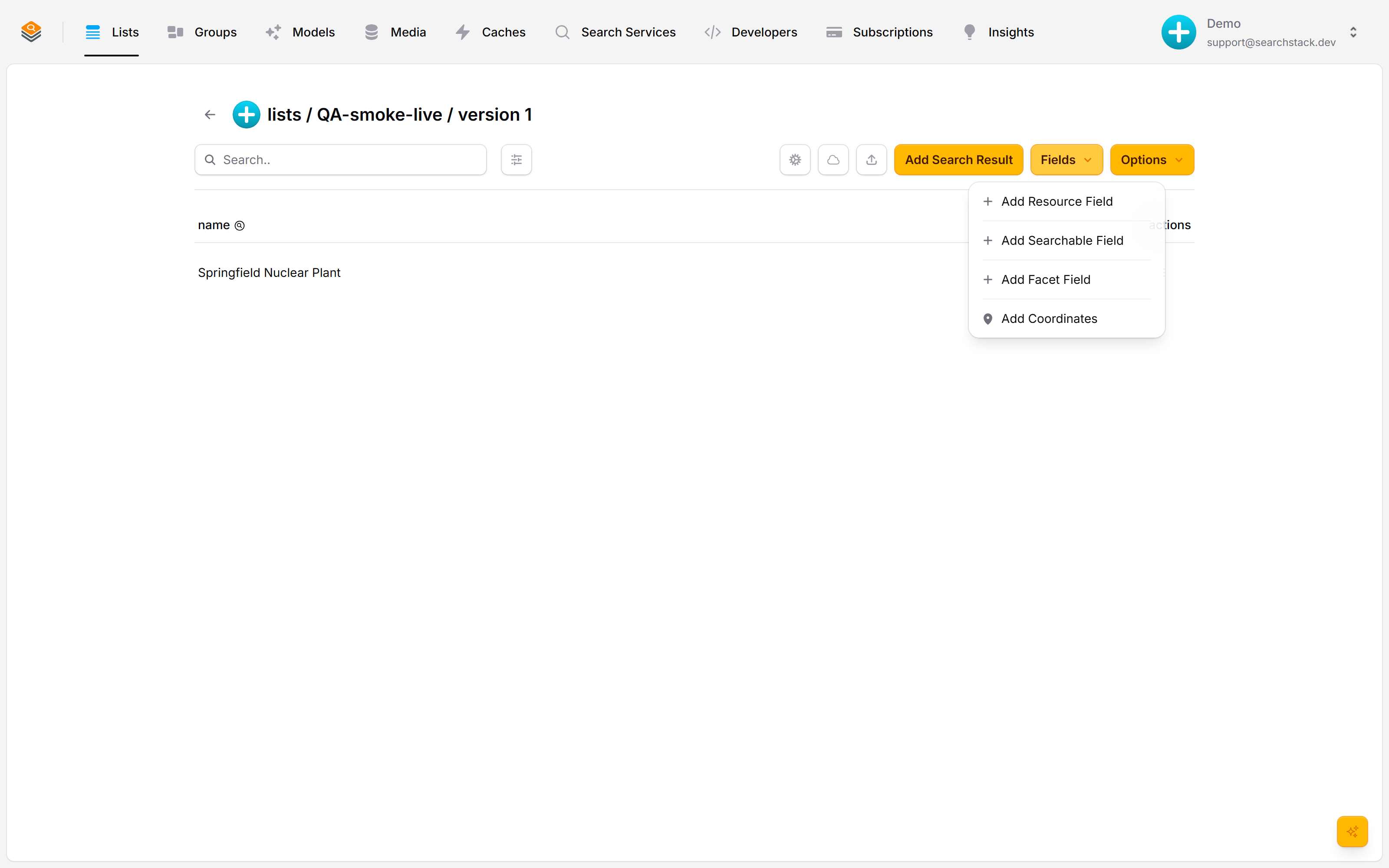
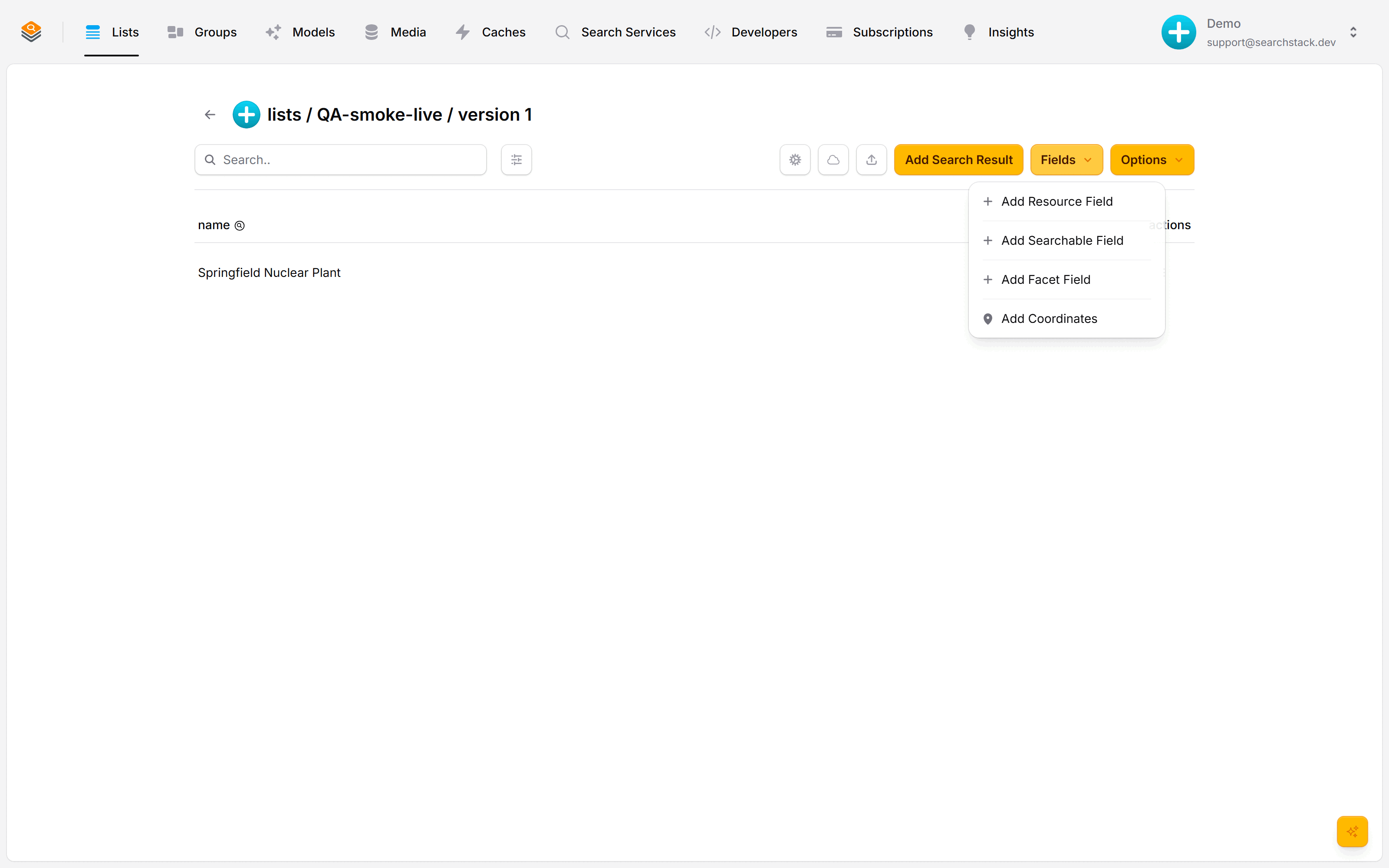
A searchable field is full-text: its words are matched, ranked and typo-tolerant, so a query finds it. Give a plot, description or bio this type. Every list already has a searchable name field to start from.
Facet — filter, count, sort
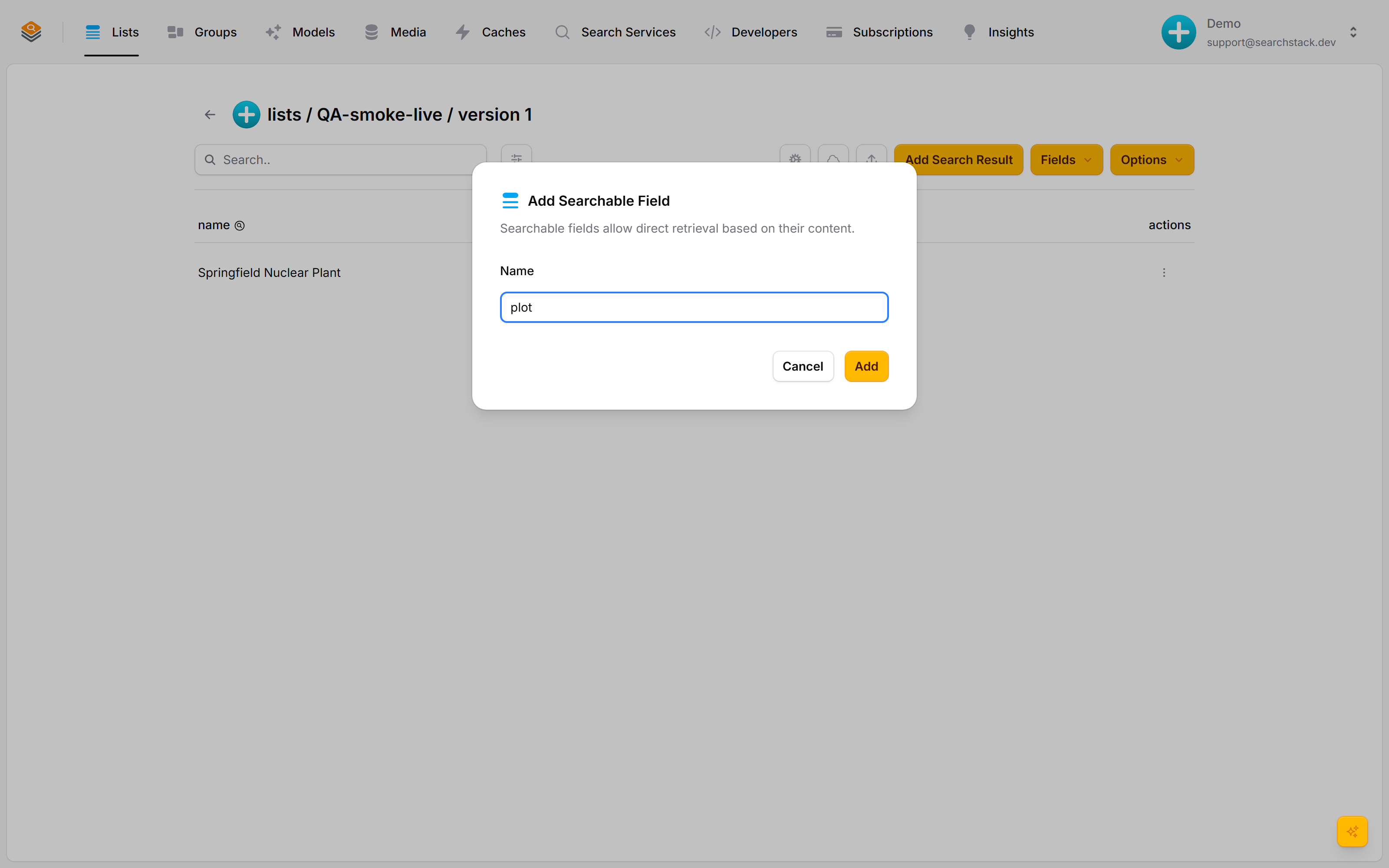
A facet is an exact value you filter, count or sort by — year, brand, price, in-stock. Pick a type (String, Number, Date or Boolean) so year gt 2000 compares numbers, not text. Facets are what build a “Brand: Sony (12)” sidebar.
Coordinates — radius search
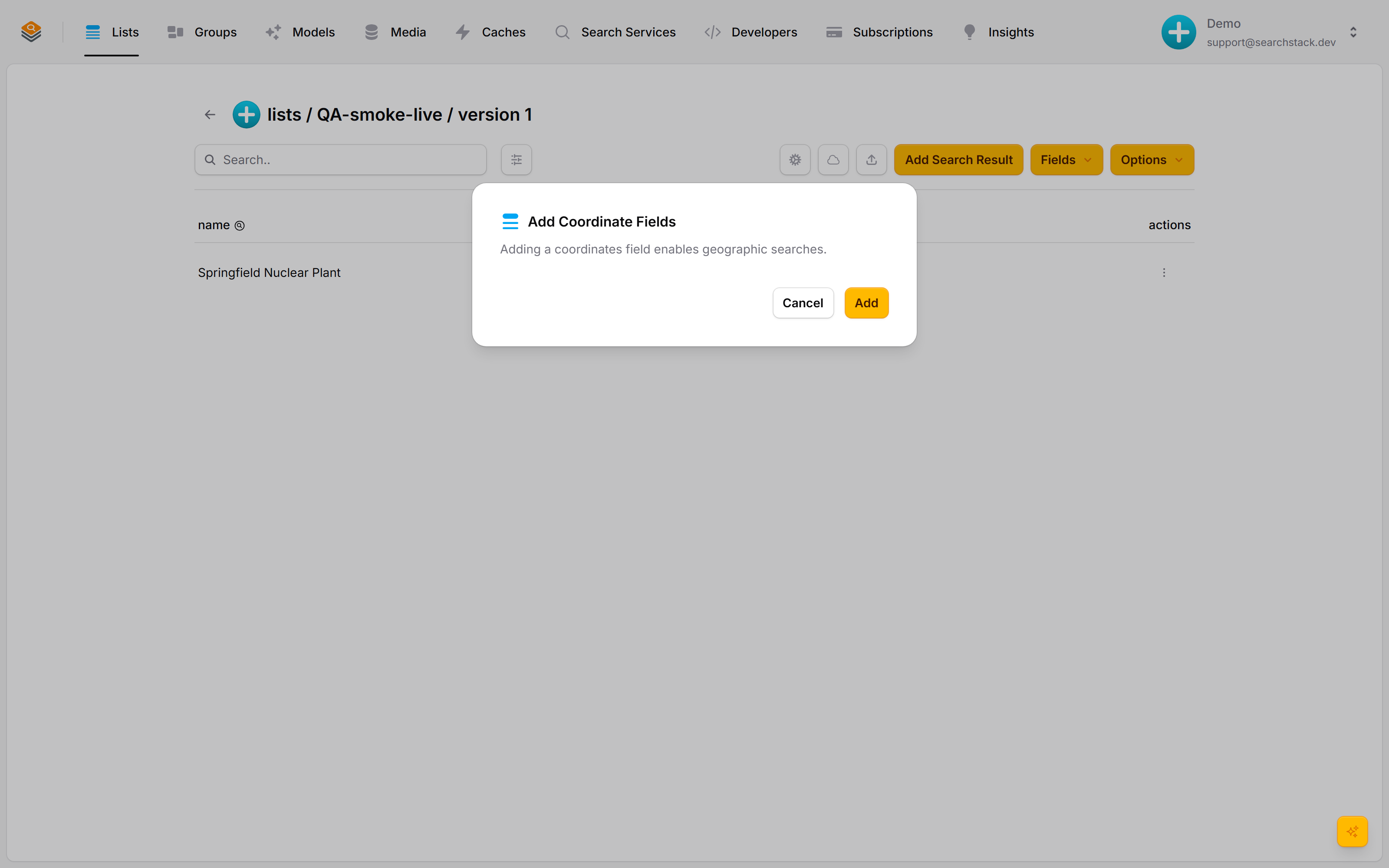
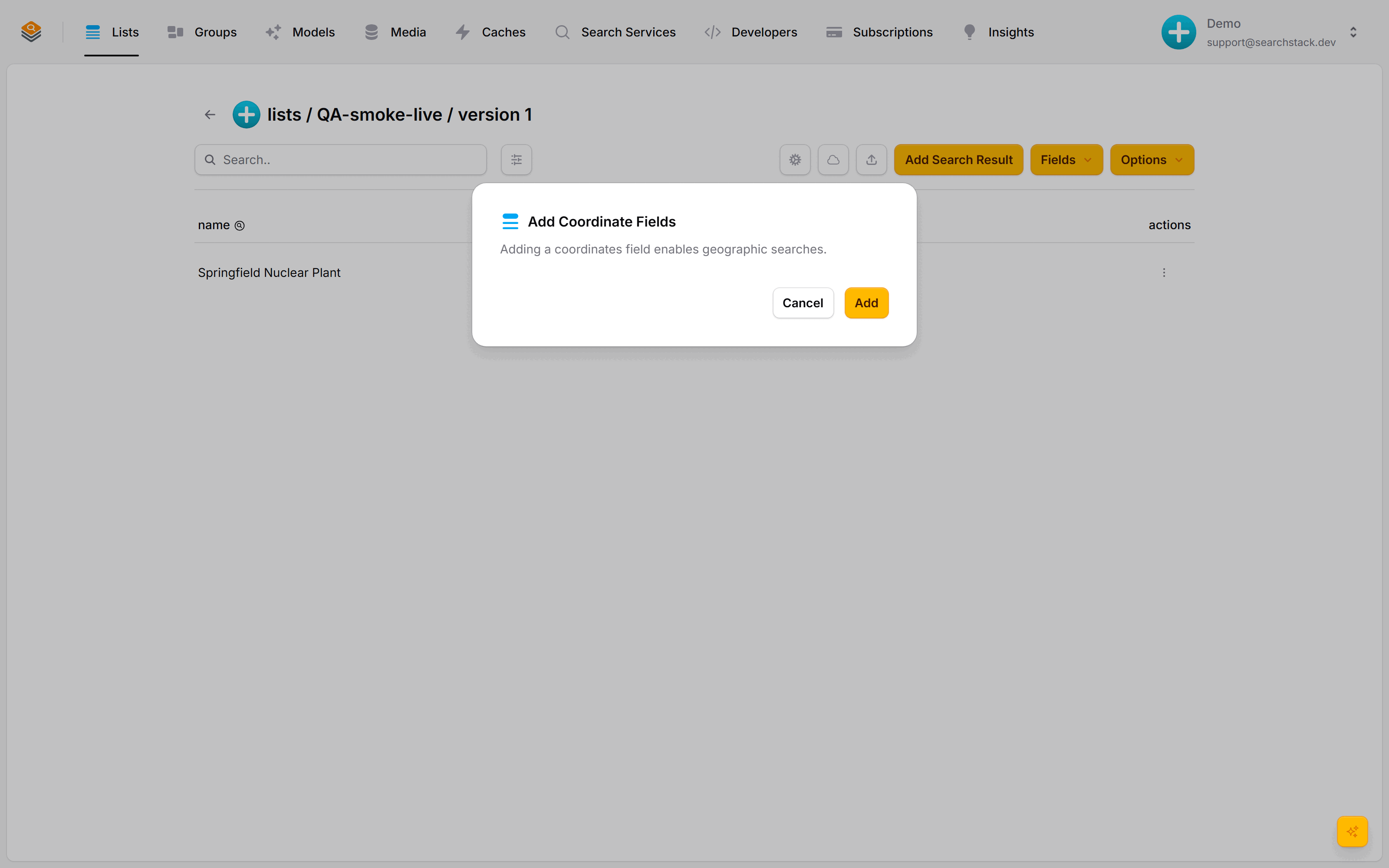
A coordinates field stores a latitude/longitude pair and switches on radius search — “within 100 miles of here”. There is nothing to name: one click adds it, and each result comes back stamped with its distance.
Resource — carried, never searched
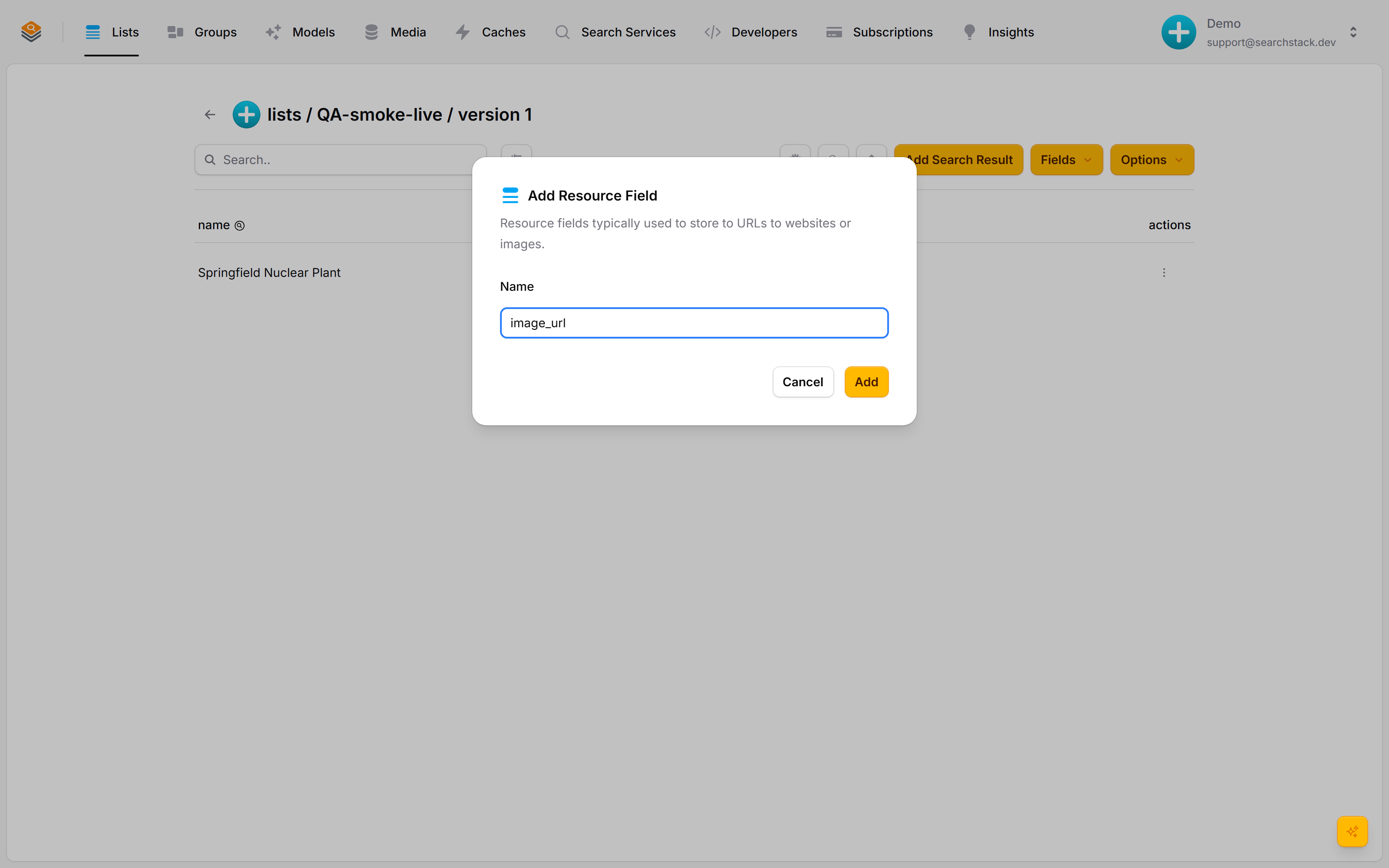
A resource field is carried along but never searched — an image_url, a deep link, a thumbnail. Your page needs it to draw the result; search never matches against it, so it adds nothing to index size. That is the whole set: search it, filter it, locate it, or just return it.
Auto-plays · use Back / Next to step through at your own pace.
Add a field
Open a list → Fields menu, one entry per type, as many as you like. Existing records are updated in search automatically.
Fields an import creates for you
- An import with Create Fields on picks a type per column, lists what it will create with the reason, and lets you change it first — see Imports.
- A value with a space in it, in a column whose values rarely repeat, is read as searchable text. One address per postcode is that pattern: searchable, not a facet, so not filterable. The same postcodes across many addresses give a facet.
- A type cannot be changed once the field exists. Delete the field and import the file again.
On a list connected to a file, the file owns the shape
While the connection has Create missing fields on, adding, removing and renaming fields is refused: the next automatic import would put them back and your change would simply be gone.
- Drop a column… under Fields removes the field and declines the column, so it stays gone.
- The identity column cannot be dropped — every record would be re-keyed on the next import.
- Turn Create missing fields off on the connection to own the schema yourself: the import then only fills fields the list already has.
Searchable fields: the ones a query matches
Part of the text index: content is split into words, put into a standard form (lower-case, say) and scored.
- Relevance ranked — closer matches, and matches in more important fields, score higher.
- Prefix matching —
incepmatches Inception; this is what makes suggestions appear as the user types. - Typo tolerance —
kenaustill finds Keanu. - Cross-field — one search is checked against every searchable field at once; no field to pick per search.
- Every list starts with a searchable name field. Good extras:
title,description,plot,bio,synopsis— anything a person types words from.
Facet fields: the ones you filter and count
A value matched exactly and whole — category, brand, year, price, in_stock, or a colour facet holding red, blue and green.
- Not in the text index; no part in ranking.
- Powers the
filteron a search, and counts build a filter sidebar — “Brand: Sony (12), Brand: Apple (8)”. - Two independent settings.
cardinalityis fixed once values are saved;field_typecan be changed. Every combination is legal — a set of sizes is Number, Many.
| Question | Setting | Values | Decides |
|---|---|---|---|
| What kind of value? | field_type | String (default), Number, Date, Boolean | Comparisons of the right kind: year gt 2000 compares numbers, in_stock eq true true/false |
| How many per record? | cardinality | Single (default), Many | Whether the field can be sorted on |
Fields that hold more than one value
A film’s cast, an article’s tags, a product’s sizes: cardinality Many, sent as an array.
{ "name": "cast", "value": ["Anne Hathaway", "Meryl Streep", "Emily Blunt"] }- Matches on any of its values:
filter=cast eq 'Anne Hathaway'returns exactly her films, with a realtotal_countto show and page to the end. - Two at once:
cast eq 'Anne Hathaway' and cast eq 'Meryl Streep'. The values list for a sidebar like any other facet. nemeans “holds some other value”, not “doesn’t hold this one”: a film starring both matchescast ne 'Anne Hathaway'. A record with no cast matches neithereqnorne.- No sorting or ranges on a Many field — four values give nothing to order by. Add a Single field to sort on; a Single Number sorts fine.
- An array sent to a Single field is refused, not cut to the first item.
Reading a facet back: always an array
Write what is natural — one value for Single, an array for Many. Every facet reads back from a search result as an array:
{ "name": "cast",  "value": ["Anne Hathaway", "Meryl Streep"] }
{ "name": "year",  "value": [2006] }
{ "name": "genre", "value": [] }yearholds one value and still arrives as[2006]; no value is[], nevernull.- Values come back as the facet’s type, never guessed from their look: a String postcode is
["0800"], a Number one[800]. Facet values (the sidebar list) follow the same rule. - The shape follows the list’s fields, not the record, so a facet is never single on one result and an array on the next.
- Read the facet’s
cardinalityfrom the list to know whether the first item is the whole story. - Searchable fields and resources hold one piece of text and come back plain.
Both client libraries have readers, so your code never counts values:
hit.Text("colour")     // "red"            — one value, as itself
hit.Text("genre")      // "Comedy, Drama"  — several, joined
hit.Values("genre")    // ["Comedy", "Drama"]
hit.Number("price")    // 19.99
fieldText(hit, "colour"); // "red"
fieldValues(hit, "genre"); // ["Comedy", "Drama"]
fieldNumber(hit, "price"); // 19.99- Missing, null or empty reads as nothing rather than erroring; a wrong-case name still finds its field.
- The JavaScript readers also take a suggestion — flat, each field beside
name— which is what an autocomplete row template is handed.
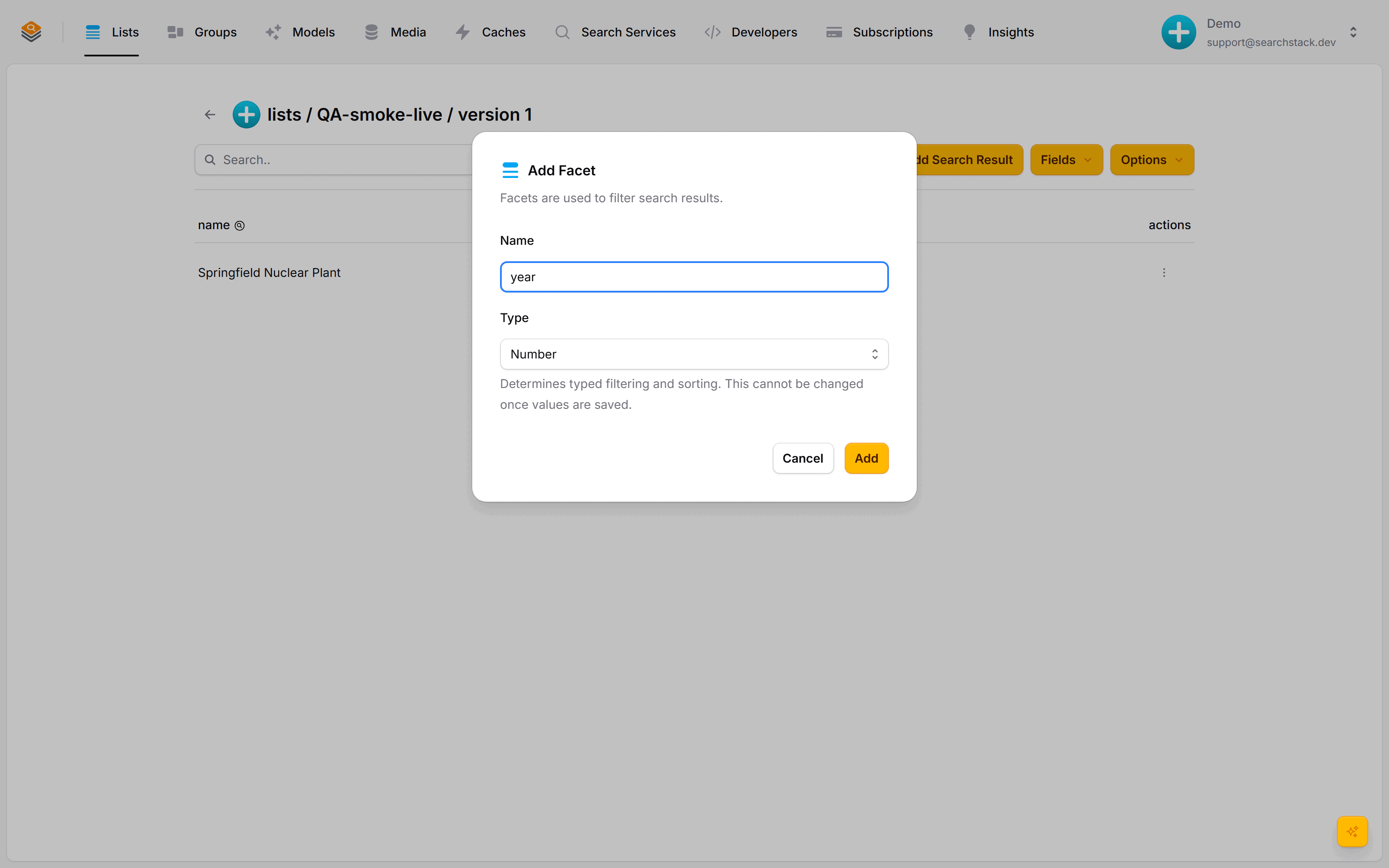
Changing a facet’s type
PUT /facet/{account}/{list}/{facet}/type with { "field_type": "String" } (MCP facet_change_type). Needs facet:rename.
- No re-import. Each record keeps the value it was written with, and the facet’s sort/filter column is rebuilt from it in the background — a postcode imported as Number 800 is
"0800"again. - Creates a new list version. Results and facet values use the new type at once; sort and range filters on the facet miss records until the rebuild reaches them — minutes for thousands of records, hours for millions.
- A group pinned to the old list version keeps the old type until the group is bumped.
- A value that does not parse as the new type stays stored and returned, but cannot be sorted or range-filtered.
- A facet created with the right type needs none of this:
field_typeon create, orfield_typeson an import.
Filtering on facets
Narrows a search to records whose facet values match: exact, server-side, freely combined with the words typed — “matrix, but only year gt 2000” is one request. A small part of the OData filter language, as used by Azure AI Search.
| Operator | Means | Example |
|---|---|---|
eq / ne | equal / not equal | city eq 'London' |
gt / ge | greater than / or equal | price ge 100 |
lt / le | less than / or equal | age lt 90 |
and / or / not | combine conditions | year ge 1990 and year lt 2000 |
Text values go in single quotes ('London'); numbers and true/false as they are.
| Goal | Filter expression |
|---|---|
| Records from 2013 | year eq 2013 |
| Records from the 1990s | year ge 1990 and year lt 2000 |
| London or Paris shops | city eq 'London' or city eq 'Paris' |
| In stock, not on clearance | in_stock eq true and not (status eq 'clearance') |
Only facet fields can appear in a filter — not searchable or resource fields. URL-encode the expression when building requests by hand (spaces become %20). A filter can be at most 16 KB and 200 conditions.
Coordinates fields: search by distance
Stores a latitude,longitude pair per record and switches on radius search for the list. Nothing to name — one click adds it.
- Never searched or filtered directly: the
radiusoption on a search reads it, keeping results within a set distance of a point (miles or kilometres, per the list’s settings). - Each result carries a worked-out
distance— “23 miles away” with no extra maths. - Combines with the rest: “coffee shops matching espresso, within 2 km, rated 4+” is one request. Try it on real data in the Geographical Search tutorial.
- Imports find your coordinates for you. A
lat/lngpair — orlon,long,latitude/longitude, or an Algolia-style_geoloc— becomes the record’s position and switches radius search on, with no renaming. - Both halves must be present and real numbers in range, so a
longcolumn of ordinary text is left alone. The confirm step names the fields it took the location from.
Resource fields: carried, not matched as text
Carried alongside a record, out of both the text index and the filters: the value (a URL, a short web name, an ID) is never matched against what a visitor types. For image URLs, deep links, thumbnails, external IDs.
<img src="${escapeHtml(data.image_url)}" alt="${escapeHtml(data.name)}" />- When the list’s embedding model can read files, the file a resource points at joins the search, even though the value never word-matches.
- Picture URLs power image search and look-alike matching; PDF links make their contents findable — Searching covers how document matches are scored.